Affiliate Analytics
Affiliate Analytics
This article will teach you how to navigate the Analytics tab located in the Affiliate Center on Desktop. The Analytics tab is a feature in the Affiliate Center that is designed to help you track the progress and data from your Affiliate Collaborations (Open and Target).The Insights tab currently has 4 analytics modules:
- Product
- Collaboration
- Creator
- Video

Product Analytics
Navigate to: Seller Center > Affiliate Center > Product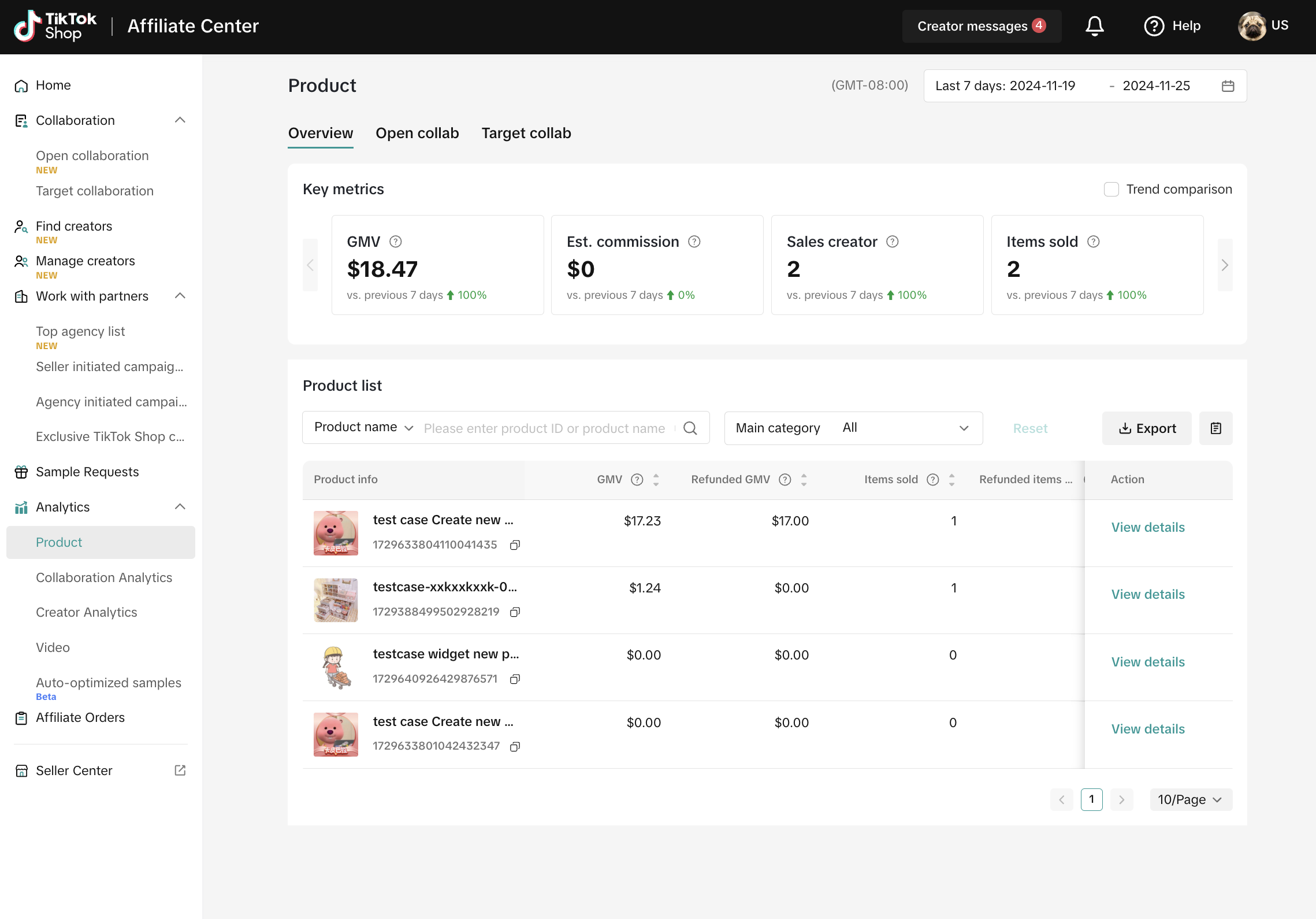
- Overview: This represents the total product performance for all products you have registered in both your Open and Target collaborations
- Open products: This represents the product performance from products within Open collaboration only
- Target products: This represents the product performance from products within Target collaboration only

1.1 Core Data
Upon selecting your preferred data source, the data will be reflected in the Core Data section below. Check out the metric definitions here:- GMV - Total Revenue without Refunded Orders
- Est. Commission - Seller's estimated commission that will be paid to Affiliate Creators. This entails estimated commission for all orders, including Paid, Unpaid and Refunded Orders
- Sales Creator - Total number of Creators that generated GMV. Refunded orders are excluded from the GMV formula
- Items Sold - Total number of items sold, not including refunded orders
- Sales Products - Total number of products that generated GMV, including refunded orders
- Refund Item sold - Total number of items that were refunded in the time period
- Refund Revenue - Total refunded revenue within the selected time period
1.2 Product List
The Product List houses all the Products you have added in all of your Affiliate Collaborations. Here, you can search by product name or filter by product category to filter down to a particular product.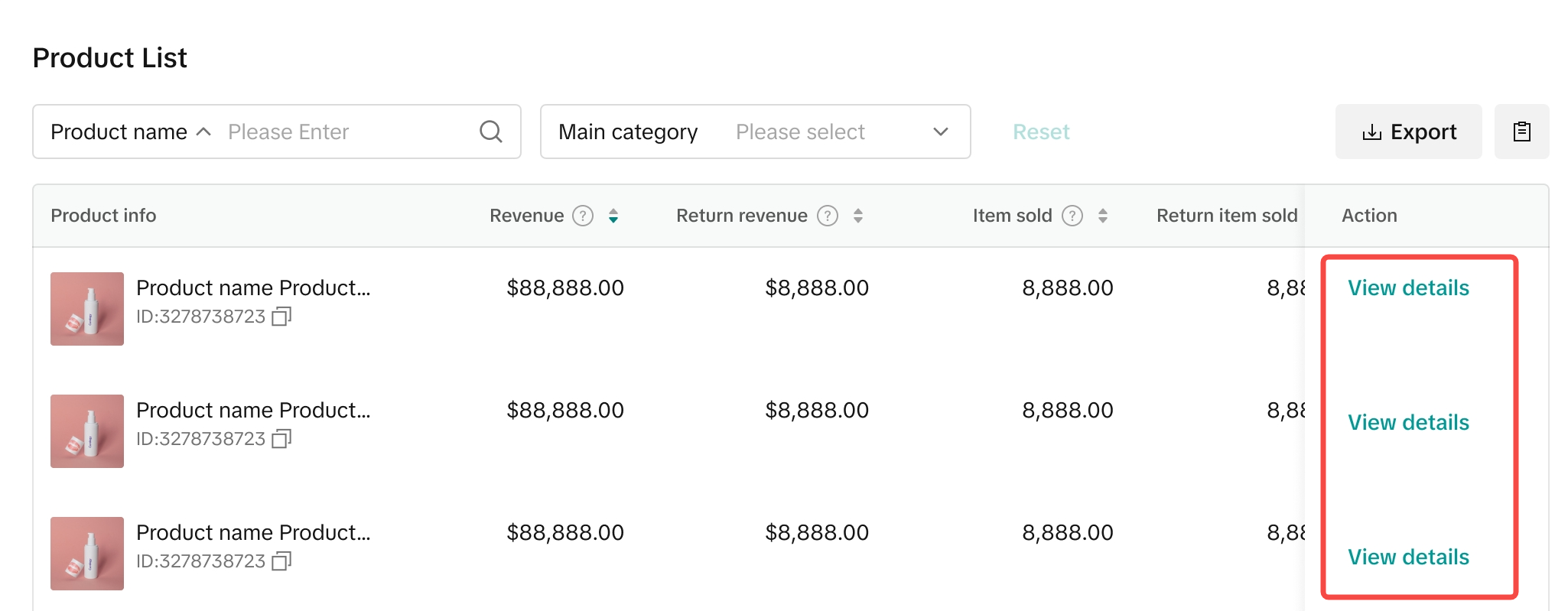
- Product Info - The Product's name and Product ID
- Sample number - The number of samples sent for an item in the selected time period
- Sales Creator - The total number of Creators that generated GMV. Clicking on this number will redirect you to the Product details page. Read more about Product details below.
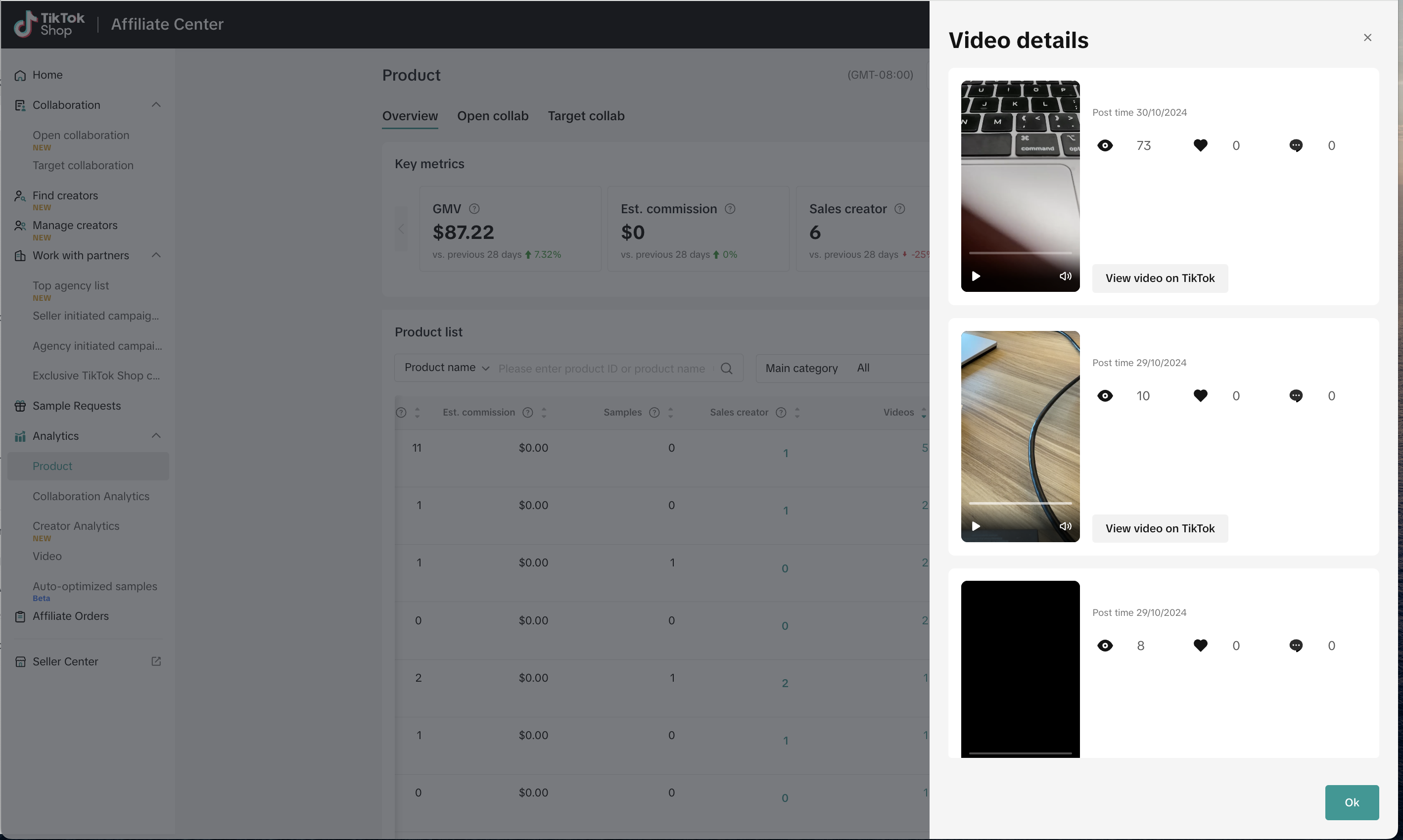
- Video number - The number of videos created for the specific product. Clicking on this number will prompt a side pop-up that shows all the videos created by creators for the product:
- Live number - number of LIVE Sessions created that promoted the specific product
1.3 Product Detail
At the Product List, click on "View details" to open the Product Details page.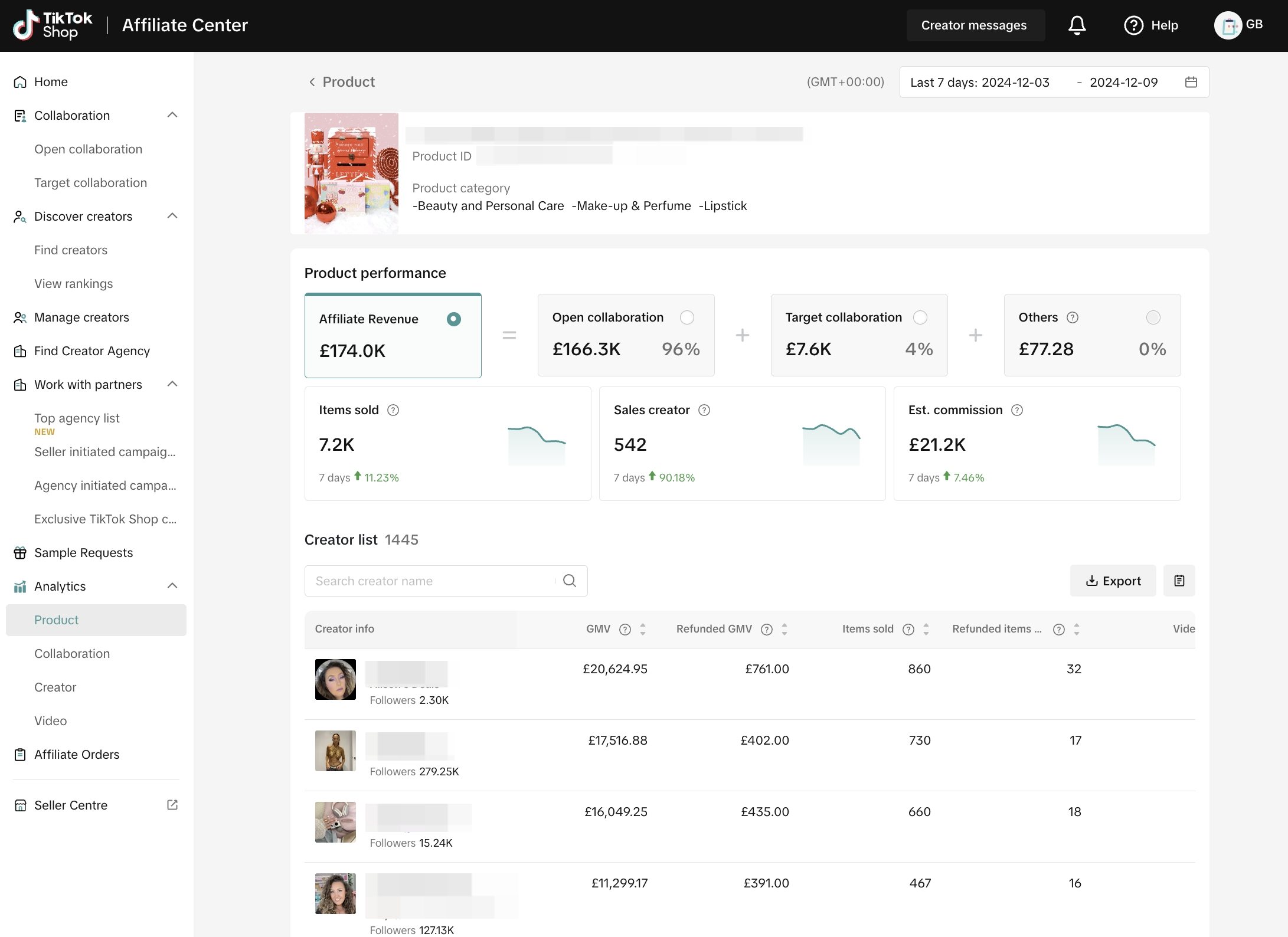 | Product DetailYou will see the product ID and product category.Product PerformanceThe total Affiliate Revenue within the chosen date range is calculated. Affiliate Revenue is the sum of revenue from Open collaboration + Target collaboration + Others.You can click on Open collaboration or Target collaboration to refresh the Creator list shown below relevant to the respective collaboration type. Creator ListThe Creator list shown reflects the performance of each Creator that used this product in Open collaboration or Target collaboration. You'll be able to review the Revenue, Item Sold, Est. Commission, and other content-related metrics such as Live number, Video number and more, by individual creator level. |
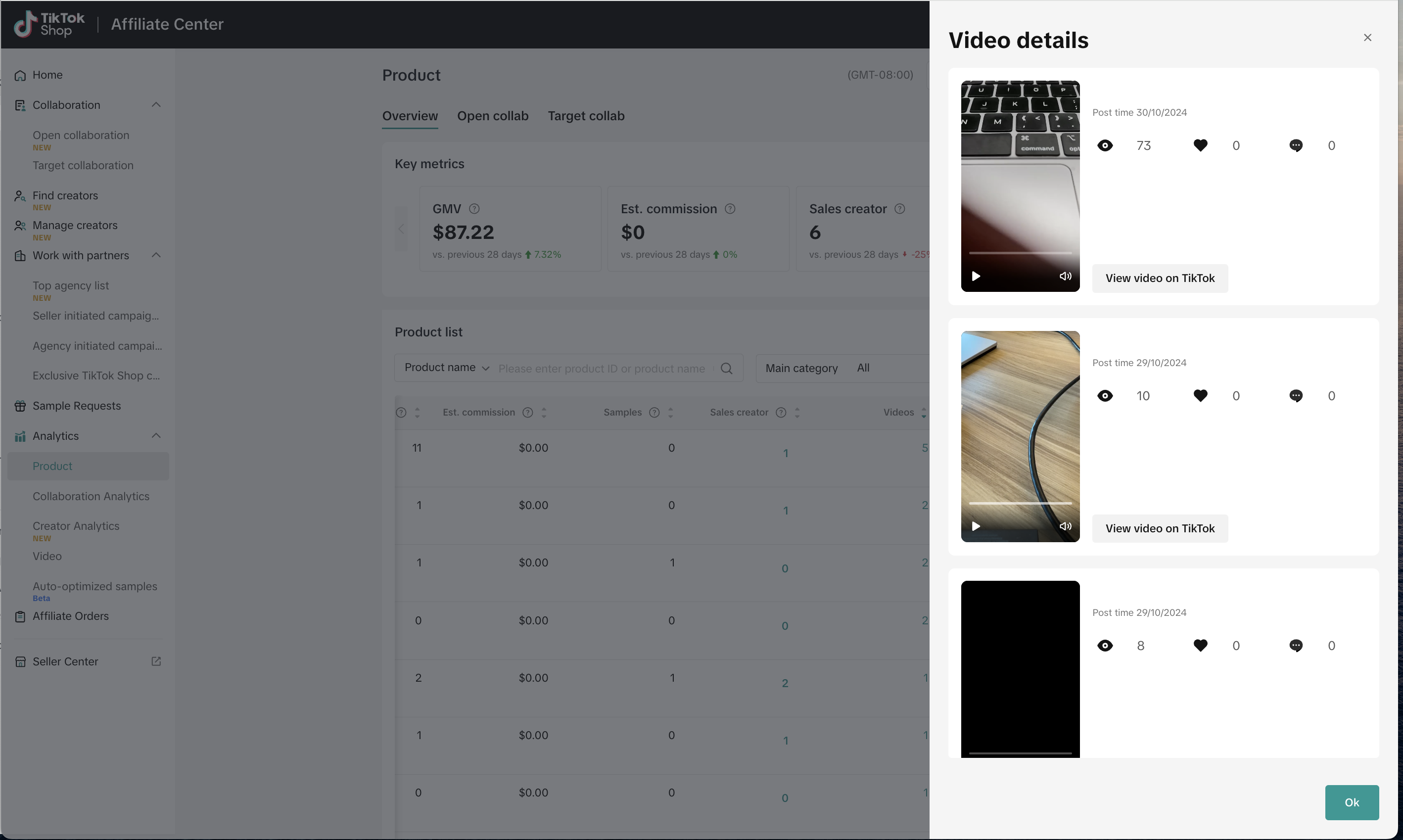 | Upon clicking on the video number, a side pop-up will appear, showing all the videos created by creators. |

Collaboration Analytics
Navigate to: Seller Center > Affiliate Center > Collaboration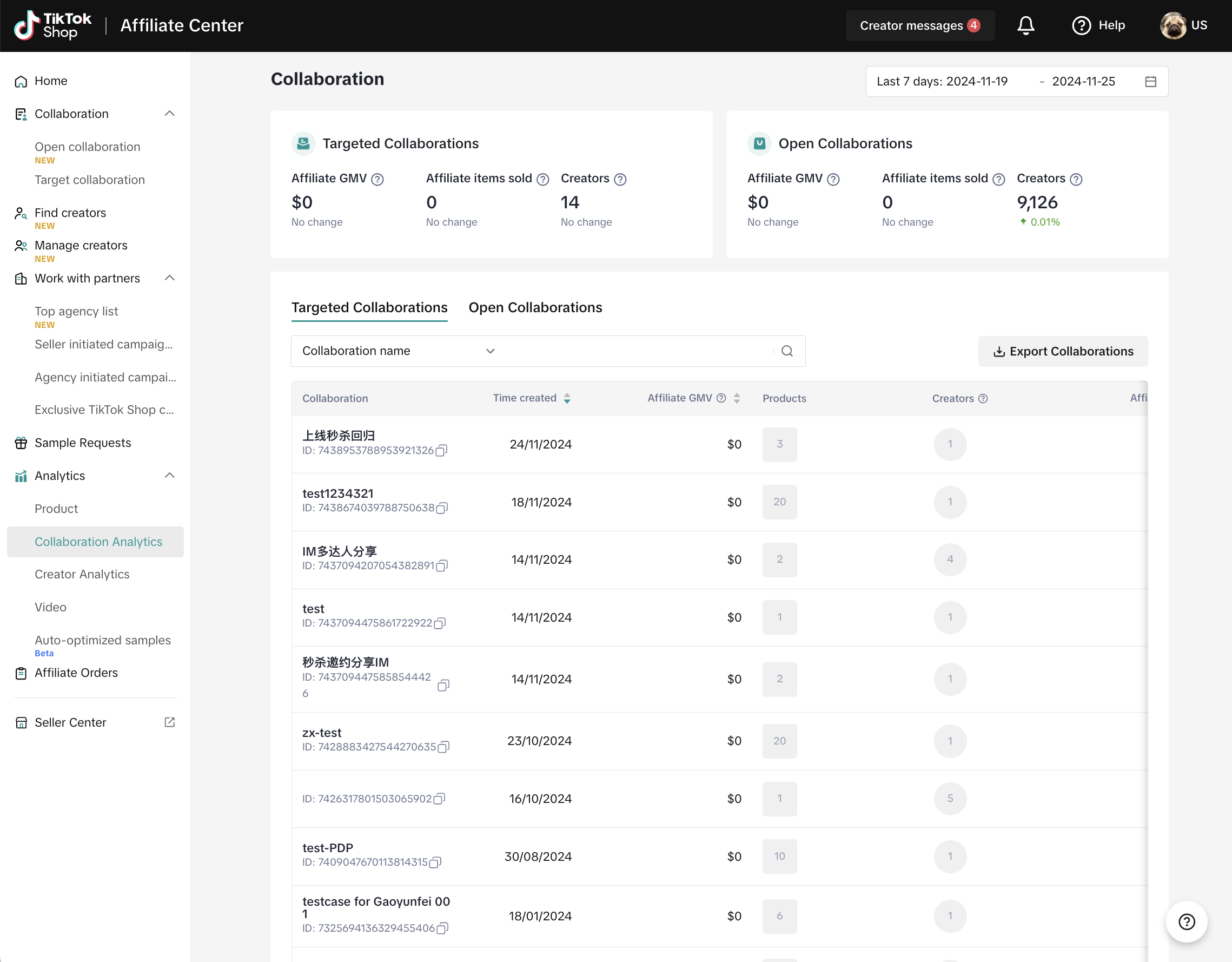
At the top, you will find an overview of the Revenue, Items Sold, and Creators for your Targeted and Open collaboration based on the selected time period. Hover over the ? logo for definitions of the metrics.
Look for a specific collaboration by putting the collaboration name or ID in the search bar. Then, you can view each collaboration's performance metrics:
- Time created
- Affiliate GMV
- Products
- Creators
- Affiliate items sold
- Orders

Creator Analytics
Navigate to: Seller Center > Affiliate Center > CreatorCreators Analytics helps you in tracking the performance of creators you are partnering with, analyzing their performance, traffic, content, and more. With it, you will get a holistic overview of your creators and how you can cater their content to your shop's needs.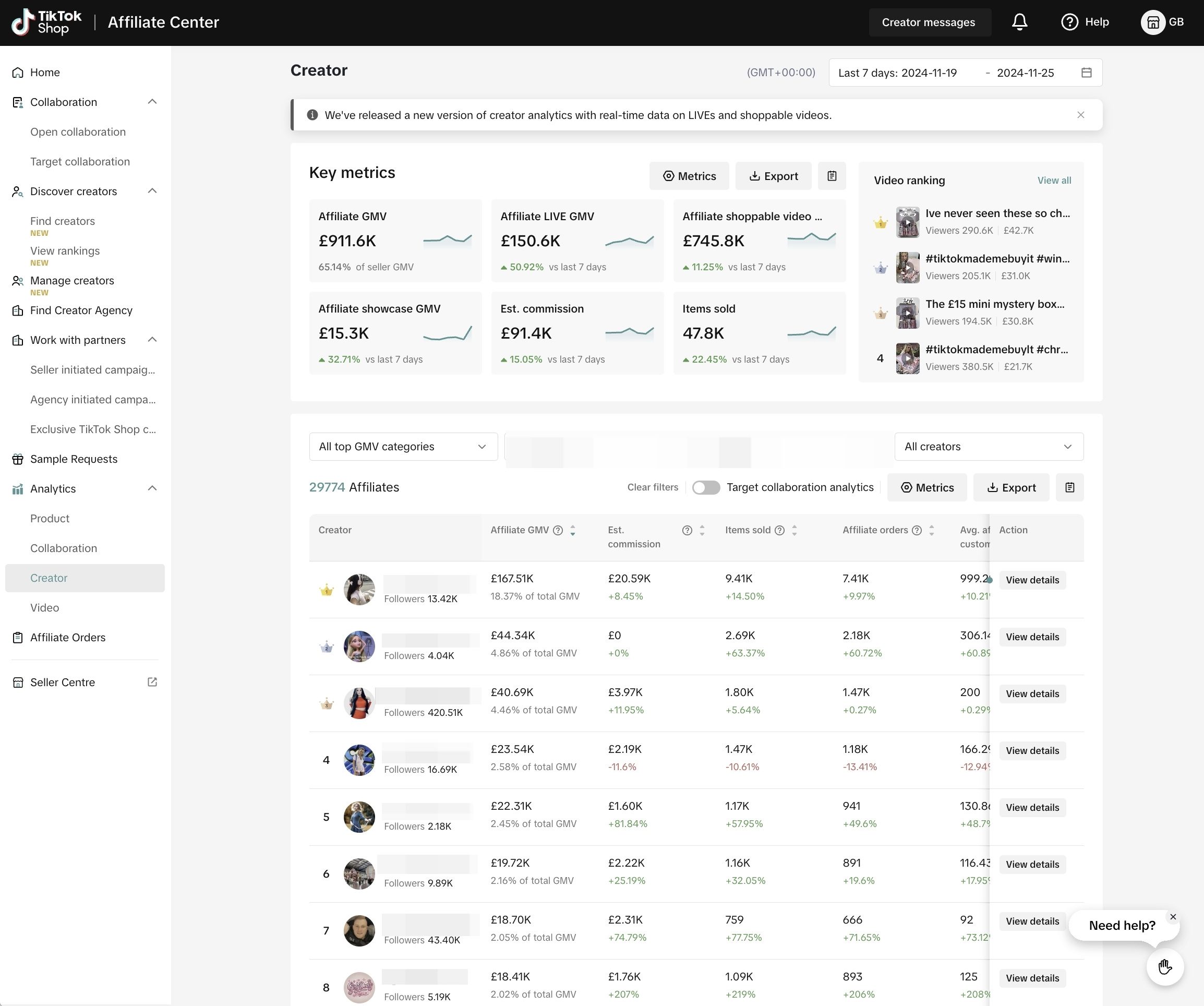
3.1 Core data
Here, you can get a birds' eye view of the overall performance of all Creators you have partnered up with in both Open and Target collaborations and check the top video rankings for the present day. At Today's video ranking, click on View all to open the Video Analytics page where you can view the full list of video performances.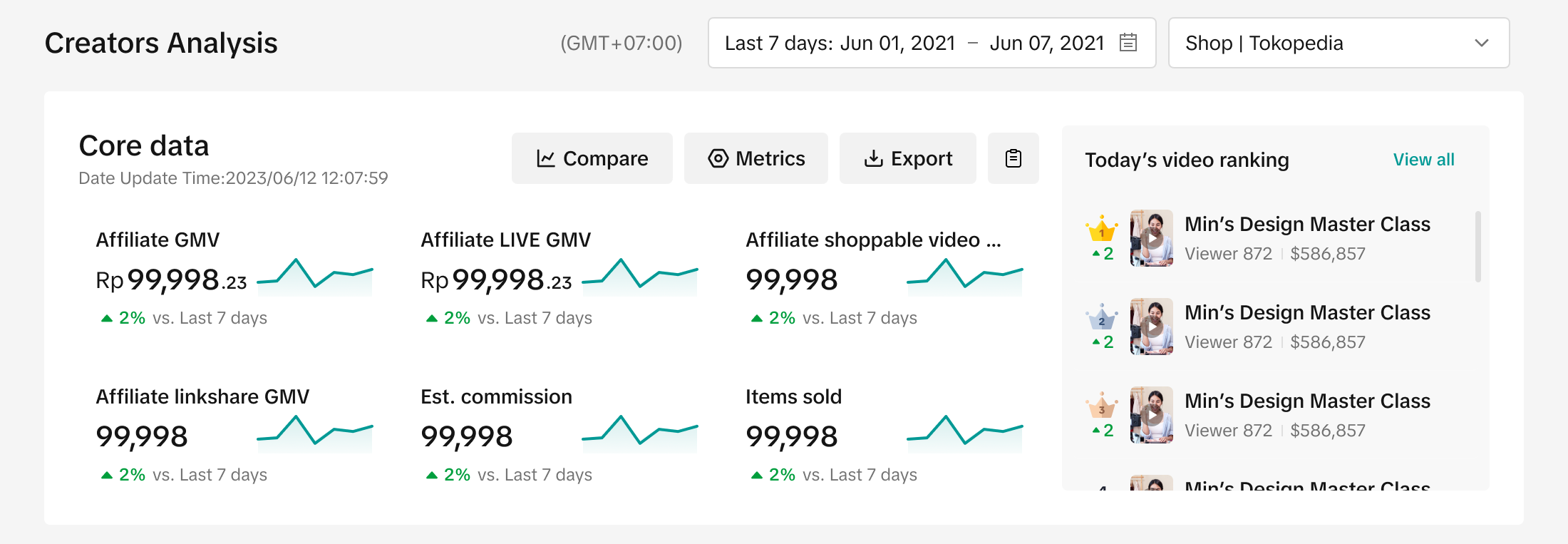
3.2 Creator List
Zoom into each creator's performance where you can sort the metrics on the table to show top creators by highest Revenue, Item Sold, Affiliate Link GMV, or more.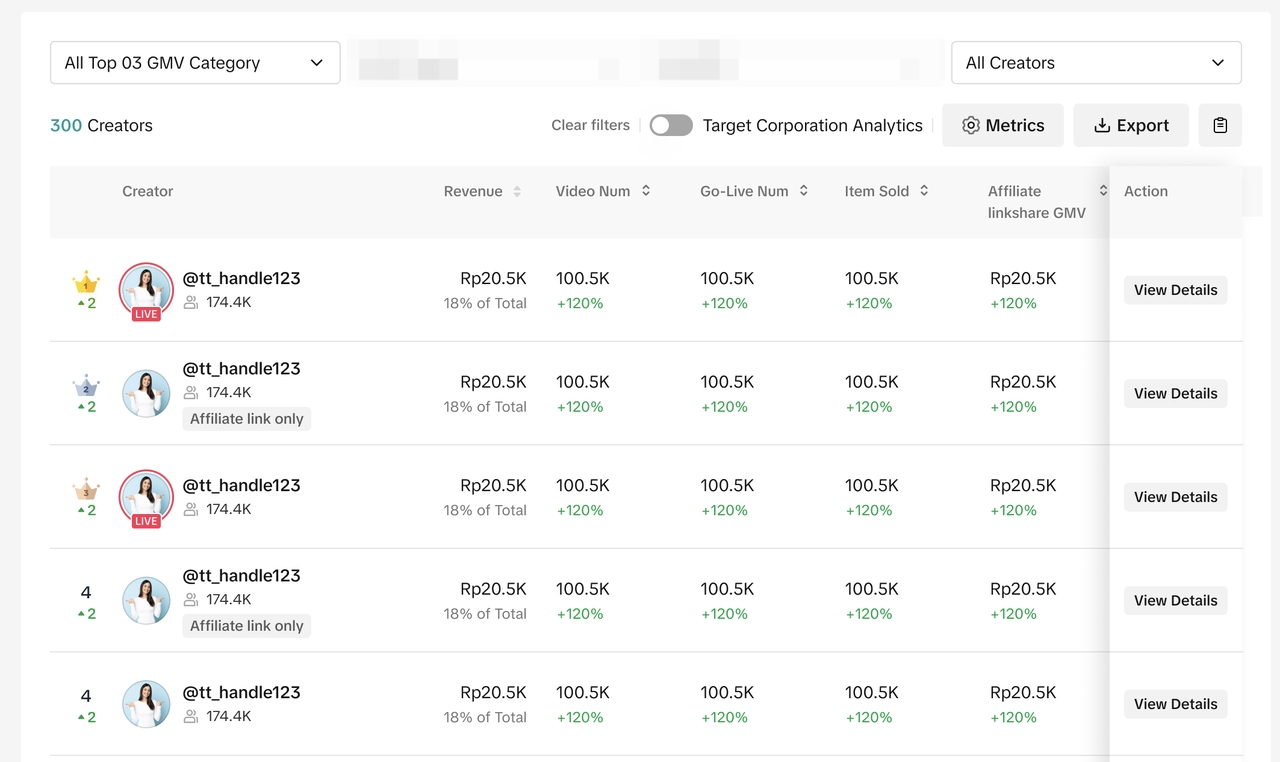
3.4 Creator Details
Click on View Details at the Creator List to land on the Creator Details page.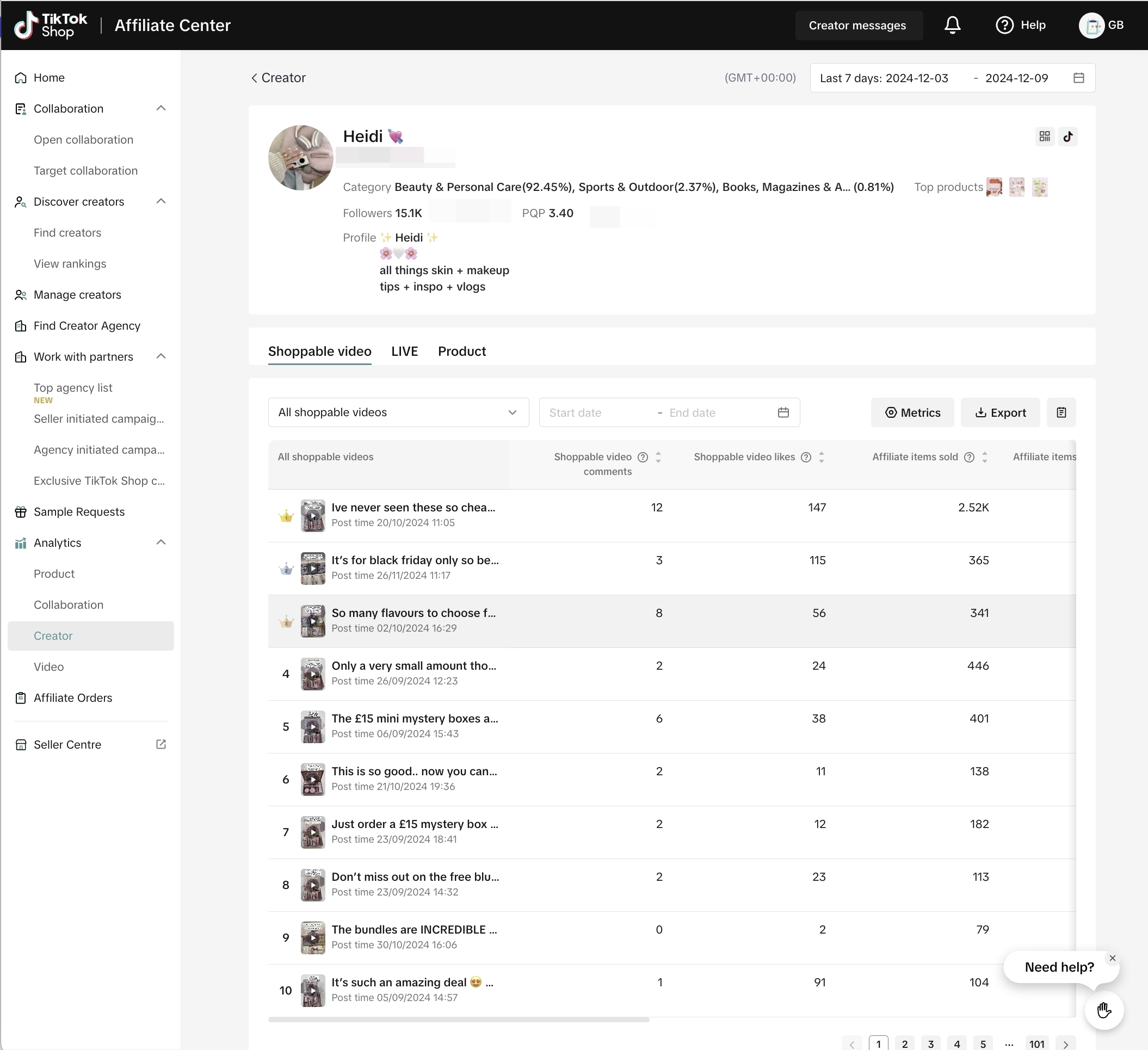
- Toggle between Shoppable video, LIVE, or Product view the list of video performances based on the channel type.

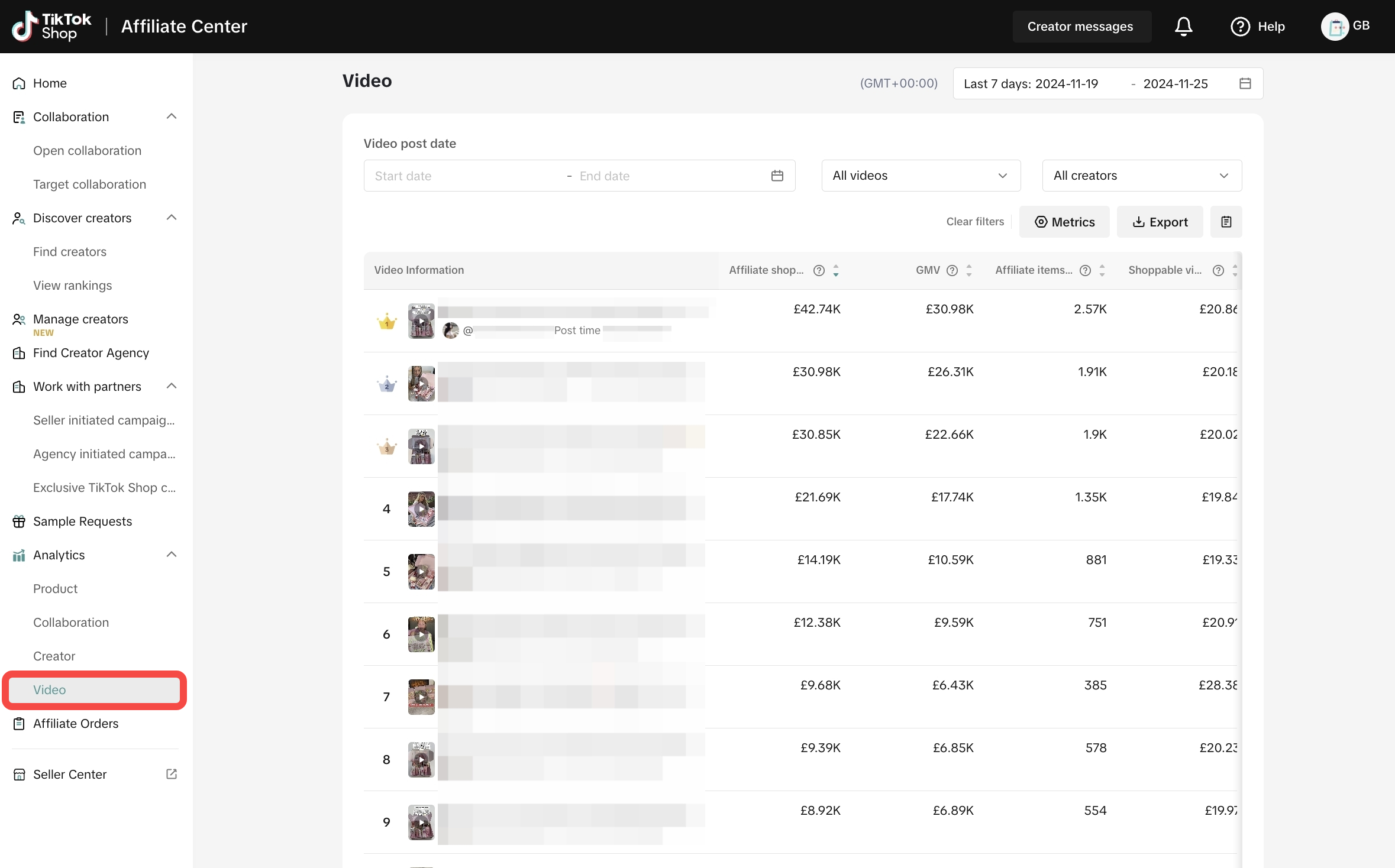
Video Analytics
Navigate to: Seller Center > Affiliate Center > Video