

Free Sample Guide for Sellers
This article will teach you everything you need to know about Free Samples from a Seller's standpoint. Free Samples can be used in both the Seller's Open Collaboration and Target Collaboration programs. In this article, we will go over how to add Free Sample offers to both of these Collaborations along with Shipping out your Free Samples to Creators.
To start off, we will introduce what Free Samples are and the benefits they provide to you as a Seller.


Once you've added your desired products to the new Open Collaboration, you will see a column that indicates Free Sample.

Manually Add Products
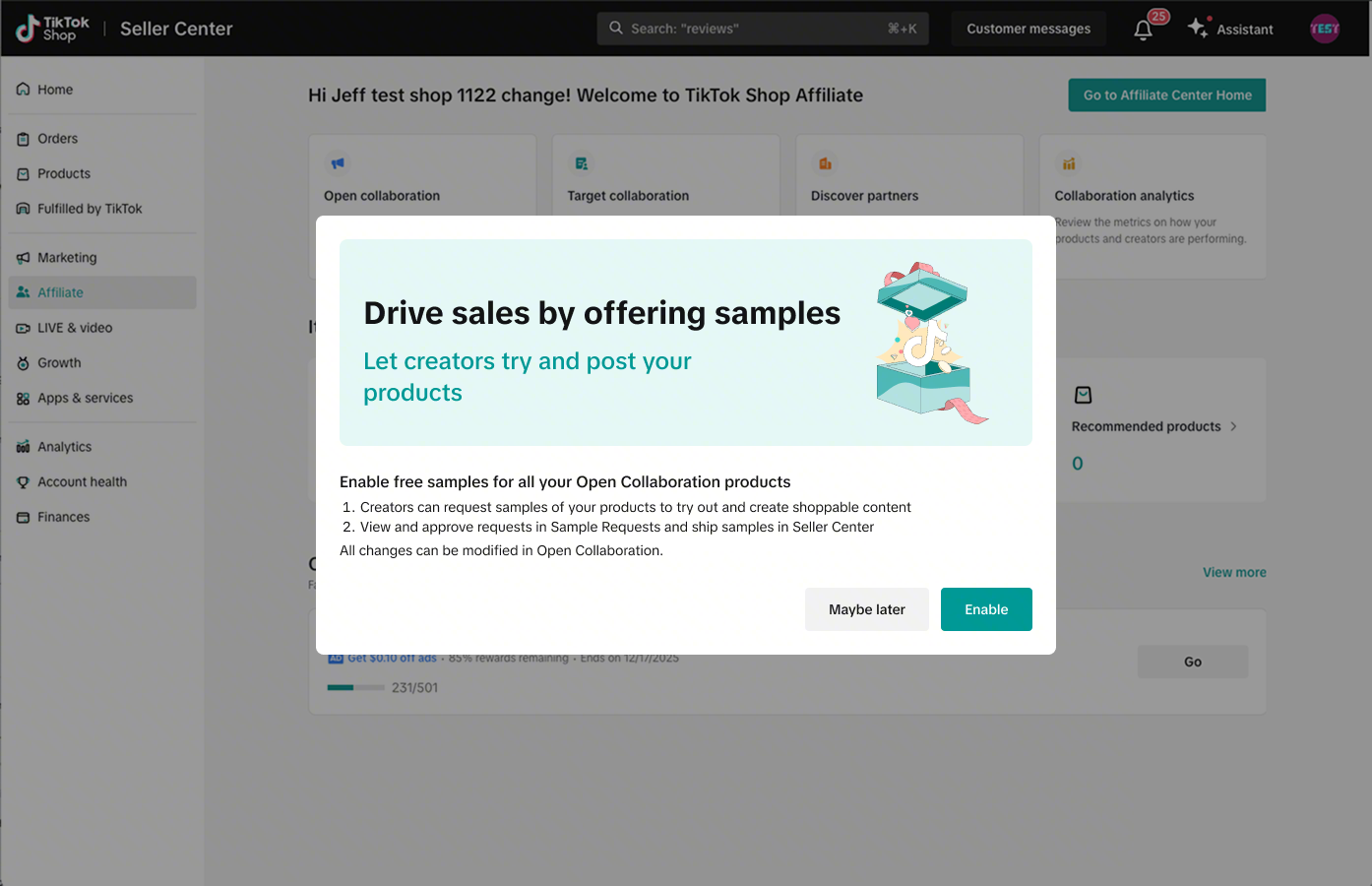
Sellers can select ‘Enable’ on the pop-up message. By clicking 'Enable,' the system will automatically add and activate a free sample rule for affiliate products that do not have sample settings, allowing more creators to request your free samples. The rule details are listed below, and sellers can also modify the rule or turn it off at any time.
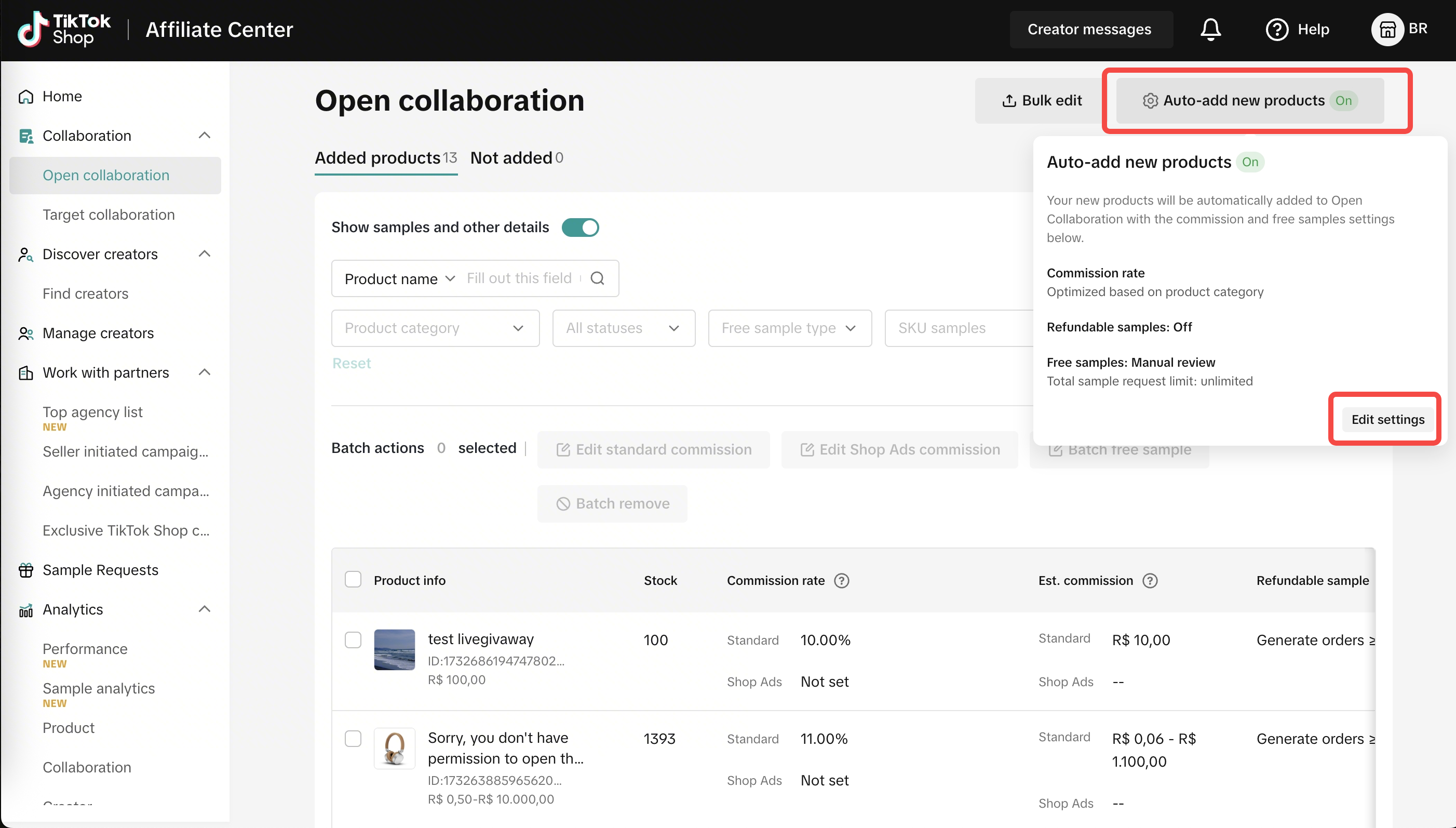
If you miss the pop-up, you may also manually enable Offer free samples later in the Auto-add New Products Tab on the upper right corner in Open Collaboration.
Please note that after this rule takes effect, it only means that creators can apply for your free samples. You still need to review and approve the creators' sample requests.
Please note that the Shipping Cost for offering free samples is 100% on seller, SFP is not applicable. For more details, please check the rate card here
 Once the chosen Free Sample requests are approved by the system, the requests will change it's status to "Ready to Ship".
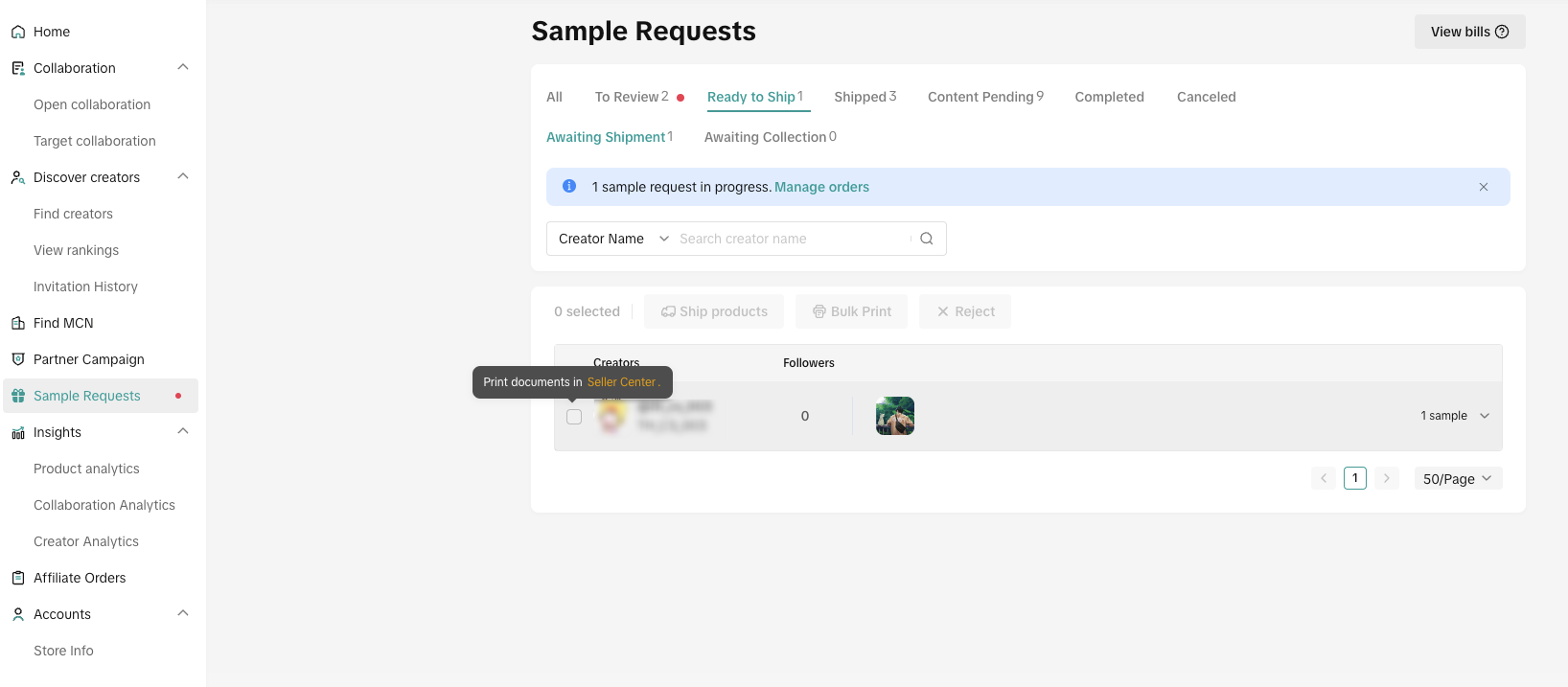
 Once you click on Filter, you can see the different ways you can pinpoint the perfect list of Creators that can receive your samples. We'll start with Creators.
Under Creators, you have the option to filter them out using:
The second filter option is for Followers:
For Performance, you can filter how well the Creator is doing in terms of revenue they bring in, video views and viewers per LIVE:
Lastly, the Sample requests option allows you to filter the requests you received based on their expiry date and if the sample requests will be automatically rejected if left unchecked for 30 days.

For new Sellers, a pop-up guide will provide a brief overview of what the Free Sample adds to your Target Invitation:

Once you have added your Creators and Products for your Target Invitation, it is now time to set up your Free Samples. Click on the button beside Offer free samples to activate the option.
Activating the free sample option will automatically add it under the Benefits section of your Target Invitation (This is a preview of what your invited Creators will see on their end).
 You have two options for Free Sample approvals:
Check all the requests by going to any of your Collaborations and clicking on View sample requests.
 Upon clicking on View sample requests, you will be redirected to the Sample Requests page. You can check all the pending requests of all your Creators.
 Once you have approved the Creator's request for Free Samples, you will need to Ship the Free Samples. You can check out how to ship below or read the detailed guide here.
 It will redirect you to the editing page, same as the one you've seen upon making a new Target Invitation.
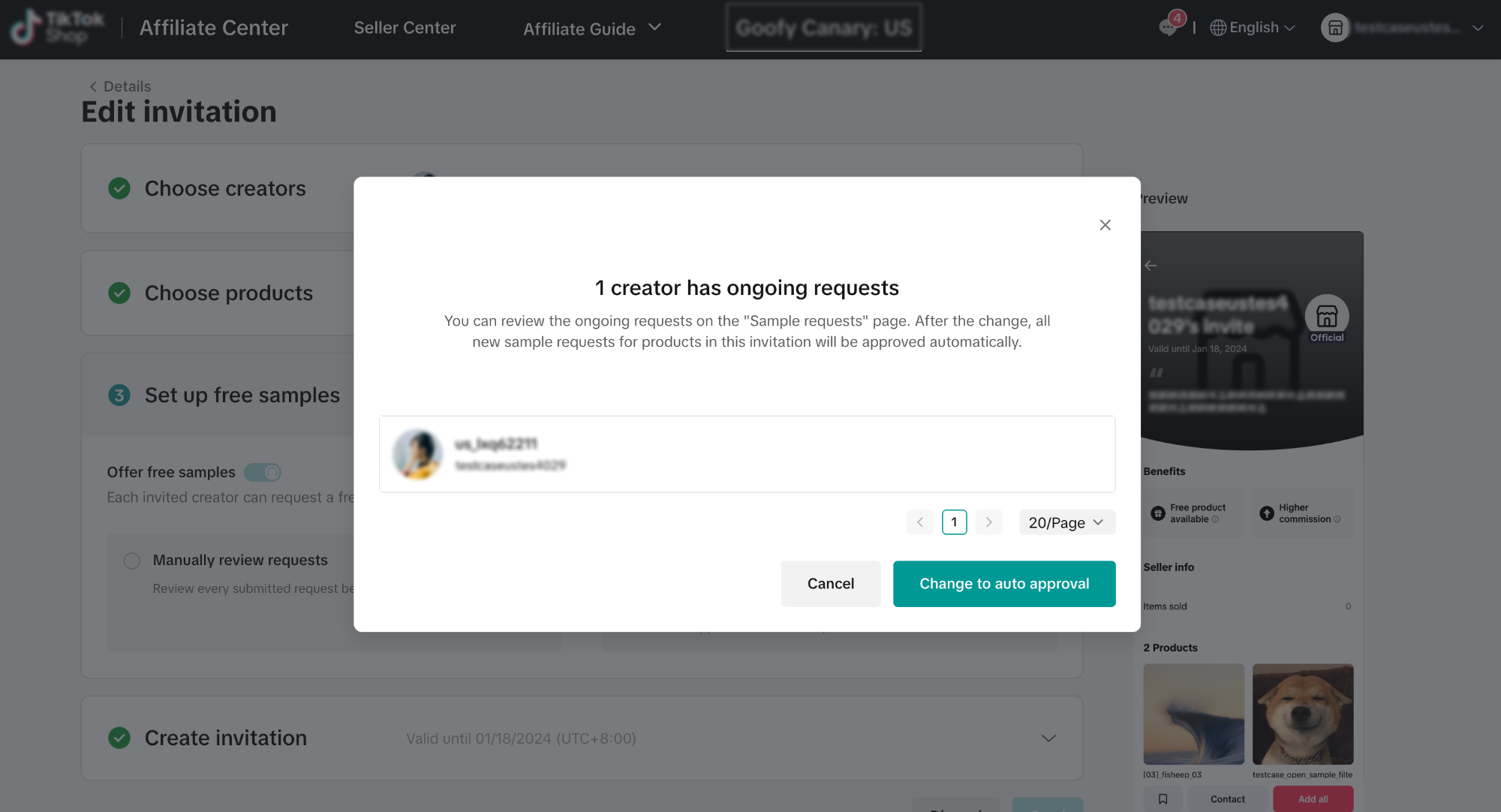
 If you want to switch the approval system, the system will notify you of any pending manual requests.


 After creator finishes the task, the status will turned into 'Completed' and you will be able to check the Promotional Content's metrics by clicking on histories.


To start off, we will introduce what Free Samples are and the benefits they provide to you as a Seller.
What are Free Samples?
Free Samples are products you can provide to Creators to boost their content's effectiveness in selling your products.Open Collaboration Free Samples
For Creators to be able to request Free Samples, the Seller must first add their products to an Open Collaboration on Affiliate Marketplace in Seller Center.Once you've added your desired products to the new Open Collaboration, you will see a column that indicates Free Sample.
Adding the Free Sample Option for your Open Collaboration Products
There are two ways to add samples in Open Collaboration. Choose the method that works best for you.Manually Add Products
- New Products added in the Open Collaboration will show as "Not Created", click on the button and it will redirect you to the Free Sample Rule page below:

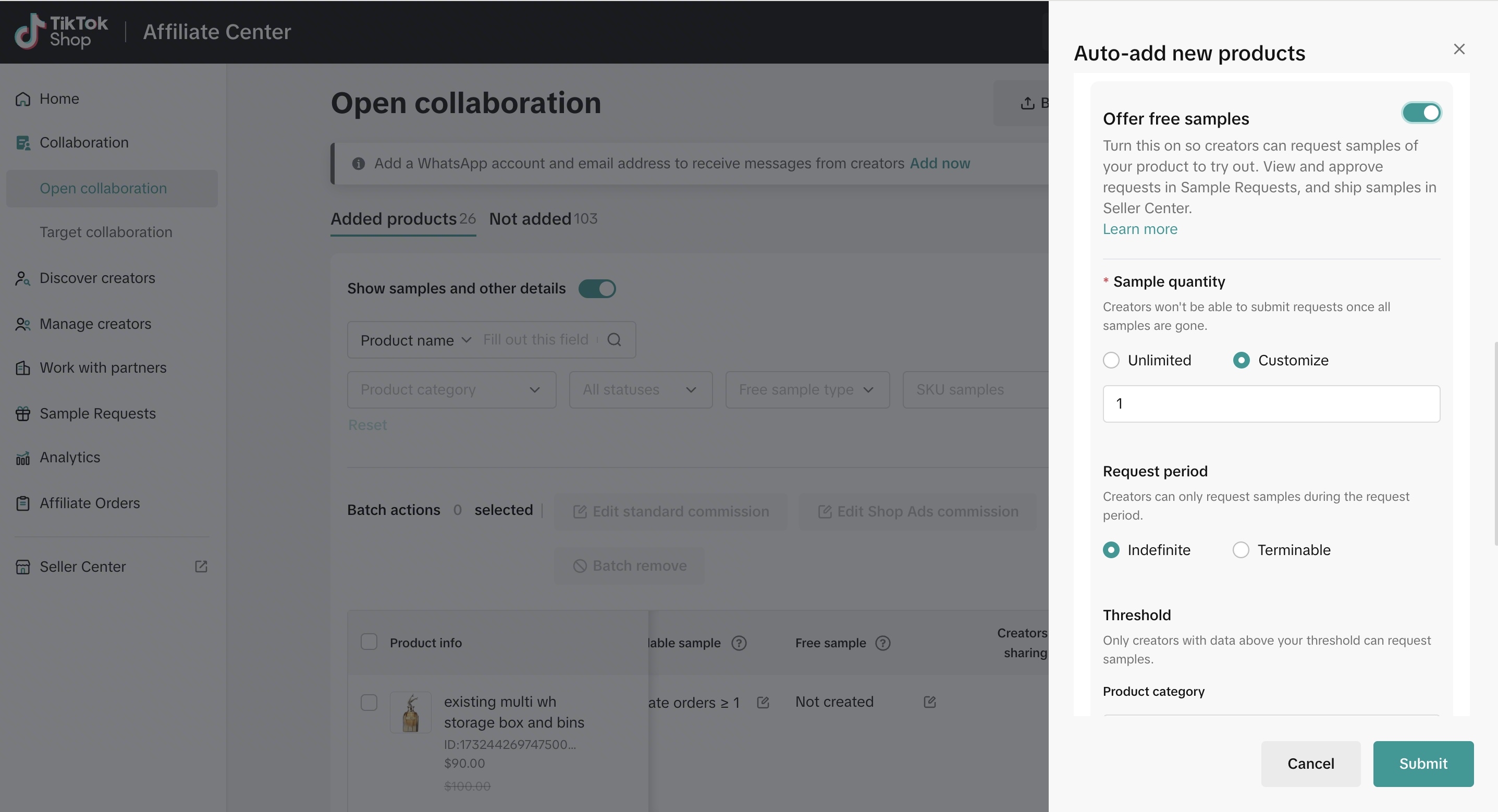
- Click on the edit button beside "Not Created" will prompt a pop-up on the right-hand side. The pop-up will allow you to turn on the Offer free samples option for your product.

- Turning the Offer free samples option will open up the settings to apply to your Free Sample offer.

- Sample quantity: Amount of products a Seller is willing to provide to Creators as a Free Sample
- Request period:
- Indefinite: Creators can request the Free Sample as long as there is still sample quantity
- Terminable: Creators can also request the Free Sample within the dates set by the Seller
- Threshold: Set a limit on which Creators can request for your product's Free Sample Offer. These limits are explained below:
- Product category: This filter targets Creators who have generated revenue or promoted products in your chosen category in the last 30 days. Additionally, it can filter Creators who have added a product to their showcase in the last 90 days.

- Fans number: A Creator's total number of Followers
- 30-day sales volume: Filters the GMV produced by each Creator in the past 30 days
- Average views per video: Filters the average views of all the Creator's videos
- Product category: This filter targets Creators who have generated revenue or promoted products in your chosen category in the last 30 days. Additionally, it can filter Creators who have added a product to their showcase in the last 90 days.
- After applying the Free Sample offer for your product, each of the Products' info will reflect the current status of their Free Sample offer.

Sellers can select ‘Enable’ on the pop-up message. By clicking 'Enable,' the system will automatically add and activate a free sample rule for affiliate products that do not have sample settings, allowing more creators to request your free samples. The rule details are listed below, and sellers can also modify the rule or turn it off at any time.
 |
|
 |
|
  |
|
Please note that after this rule takes effect, it only means that creators can apply for your free samples. You still need to review and approve the creators' sample requests.
Please note that the Shipping Cost for offering free samples is 100% on seller, SFP is not applicable. For more details, please check the rate card here
Managing and Approving Free Sample Requests in Open Collaboration
Approve sample requests on Affiliate Marketing > Sample Request. In the 'To review' tab, you can process creators' requests either individually or in batches. You have 7 days to review free samples to avoid automatic cancellation by the platform.Filtering Sample Requests in Open Collaboration
Under Sample Requests, you can filter all the Sample Requests you have received for your Products under Open Collaboration.Under Creators, you have the option to filter them out using:
- Product category: This filter targets Creators who have generated revenue or promoted products in your chosen category in the last 30 days. Additionally, it can filter Creators who have added a product to their showcase in the last 90 days.
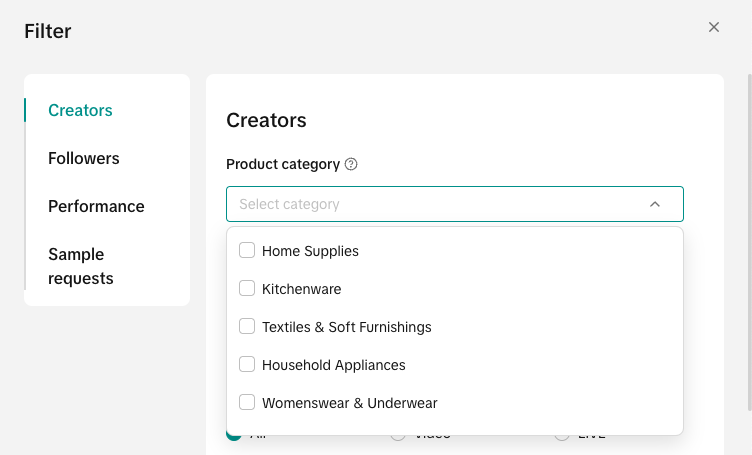
- Follower count: Filter your requests according to the size of each Creator's followers
- Content type: This option chooses Creators who used Videos, LIVE or both to promote products in the past 30 days
- Creator agency: Filter your Creators if they are managed by an Agency or if they work indepently
- Past collaborations: You have the option to filter the Creators who have worked with

The second filter option is for Followers:
- Follower Age: Filter your Creators using Age ranges. Once applied, the filter will put the Creators with the most followers on top of the list

- Follower Gender: Filter your Creators based on the gender of their Followers. You can set a ratio of each gender.

For Performance, you can filter how well the Creator is doing in terms of revenue they bring in, video views and viewers per LIVE:
- GMV: Filters the GMV produced by each Creator in the past 30 days
- Average views per video: Filter the average number of views each video the Creator releases, you have the option to only track the videos they create for Affiliate
- Average viewers per LIVE: Filter the average number of viewers each LIVE session the Creator releases. You have the option to only track the LIVE sessions they create for Affiliate

Lastly, the Sample requests option allows you to filter the requests you received based on their expiry date and if the sample requests will be automatically rejected if left unchecked for 30 days.
- From reliable Creators: This option provides you with the top 20% of Creators based on their ratio of received samples and posted content.

Target Collaboration Free Samples
Sellers can now provide Free Samples for their Invited Creators in Target Collaboration. The added benefit of the Target Invitation can increase the amount of Creators that will approve the partnership.For new Sellers, a pop-up guide will provide a brief overview of what the Free Sample adds to your Target Invitation:
- To go through the process of Target Collaboration, read the feature guide here. For this guide, we will focus on the Free Sample step.
Once you have added your Creators and Products for your Target Invitation, it is now time to set up your Free Samples. Click on the button beside Offer free samples to activate the option.
Activating the free sample option will automatically add it under the Benefits section of your Target Invitation (This is a preview of what your invited Creators will see on their end).
- Manually review requests
Check all the requests by going to any of your Collaborations and clicking on View sample requests.
- Auto approve requests
- Choosing this option will automatically approve all Free Sample requests you will receive from your invited Creators. Before turning it on, you will receive a pop-up to confirm your switch to Auto-approval.

- Choosing this option will automatically approve all Free Sample requests you will receive from your invited Creators. Before turning it on, you will receive a pop-up to confirm your switch to Auto-approval.
Editing Free Sample Details in Target Invitations
Even if the Target Invitation has been sent, you can still edit the settings of your invitations. Simply select any of your Target Invitations and click on edit free sample.Shipping Your Free Samples
- After you have approved the sample requests, click on 'Arrange shipment.' The system will automatically direct you to Seller Center, where you can ship free samples just like regular orders.
- Within the Seller Center, you can arrange free sample shipments on the Manage Orders page. You can easily filter the order tags and select 'Free Sample from Seller.'

- Prepare and arrange shipments as you would for regular orders. Print the packing list and shipping label, and hand them over to the logistics provider as usual. You can find detailed steps on how to ship an order in this feature guide.
- Once you have completed the shipment arrangements, you can also track your shipments and view shipping information on Affiliate Marketing > Sample Request under 'Shipped' tab by clicking on 'View Shipping.'


Monitoring Your Creators
Creators are given 14 days to create the promotional content (LIVE or short video) using the sample they received. They need to fulfill the task by adding the product link of the sample to their content and keeping the Short Video public for at least 3 days or doing the LIVE Session for at least 10 minutes. During this time, the status of the sample request will be in 'Content Pending'.