

Affiliate Collaboration
This article will teach you how to use the Collaboration feature (Formerly known as Plans) in TikTok Shop Affiliate. The Affiliate program makes it provides you, as a Seller, more ways to sell your products using the Creators' help. With TikTok Shop Affiliate, both the Seller and Creator help each other to earn: Sellers can sell more products and Creators can earn commission from selling these products.
To get started, we will go over the two versions: Open Collaboration and Target Collaboration. These two versions differ in how you want to connect with Creators.

 📝 If you answered yes to the left question, your affiliate plans fall under Target Collaboration. If your goal leans more to the right question, we recommend for you to try out Open Collaboration.





Enter Affiliate Center > Target Collaboration to invite a list of Creators to promote your products within a set date and period. On the Target Invitation screen, click on Invite to Collaborate in the top-right corner of your screen.

If sellers choose manually review requests, clicking on View Free Sample requests, you will be redirected to the Free Sample Requests page. You can check all the pending requests of all your creators.
 Once you have approved the Creator's request for Free Samples, you will need to Ship the Free Samples. You can check out how to ship below or read the detailed guide here.

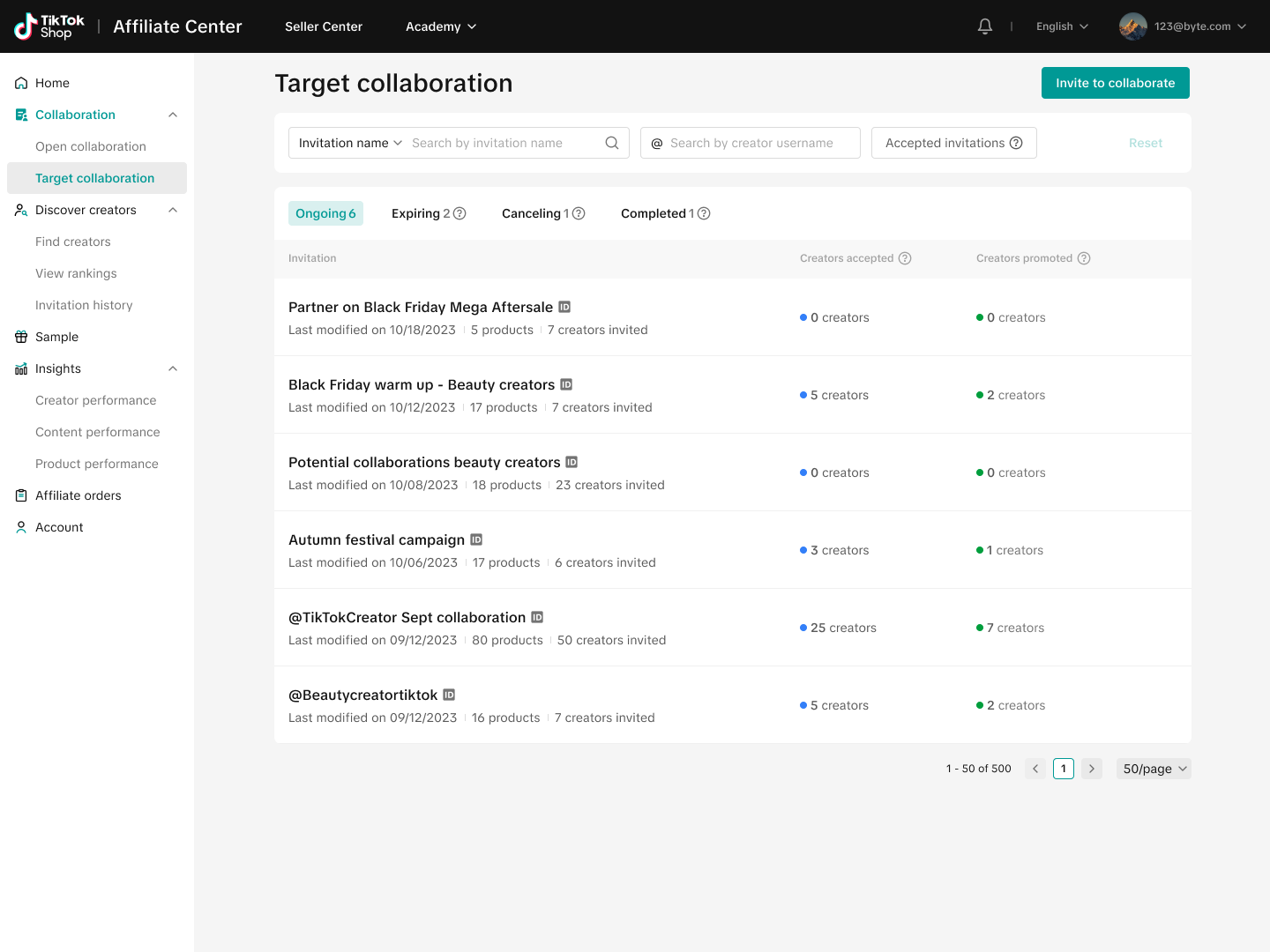 Click on the Target Collaboration's name and you will be able to find all the necessary information: Collaboration details, Creator details, and Product details.
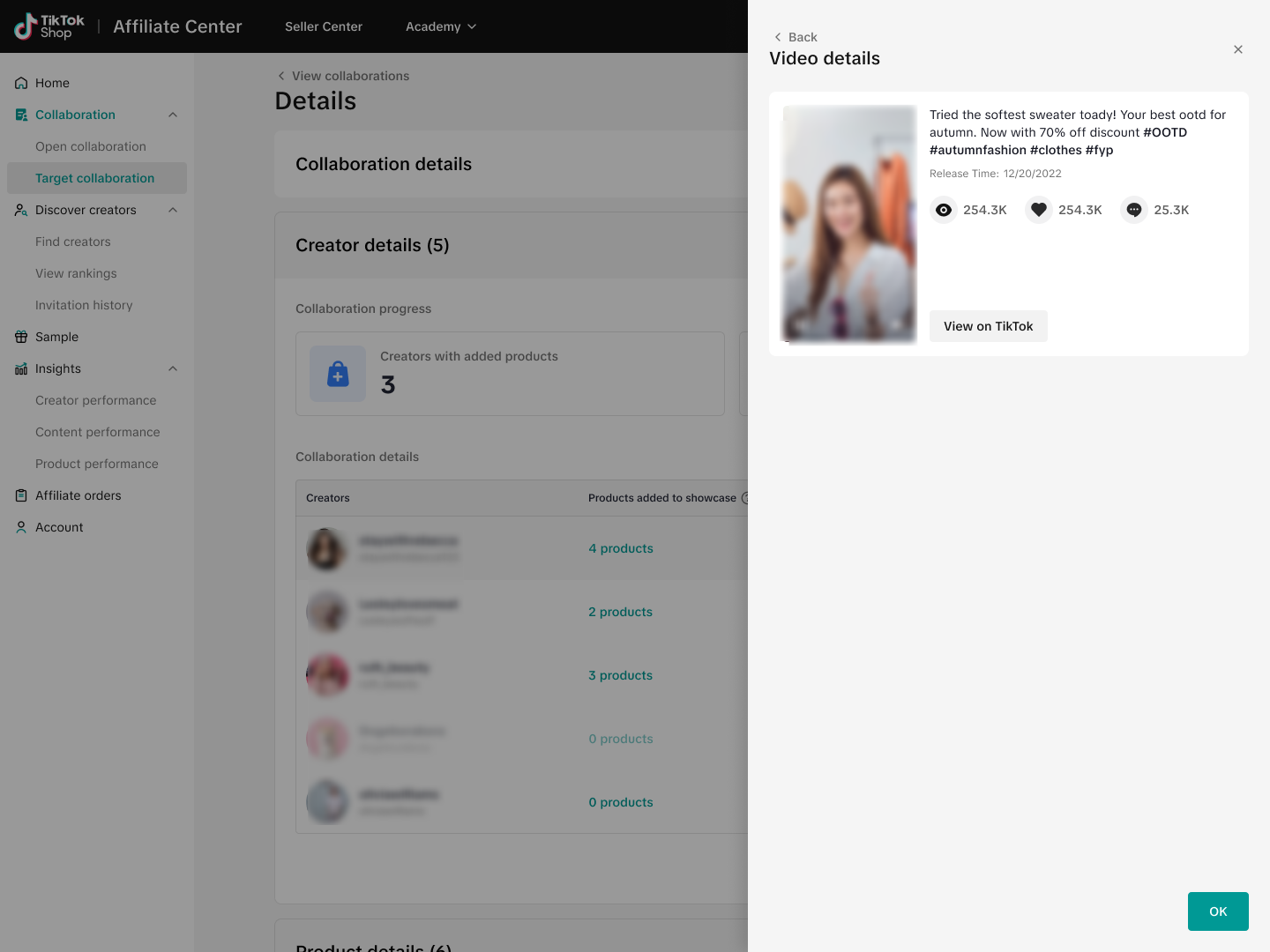
 Video DetailsFor each product that a creator has posted content for, you will be able to see the video content attributed to it.


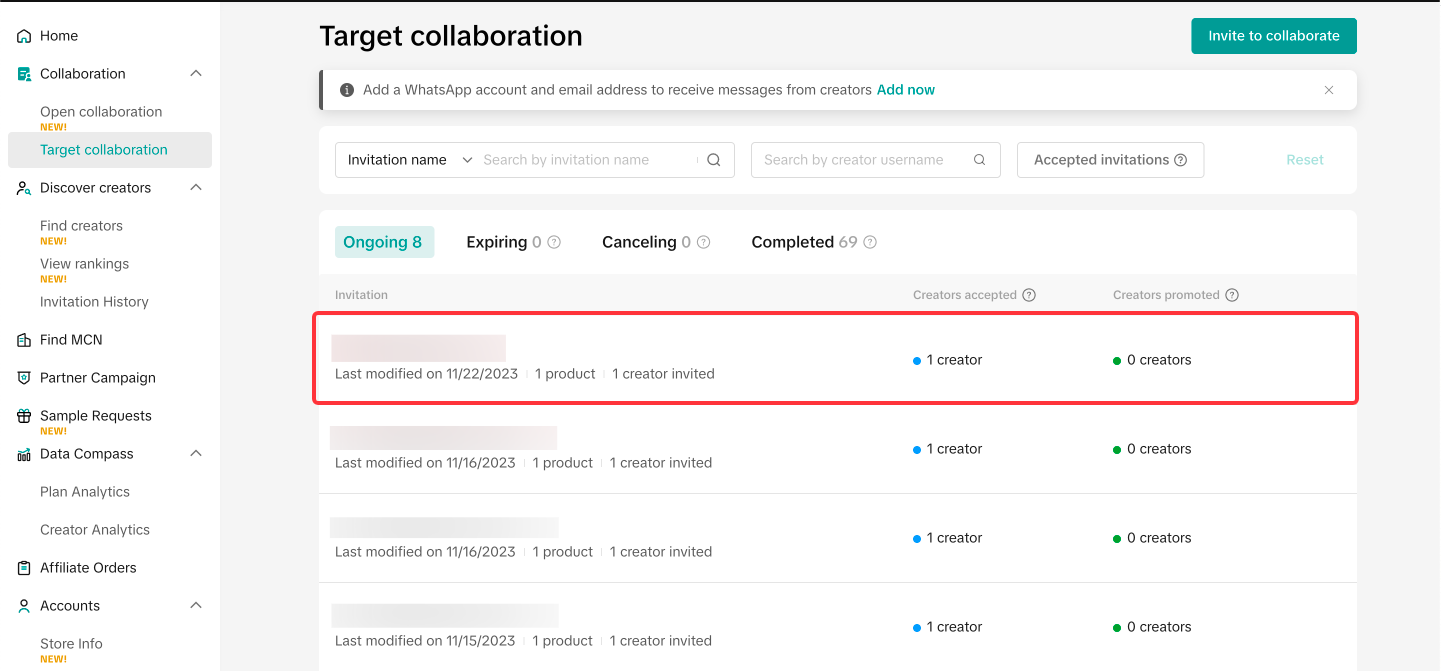 Once redirected to Invitation Details, you can edit both your Creator details and Product details by clicking on the highlighted button below:
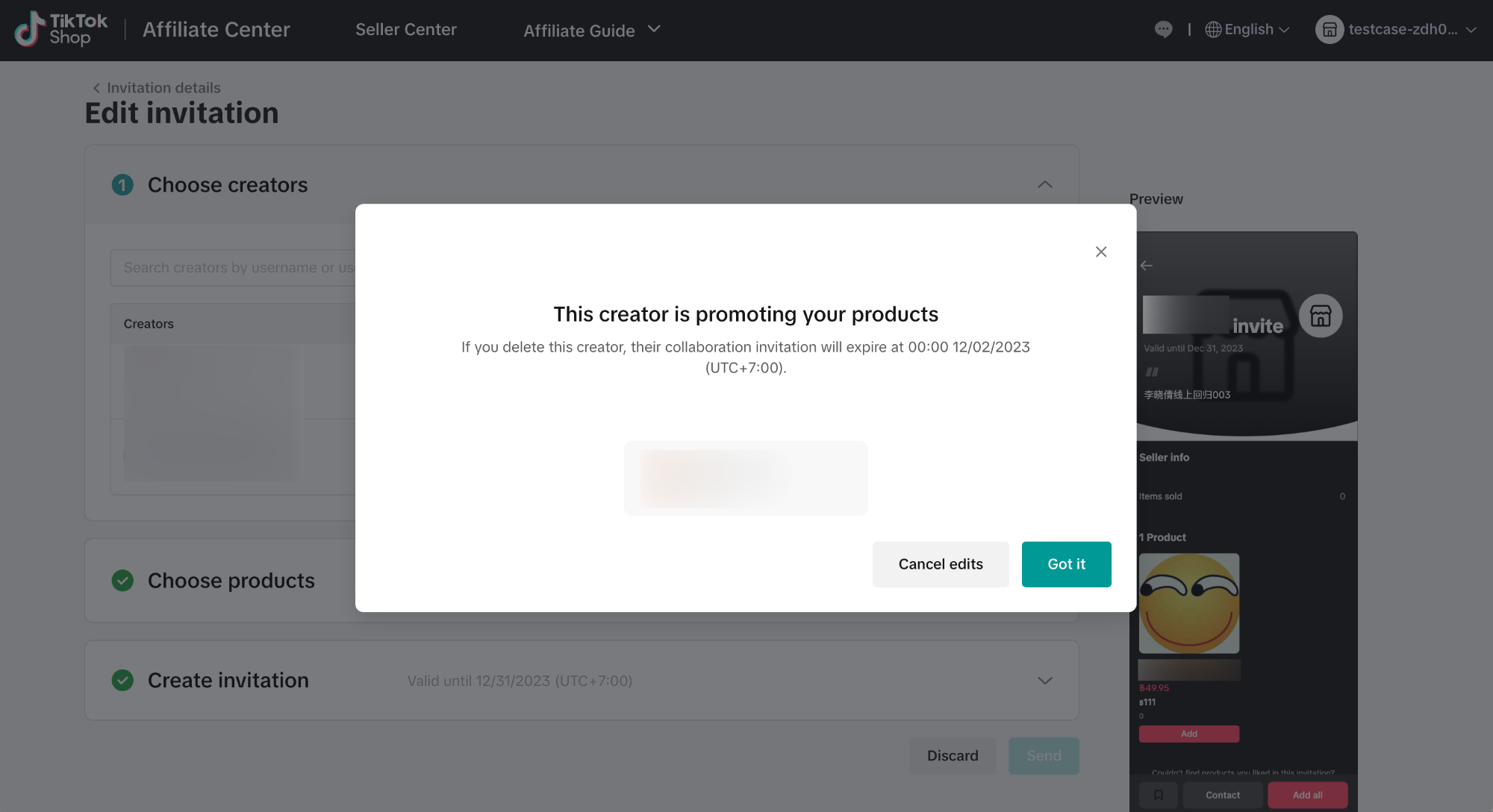
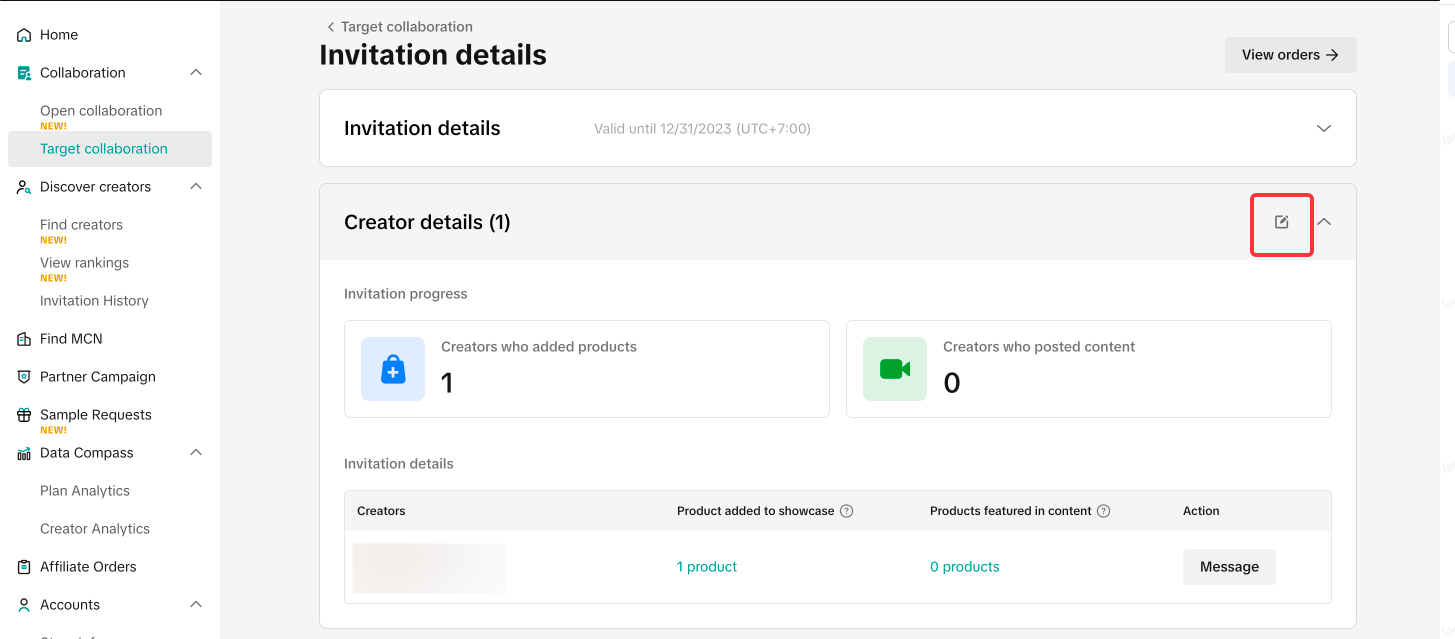 This will allow you to edit your invitation as you please. For the final step, click on the trash can button to remove your chosen Creator or product. A final confirmation will pop-up before the removal is final.
Creator Removal
 Product Removal


With Open Collaboration, you can select all or some of your products for Creators to add in their showcase. For every purchase made from their content or showcase, they will receive commission based on your approved percentage. You can see how Open Collaboration works in the step-by-step guide below:

 By selecting this page, you will be greeted with an introduction & guidance flow for Open Collaboration.

On the Open Collaboration page you will see two (2) tabs:
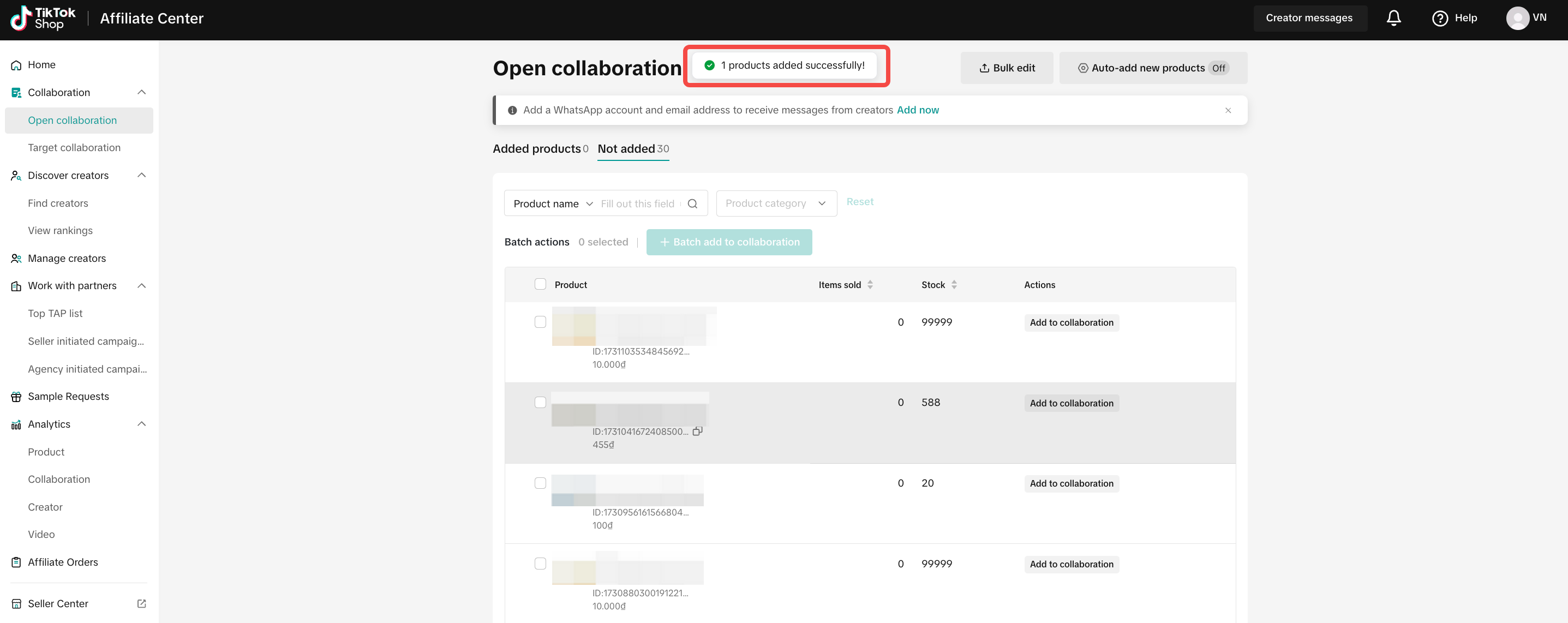
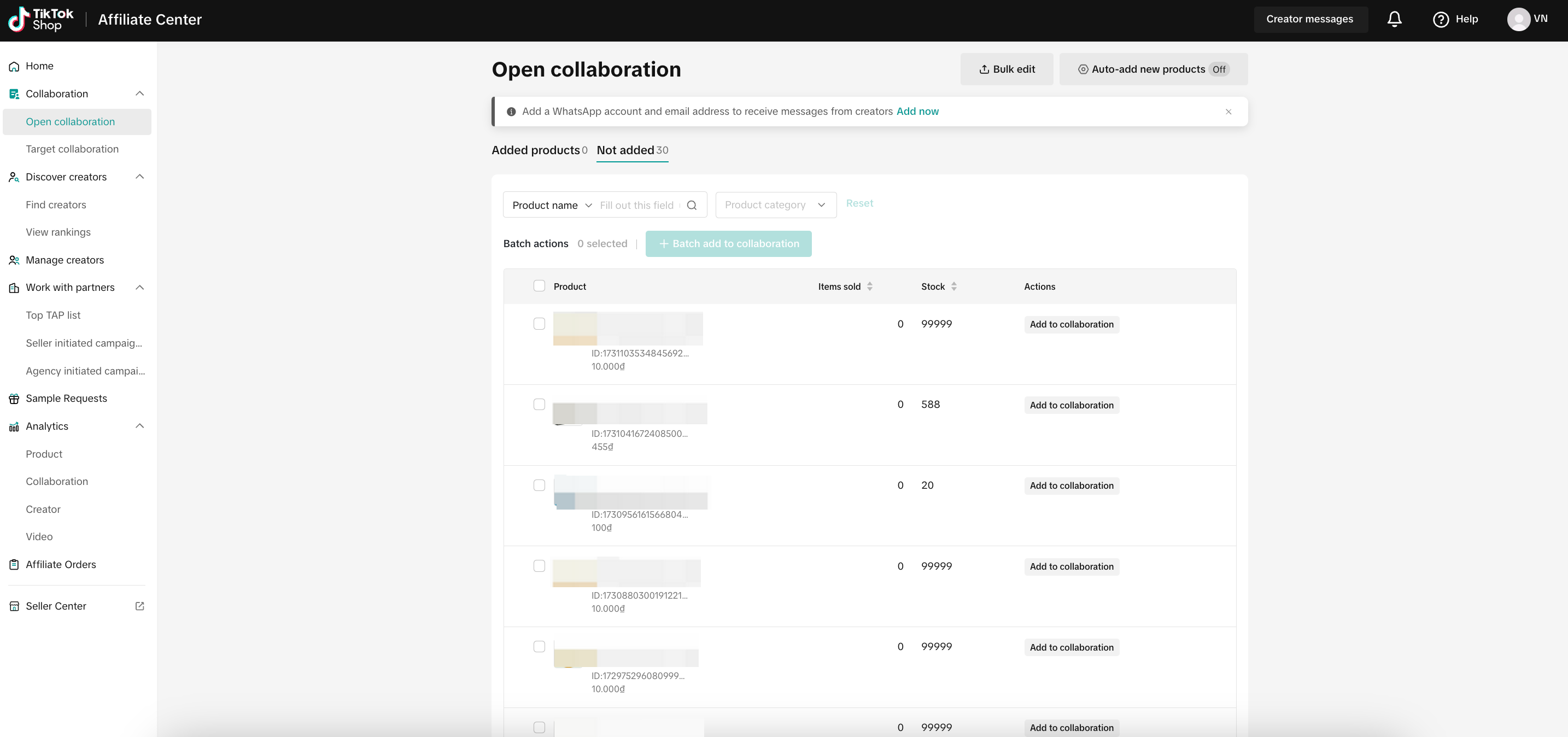 Adding a product to an Open Collaboration is easy, you can either:
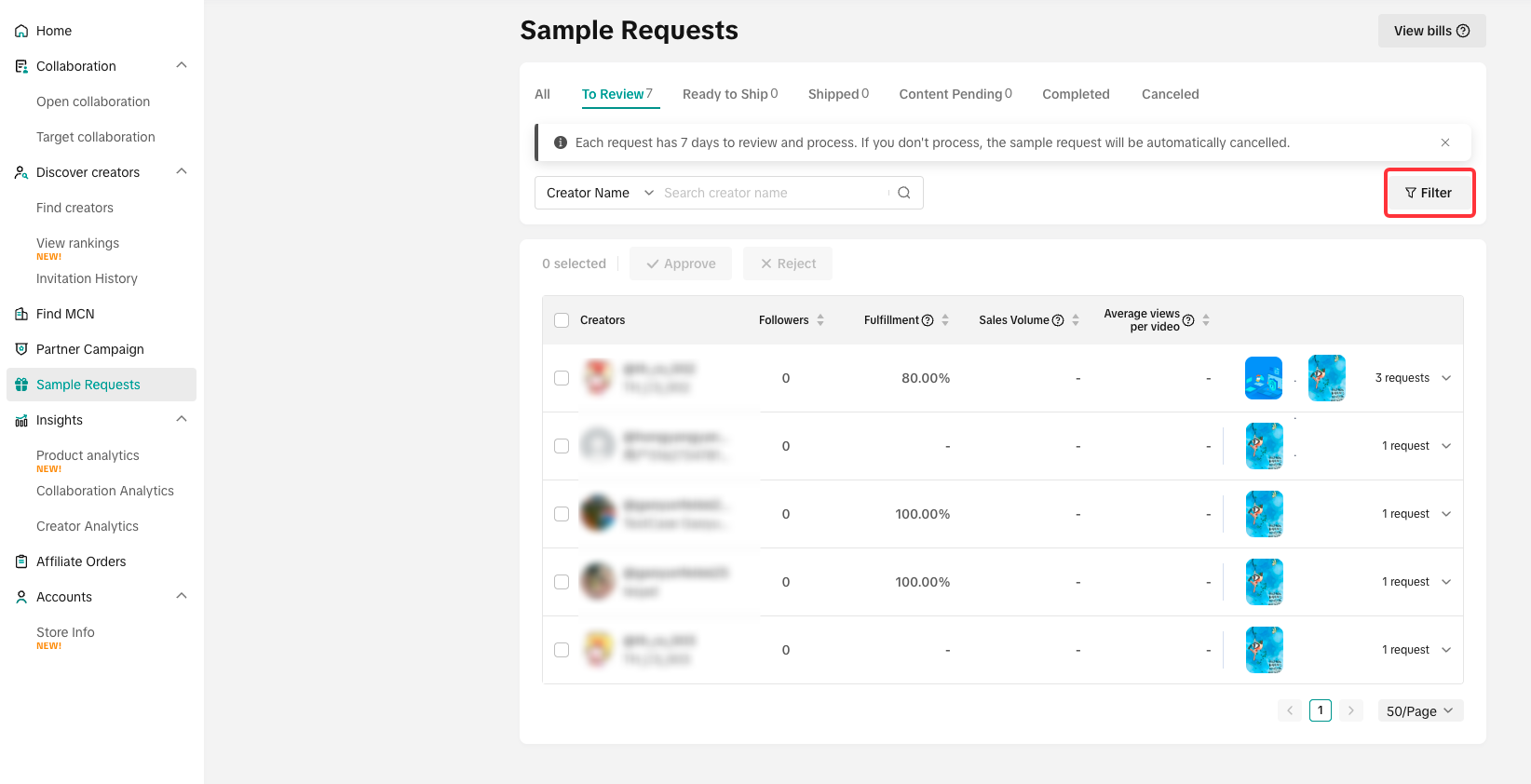 Once you click on Filter, you can see the different ways you can pinpoint the perfect list of Creators that can receive your samples. We'll start with Creators.
Under Creators, you have the option to filter them out using:
The second filter option is for Followers:
For Performance, you can filter how well the Creator is doing in terms of revenue they bring in, video views and viewers per LIVE:
Lastly, the Sample requests option allows you to filter the requests you received based on their expiry date and if the sample requests will be automatically rejected if left unchecked for 30 days.
On the Open Collaboration page, tap on the New products Auto-Mode on the top right-hand corner of the screen. For first time users, you will see this Pop-Up that briefly explains the function.
 Clicking on the New products Auto-Mode will release a Pop-Up like this on your screen, toggle Newly products added to affiliate on and it will ask you to set a general commission rate for all your new products.
 Once finalised, all your newly uploaded products in your Shop will automatically be added to Open Collaboration with the pre-defined commission rate.
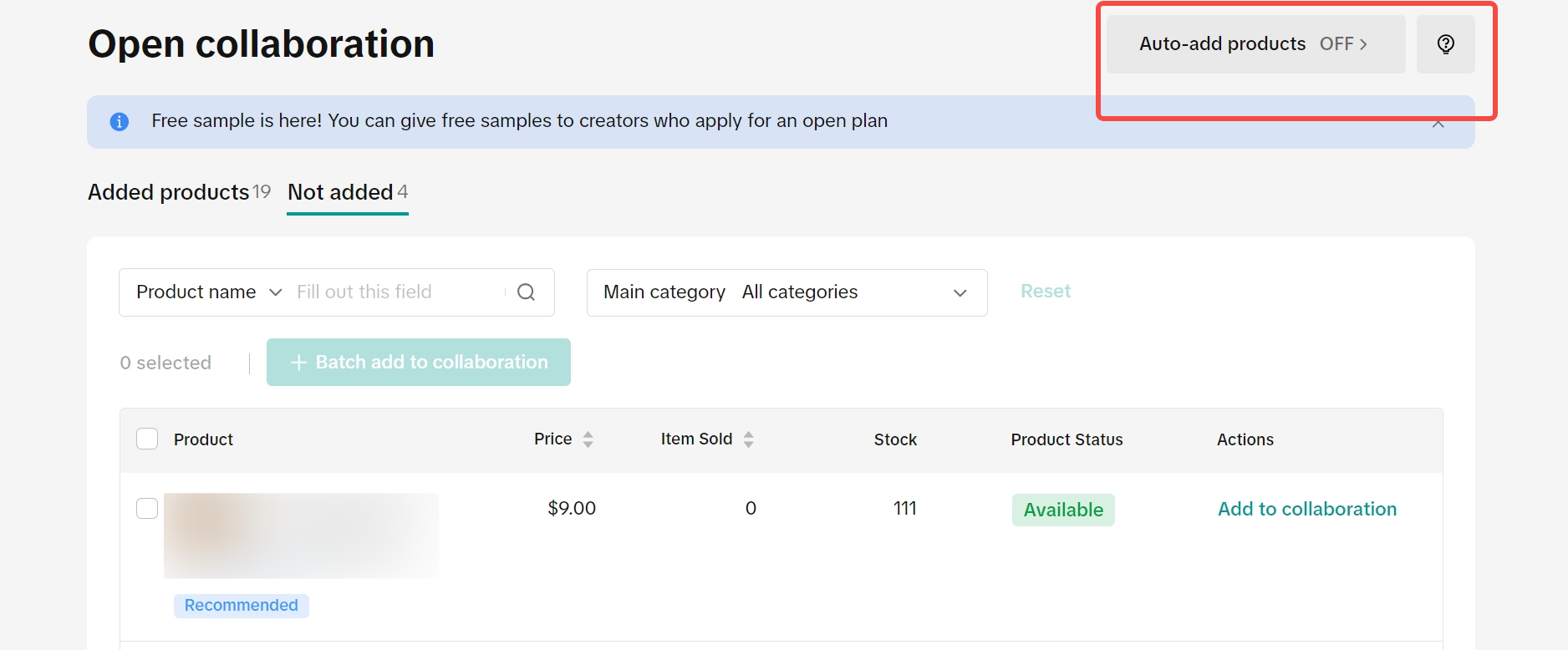
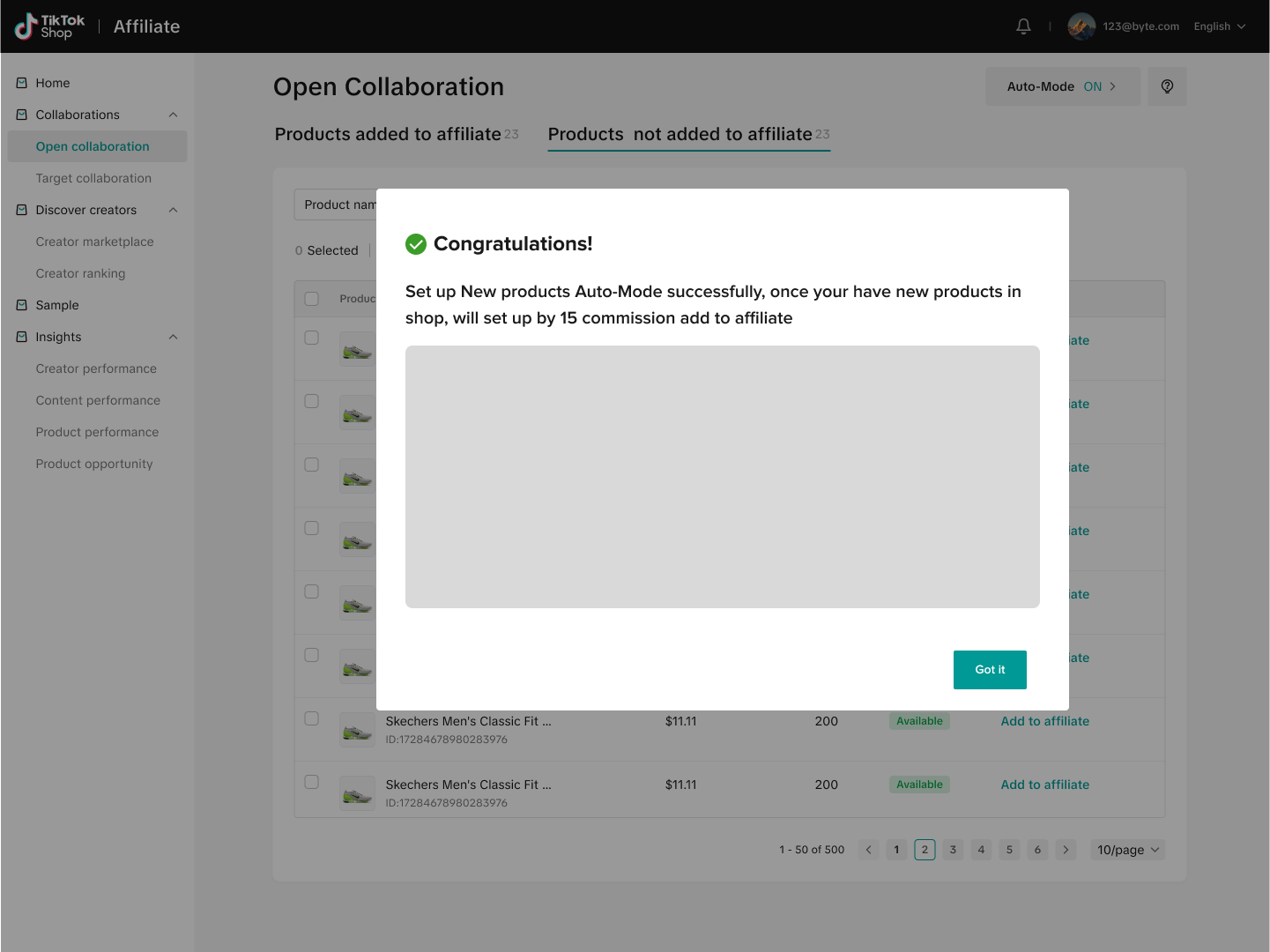 If you wish to continue to manually add products, you can turn off Auto-add products by simply clicking the button highlighted below:
 To remove products from Open Collaboration, you choose products by ticking the checkbox before product info. For multiple products, tick all your chosen products and click on the Batch remove button.

 Video Details For each product that a creator has posted content for, you will be able to see the video content attributed to it.
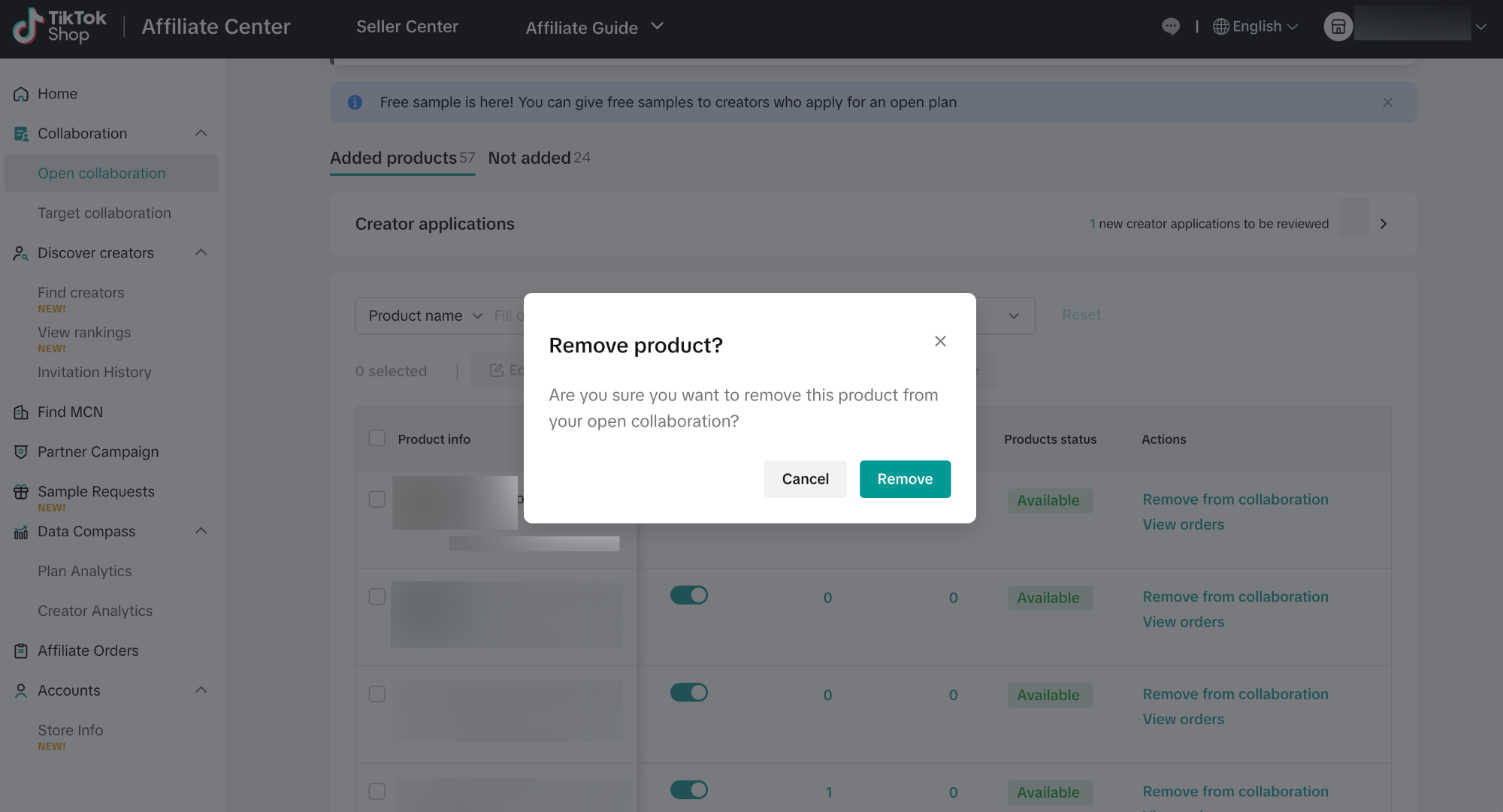
 At the right-most side of the table, you will see the actions column. Click on Remove from collaboration and a pop-up will appear to confirm the removal.

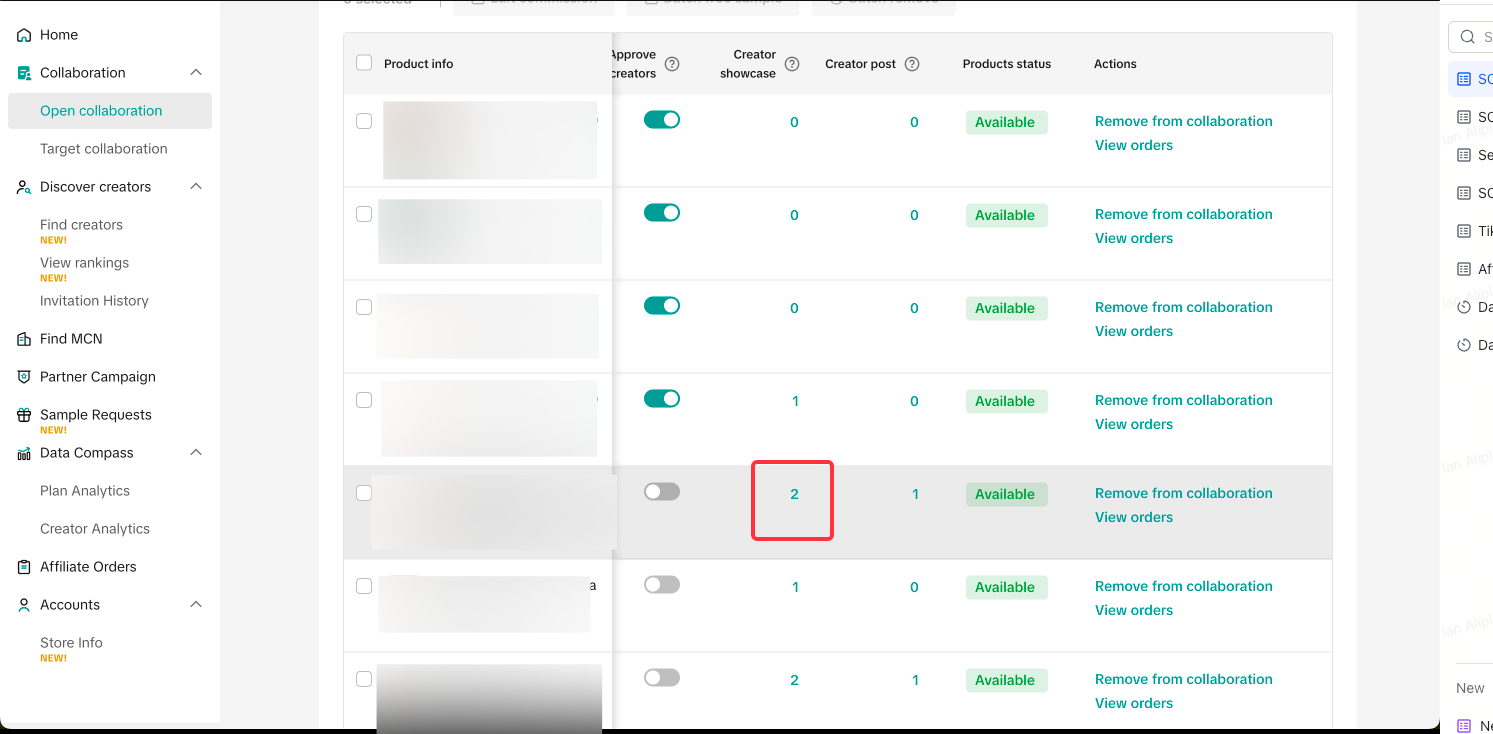
 Click on the number indicated to move to the Creator showcase details page.
 On the Creator showcase details page, click on Remove from and a pop-up will appear to confirm the removal.


To get started, we will go over the two versions: Open Collaboration and Target Collaboration. These two versions differ in how you want to connect with Creators.
What is Collaboration?
Advantages of each Collaboration
📝 A lot of first time Sellers starting up TikTok Shop Affiliate use Open Collaboration to check which Creators select their products to use and their individual performance using the products.
However, as you get more used to TikTok Shop Affiliate, you will get to explore Target Collaboration with Creators that you've built partnerships with. Where to find Affiliate Collaboration
Starting up your Affiliate Collaboration is easy. On your desktop, Log in onto Seller Center and tap on Affiliate Marketing. It will then redirect you to Affiliate Center. Go to the left-hand side menu and there you will find the two options for Collaboration:Target Collaboration
Using Target Collaboration allows you to invite targeted creators to promote products for you. Creators can start promotion after they accept your invitation. They will receive an invitation in their inbox where they can add your products to their showcase and then start creating content.Target Collaboration Journey
Creating your Target Collaboration
Start your Target Collaboration by entering the Affiliate Center and clicking on Collaboration on the left-hand side menu.Enter Affiliate Center > Target Collaboration to invite a list of Creators to promote your products within a set date and period. On the Target Invitation screen, click on Invite to Collaborate in the top-right corner of your screen.
Step 1:Fill In the Basic Information of the Targe collaboration:
|  |
Step 2:Choose the products:
|   |
Step 3: Set up Free SamplesOnce you have added your Products for your Target Invitation, it is now time to set up your Free Samples. Click on the button beside Offer Free Samples to activate the option. You have two options for Free Sample approvals:
|  |
Key 4: Choose Creators:
|  |
| Review the Target invitation and Click on Send |  |
| Manage Target InvitationEven if the Target Invitation has been sent, you can still edit the settings of your invitations. Simply select any of your Target Invitations and click on Edit. | 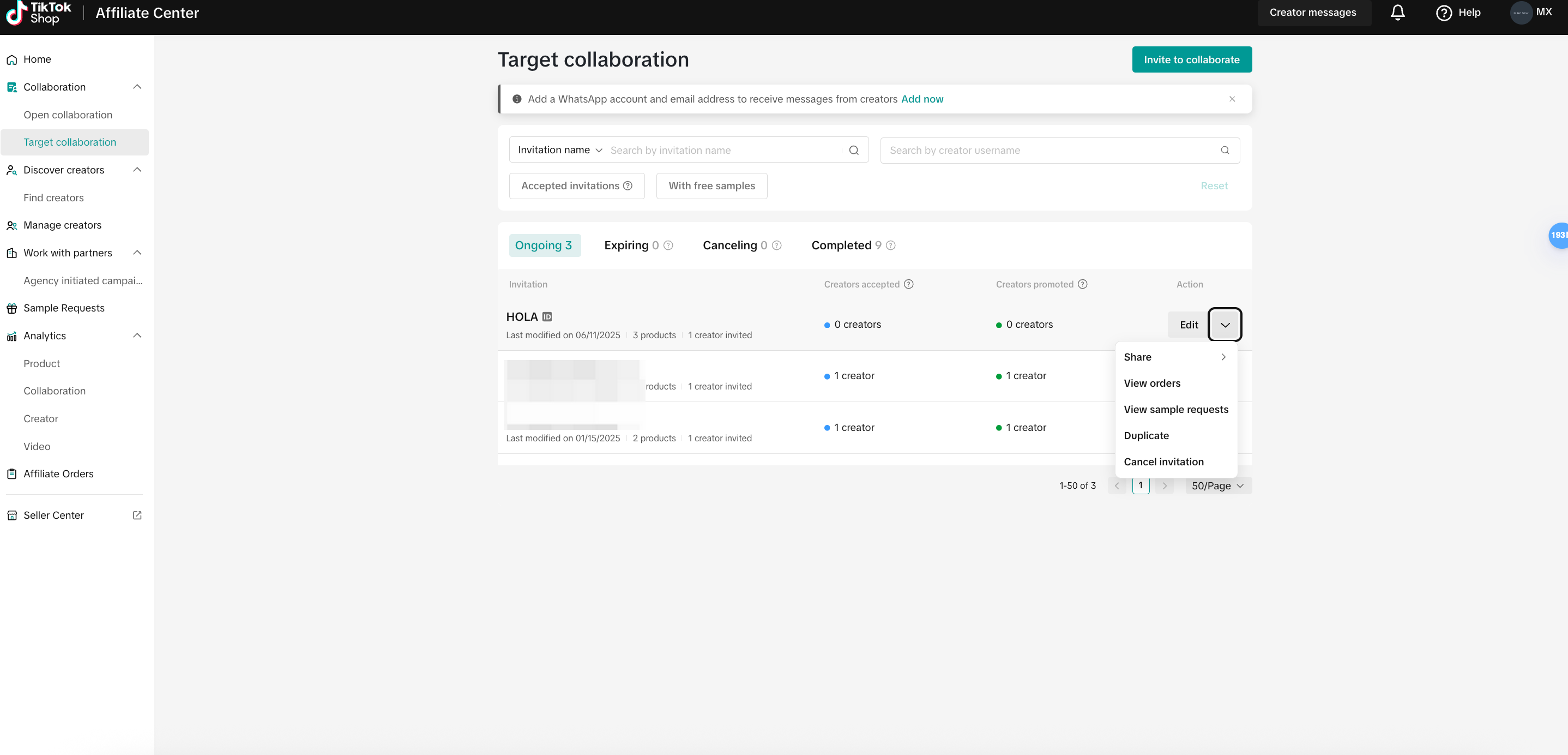 |
Other Ways to Send the Target Collab Invitation
After sending the Target Invitation via the Affiliate Center, the seller can also choose to share the same collaboration request through Creator IM or copy the invitation link to send it via WhatsApp or other external social media platforms.Discover Creators
- Another way to send target invites is from Discover Creators > Find Creators, as you search through the different creators you can work with, simply select the "Invite" button on the specific creator and you will begin the target collaboration creation.

- Once you select a specific creator from Creator Connect, you are able to see their performance data in their creator card. You will also have the option to invite the creator to a target collaboration from this view.

Target Collaboration Performance
Once your Target Collaboration is working, you can check each of your Target Collaboration's performance at any time. You will be able to see how many Creators accepted the invite and how many of these Invited Creators have posted.Creator POV of Target Collaboration
Once you have set up for Target Collaboration, the Creator will be able to see you invite as shown below:How Creator sees your Target Collaboration Invite
Removing Products and Creators in Target Collaboration
If you want to remove either Products or Creators in your Target Collaboration, you first have to select your chosen Target Invitation.Creator Removal
Open Collaboration
Using Open Collaboration allows your products to be available for all Creators to browse and select in the Product Marketplace or by checking the Product's detail page. Interest Creators can then apply to sell your products in their content.With Open Collaboration, you can select all or some of your products for Creators to add in their showcase. For every purchase made from their content or showcase, they will receive commission based on your approved percentage. You can see how Open Collaboration works in the step-by-step guide below:
Creating your Open Collaboration
From Affiliate Center, start your Open Collaboration by going to Collaboration on the left-hand side of the menu as shown below:How to Add Products Manually
Adding products can be done manually to control your products' going in the affiliate program. Click on Open Collaboration at the left-hand side menu to start.On the Open Collaboration page you will see two (2) tabs:
- Products added to affiliate - Products in your Shop that are currently available for Creators to request/add on their Product Showcase
- Products not added to affiliate - Products in your Shop that have not been registered for TikTok Shop Affiliate use
- Add product one by one by selecting "Add to affiliate" in the far right column for the specific product.
- Add all of your shops' products by clicking the "Batch add to affiliate" button at the top of the product list.

Setting up the Open Collaboration details
Upon clicking on the Add to Affiliate button, you will be redirected to the Set up open collaboration details Pop-Up to complete your setup.- Commission Rate - This is the percentage the Creators will receive for every product they manage to sell using their Showcase or Content. We will provide suggested percentage for your reference but ultimately it is up to the Seller.
- Set up Free Sample - By turning this toggle on, Creators are able to apply for a free sample of the product. The Free Sample will be used by the Creator to promote the product in their content (Short Videos or LIVE Sessions).
- To learn more about Free Samples, we recommend reading our feature guide on Free Sample for Sellers.

- To learn more about Free Samples, we recommend reading our feature guide on Free Sample for Sellers.
Filtering Sample Requests in Open Collaboration
Under Sample Requests, you can filter all the Sample Requests you have received for your Products under Open Collaboration.Under Creators, you have the option to filter them out using:
- Product category: This filter targets Creators who have generated revenue or promoted products in your chosen category in the last 30 days. Additionally, it can filter Creators who have added a product to their showcase in the last 90 days.

- Follower count: Filter your requests according to the size of each Creator's followers
- Content type: This option chooses Creators who used Videos, LIVE or both to promote products in the past 30 days
- Creator agency: Filter your Creators if they are managed by an Agency or if they work indepently
- Past collaborations: You have the option to filter the Creators who have worked with

The second filter option is for Followers:
- Follower Age: Filter your Creators using Age ranges. Once applied, the filter will put the Creators with the most followers on top of the list
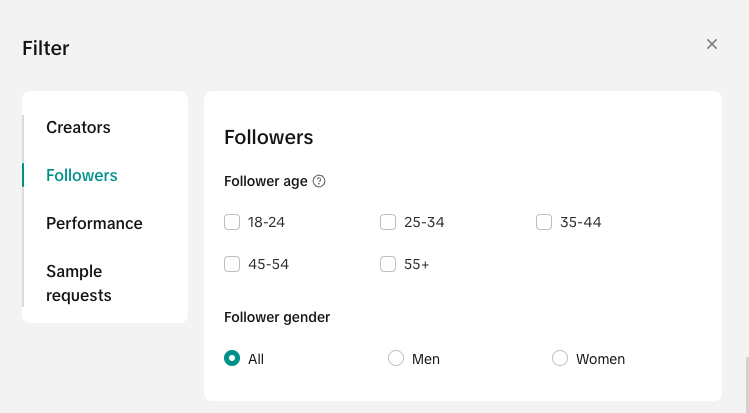
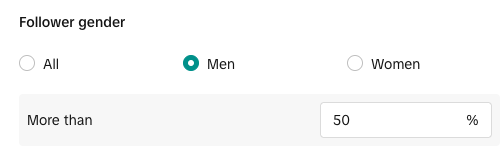
- Follower Gender: Filter your Creators based on the gender of their Followers. You can set a ratio of each gender.
For Performance, you can filter how well the Creator is doing in terms of revenue they bring in, video views and viewers per LIVE:
- GMV: Filters the GMV produced by each Creator in the past 30 days
- Average views per video: Filter the average number of views each video the Creator releases, you have the option to only track the videos they create for Affiliate
- Average viewers per LIVE: Filter the average number of viewers each LIVE session the Creator releases. You have the option to only track the LIVE sessions they create for Affiliate

Lastly, the Sample requests option allows you to filter the requests you received based on their expiry date and if the sample requests will be automatically rejected if left unchecked for 30 days.
- From reliable Creators: This option provides you with the top 20% of Creators based on their ratio of received samples and posted content.

Auto-Add New Products
For Products that were originally in Shop Plan, they will be automatically added in Open Collaboration. Choosing your products manually might be too overwhelming, especially if your Shop has thousands of products. To make it easier for your day-to-day operations, you can choose turn on Auto-Mode and it will do the job for you.On the Open Collaboration page, tap on the New products Auto-Mode on the top right-hand corner of the screen. For first time users, you will see this Pop-Up that briefly explains the function.
Open Collaboration Performance
You can check your product's performance in Open Collaboration at any time. The buttons at the top of the product listing will allow you to do mange the following:- Edit Commission - Raise or lower the Commission rate you initially added
- Batch Free Sample - Create an option for Creators to request a sample of your product to use for their content
- Deactivate - Select one or multiple products that you want to remove in your Affiliate Collaboration
- Price - Product's full price in your shop
- Stock - Number of Products available in your shop
- Commission rate - The percentage from the Price that the Creator receives for every Product sold
- Est. commission - The converted monetary value of the Commission rate
- Free sample - Whether the product can be requested to use for the Creator's content
- Creator added - Number of Creators that have added your product to their Product Showcase
- Creator posted - Number of Creators that have created and posted videos or LIVE sessions with your product link
- Product Status - Whether the product can be used for an Open Collaboration


Removing Products in Open Collaboration
To remove Products in Open Collaboration, open the Open Collaboration page and scroll to the right to find the actions column.Removing Creators in Open Collaboration
To remove Creators in Open Collaboration, open the Open Collaboration page and scroll to the right to find the Creator showcase column.FAQ
- This is my first time trying out TikTok Shop Affiliate. Am I only allowed to pick just one type of collaboration?
- No, you are allowed to use both types of Collaboration at the same time. However, we recommend starting with only Open Collaboration at first to familiarize yourself with the program.
- How will the commission work if I registered my product on both Open and Target Collaboration?
- If a creator promotes a product that is registered on both collaborations, they will receive the commission from Target Collaboration.
- How many Target Collaboration Invite can I send in one day?
- You can send up to 1000 collaborations in 24 hour
- How many creators can I invite to one Target Collaboration?
- You can invite up to 50 creators for one Target Collaboration
- How many products can I add to a Target Collaboration invite?
- You can add up to 100 products for one Target Collaboration
- After I created and sent the Target Collaboration Invite, do I need to inform the Creator?
- Creator will automatically receive the invite on their end once you send it. You can check this article to see how the creator will receive the invite. However, you can always re-share the Target Collaboration Invite link to the creator if you need to by clicking on this share button:

- Creator will automatically receive the invite on their end once you send it. You can check this article to see how the creator will receive the invite. However, you can always re-share the Target Collaboration Invite link to the creator if you need to by clicking on this share button:
- After I created the Target Collaboration, can I edit the details?
- Yes, you can. On the Target Collaboration main page, just click the Target Collaboration Invite you want to edit. It will take you to the Invitation Details page. Click the edit button, and it will bring you to the Edit Invitation page. Here you can add or remove creators and products, and adjust the commission and invitation details. If a creator is promoting the product, the changes will apply from the next day.