

Affiliate Creatives for Ads (ACA) - Setting Commission Rates
This article will guide you on how to set up your Video Shopping Ads in an Affiliate Open Collaboration. This guide will focus on affiliate operations, which entail setting up your Shop Ads Commission Rate.Shop Ads Commission Rate is an optional feature that allows you to set a different commission rate when you use the Creator's short videos for your Video Shopping Ads. In this article, we will differentiate the Standard Commission Rate and Shop Ads Commission Rate.To learn more about Video Shopping Ads, we recommend reading this guide: LINK
Setting the Shop Ads Commission Rate in Open Collaboration
There are 3 ways for setting Shop Ads Commission in Open Collaboration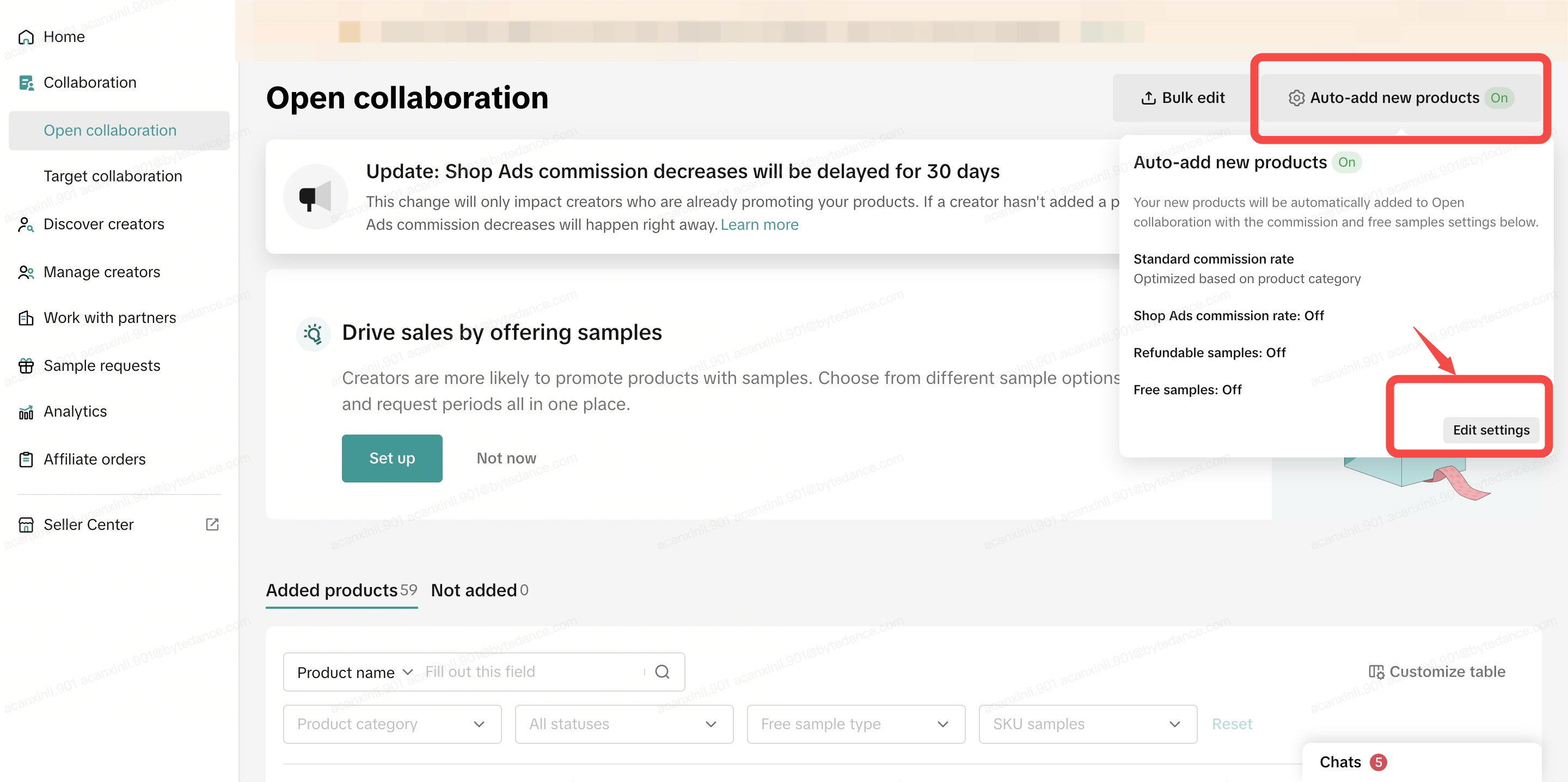 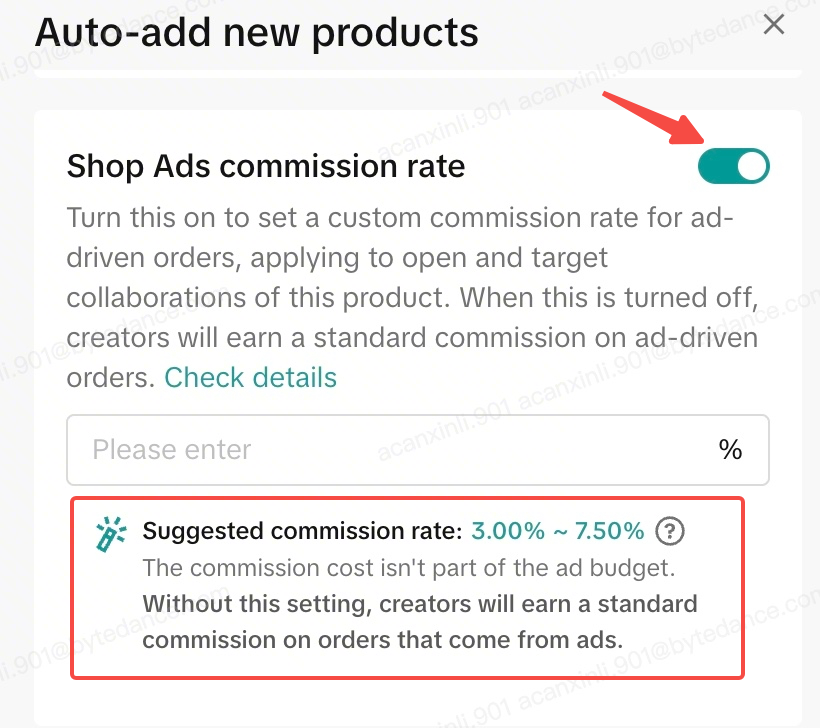 | 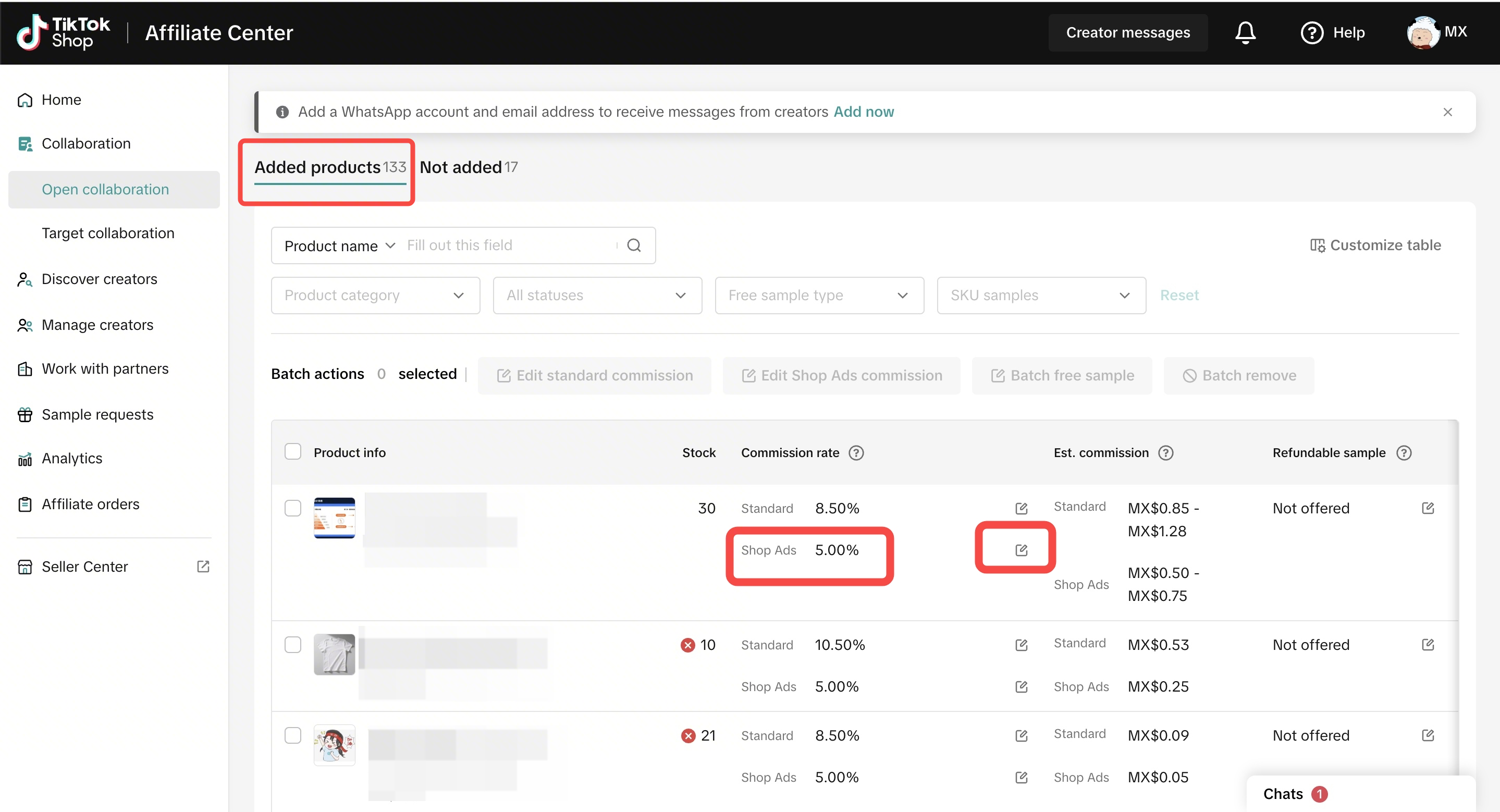 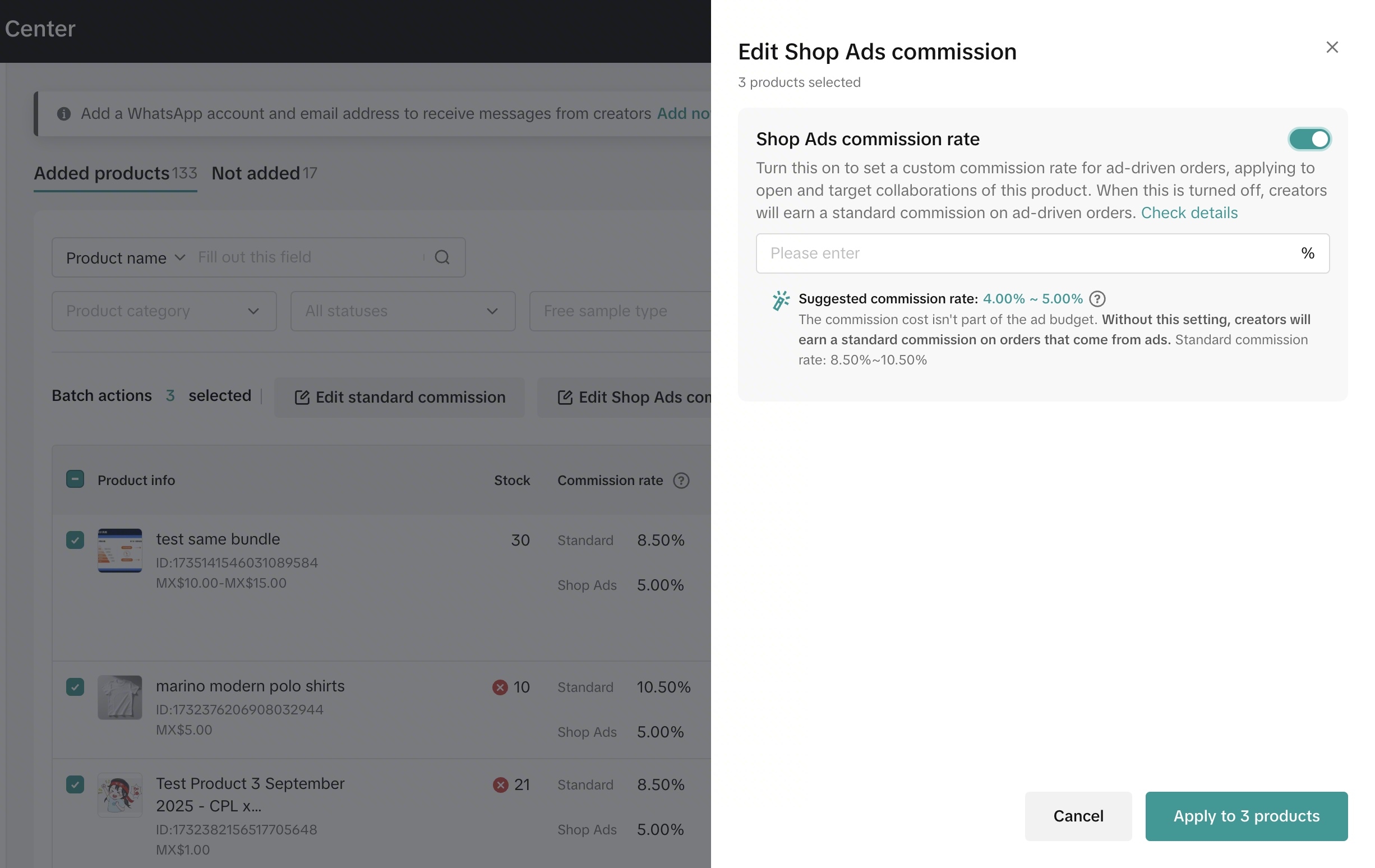 |  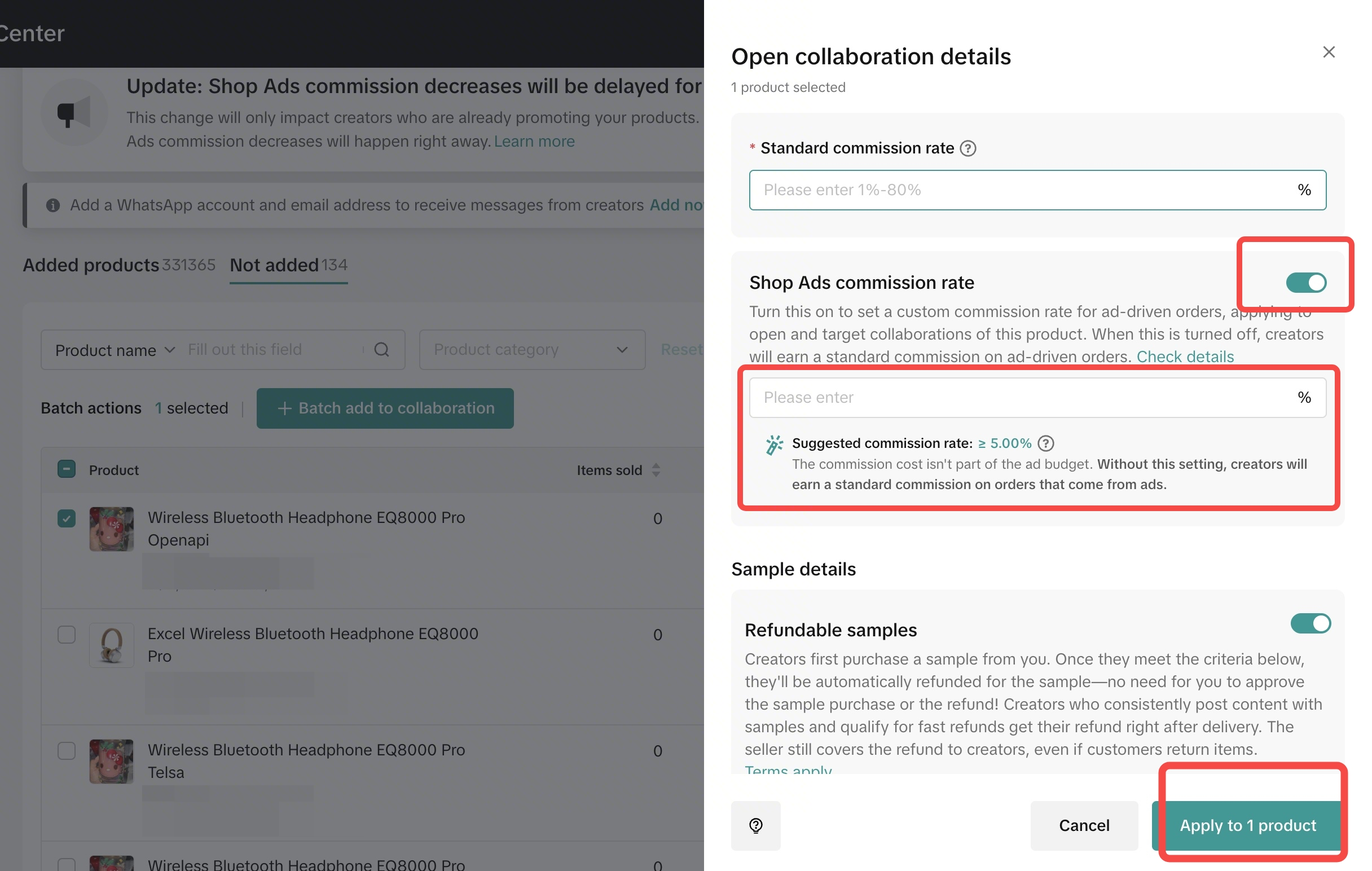 |
|
|
|
| ||
Newly updated feature:Use the Shop Ad commission rate recommendations
This feature provides data-driven commission rate suggestions for your Open collaboration affiliate products. By analyzing what works for top-performing products in your category, we help you set competitive rates to attract creators and drive sales—all while keeping you in complete control.- Smarter rate recommendations.
These recommendation rates aren't random, they are our recommended rates calculated to make your products more attractive to creators.
We look at all products in your product's specific category (e.g., "Women's Dresses") over the last 30 days. We then identify the top 30% of those products based on a combined score of creator click-through rates and product selection rates. The median commission rate of that top-performing group becomes the recommended rate for your product
- If you select products from the same category: You'll see a specific suggested rate (e.g., "15%").
- If you select products from multiple categories: You'll see a suggested range (e.g., "15% - 20%"). This range represents the minimum and maximum recommended rates across the different categories you've selected.
- Faster setup for sellers.
- Flexible control.
TipsNote: keep in mind that Shop Ad commission rates have a 30-day grace period. If a creator has already linked your product to their content or showcase, their Shop Ad commission rate will not change to the lower rate until 30 days after the change.
- Our recommended rates are a powerful starting point. Consider using them for a few weeks, then check your Product performance analytics to see how they’re working for you.
- A higher Shop Ads commission can be a great incentive for creators to feature your products in their paid advertising, potentially helping increase your visibility and sales.
- Market trends change. What's competitive today might not be in a few months. Make it a habit to review your commission rates quarterly to ensure they align with your business goals.
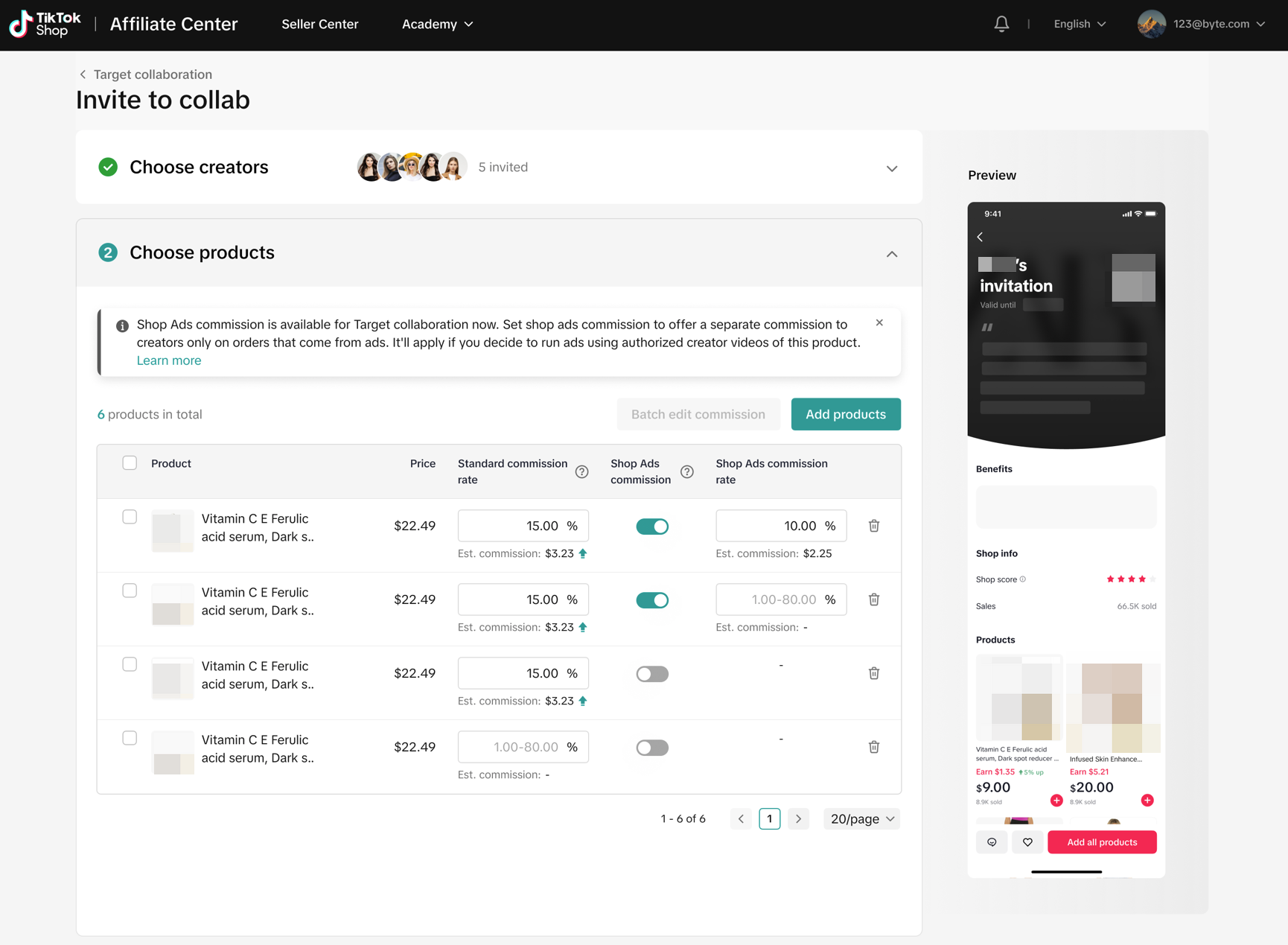
Setting the Shop Ads Commission Rate in Target Collaboration
The Shop Ads commission rate is set by sellers when creating or editing Target Collaboration:
Checking Authorized Videos for Shop Ads
Creators will need to authorize Sellers to use their Short Videos in-app. Once they turn on the authorization, you will have access to the Creator's videos that are currently promoting your product.
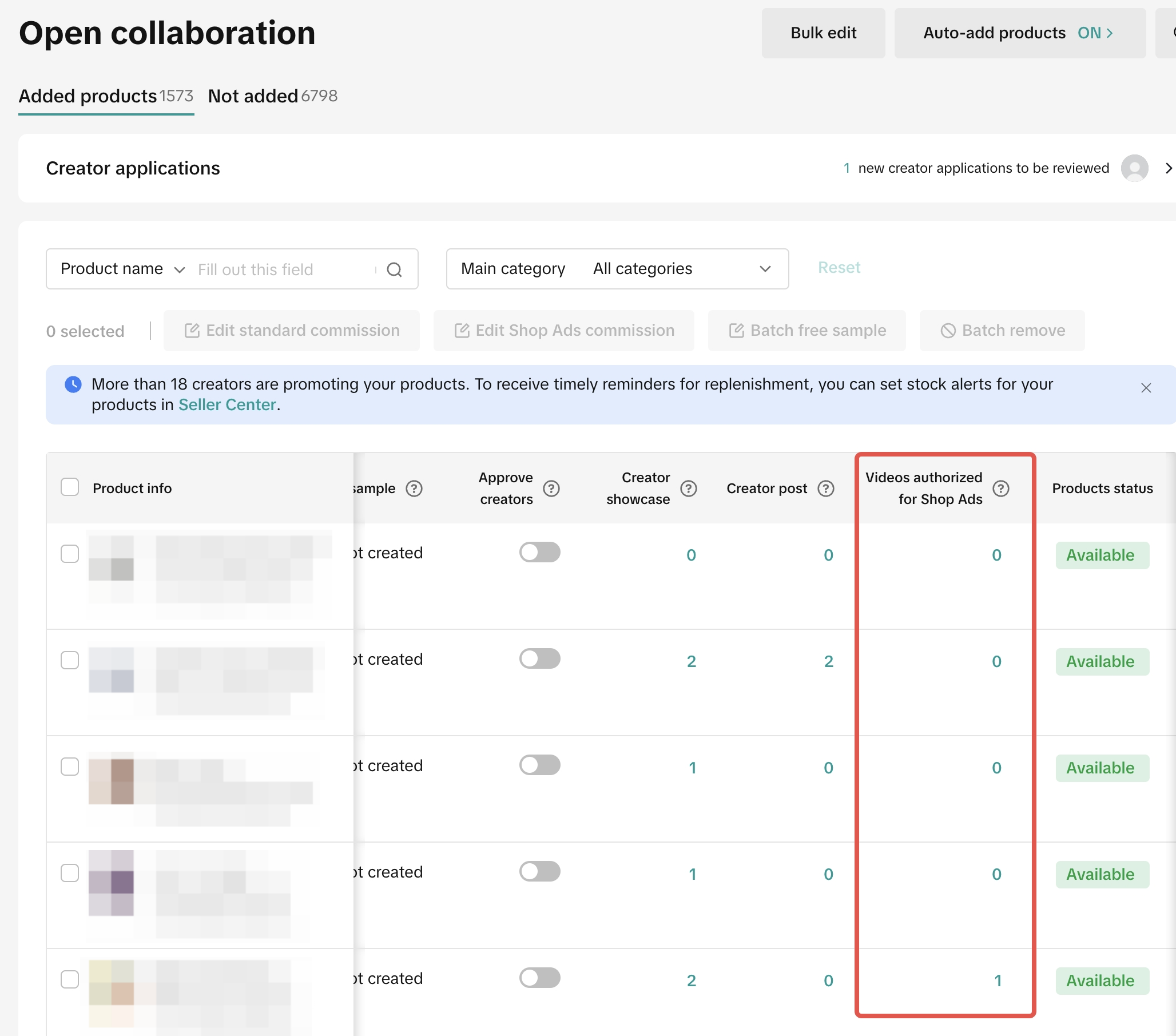
Clicking on the number below the Videos authorized for Shop Ads column will prompt a pop-up that shows the videos you can use for your Shop Ads. Clicking on the Create Ads button will redirect you to the Ads Manager for your boosting purposes.
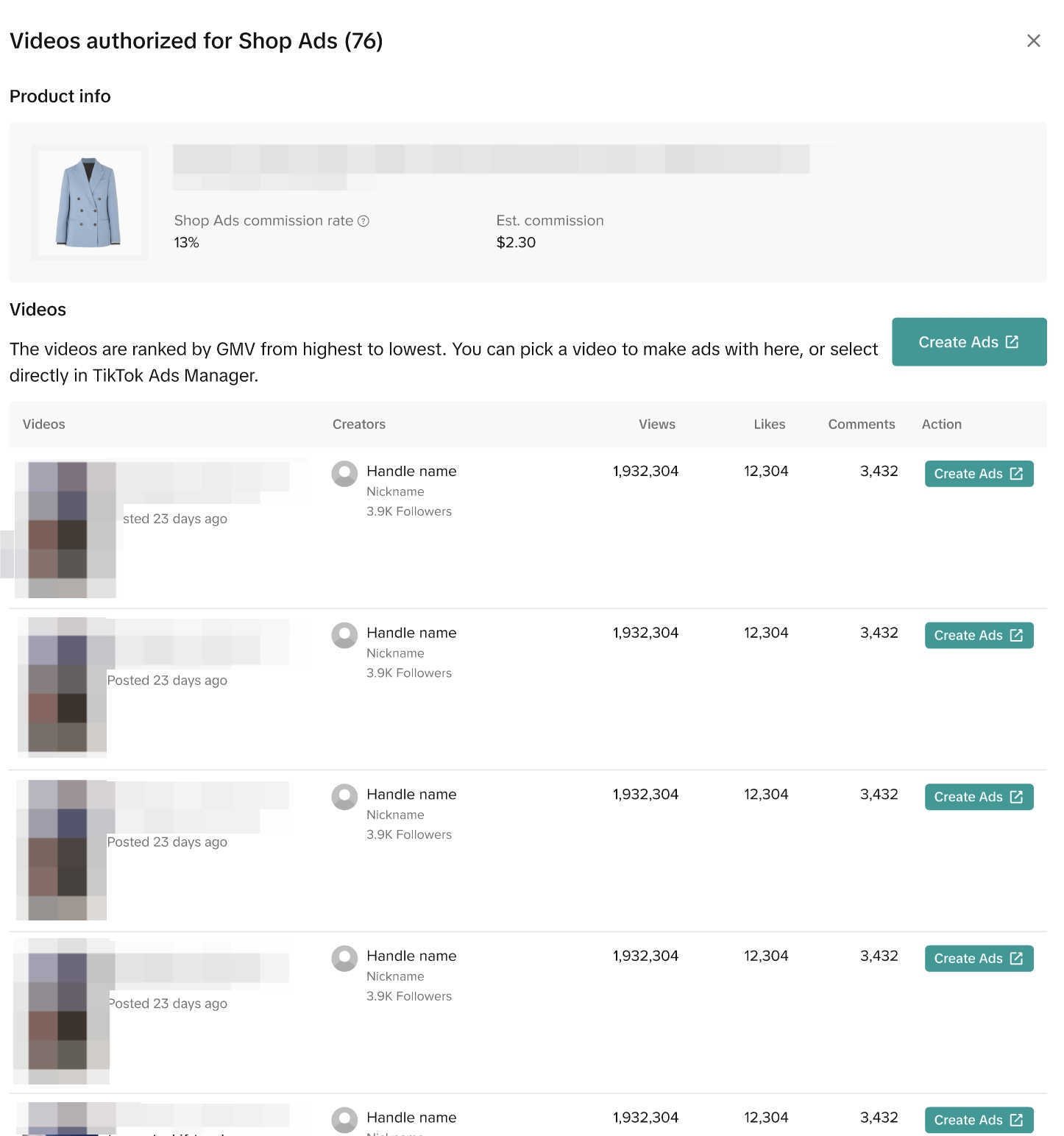
Standard Commission Rate vs Shop Ads Commission Rate
We prepared different scenarios for your reference if you choose to use a Creator's content for your Video Shopping Ads.Commission Scenarios | Standard Commission Rate | Shop Ads Commission Rate | What will the Creator receive? |
| 10% | 5% | 5% - Shop Ads |
| 10% - Standard | ||
| 10% - Standard | ||
| 10% - Standard |
Tracking Affiliate Ads GMV
In Ads Manager, there will be ads performance metrics including Revenue, Purchases, Clicks.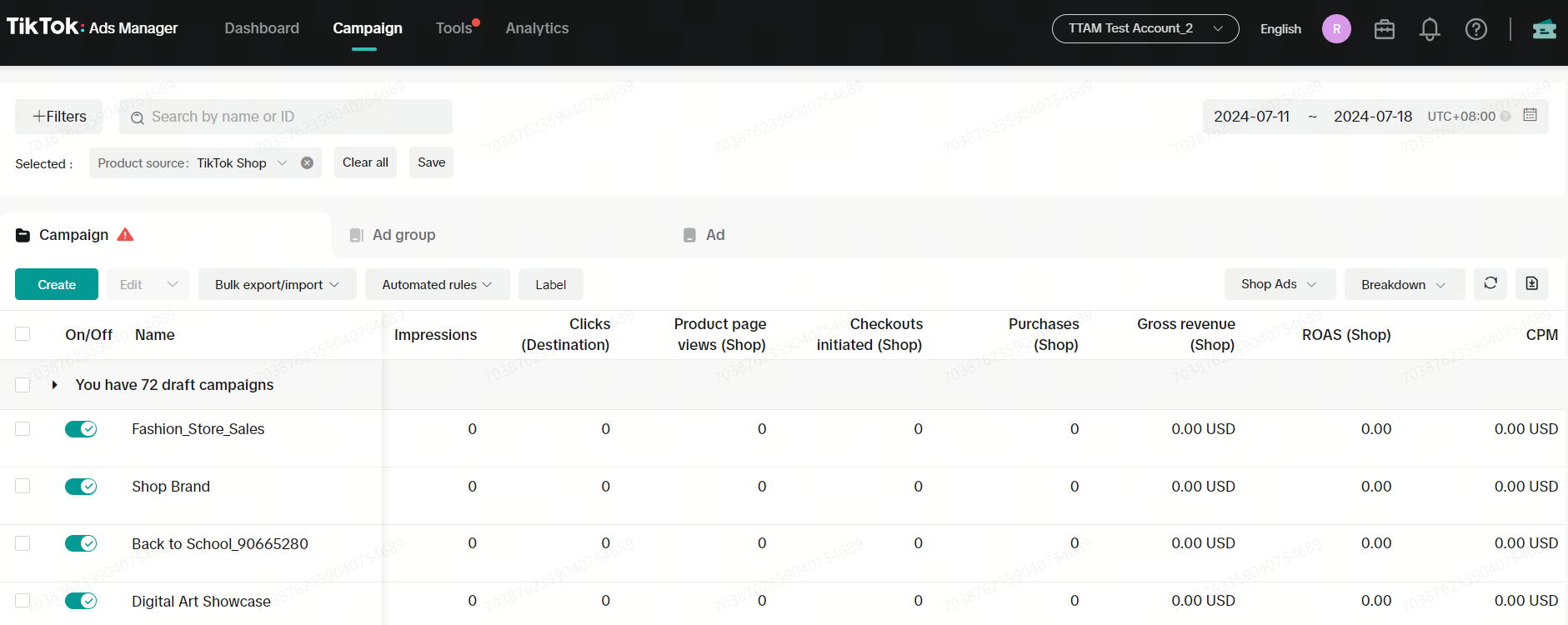
FAQ
- If I don't set a Shop Ads Commission Rate for a video I want to boost, what commission rate will the Creator receive?
- If the product does not have a Shop Ads Commission Rate, the Creator will receive the Standard Commission from your Shop Ads.
- If I adjust the Shop Ads commission rate, when will it take effect?
- Decreasing or increasing shop ads commission rate will take effect immediately.
- Which commission rate will be applied if the same product is simultaneously in multiple Open Collaboration, Target Collaboration, and TAP Campaign?
- If the video is under TAP Campaign, then TAP Campaign commission rate will be applied.
- When linking the product to the video, if the creator linked the product through Target/Open Collaboration, then for ad orders:
- If Shop Ads commission rate has been set under Target Collaboration, this Shop Ads commission rate will be used.
- Otherwise, if Shop Ads commission rate has been set under Open Collaboration, this Shop Ads commission rate will be used.
- Otherwise, if Standard commission rate has been set under Target Collaboration, this rate will be used.
- Otherwise, the Standard commission rate under Open Collaboration will be used.
- How will order cancellation affect the reported GMV and commission?
- The reported ads GMV will continue to include cancelled orders.
- However, cancelled orders may not have affiliate commissions; this will continue to depend on each country's affiliate order cancellation policy.
- Do I have to use the recommended commission rate?
No, not at all. The recommendation is a suggestion to help you make an informed decision. You always have 100% control to set whatever rate you choose.
- What's the difference between the Standard commission and the Shop Ads commission?
The Standard commission is the rate a creator earns on any sale they generate organically through their content. The Shop Ads commission is a potentially higher rate that a creator earns only on sales that come from authorized creator ads.
- What if I want to keep my Standard and Shop Ads commission the same?
You can do this by adjusting your settings in auto-add or batch editing. When you do, just toggle off the Shop Ad commission rates.
- What if I don't want my products automatically added to Open Collaboration?
You can turn this off. In the Open collaboration tab, find the Auto-add new products toggle and switch it off. You can also deactivate any products you don't want in the program at any time.
- Are there any rules about the Shop Ads commission rates?
Shop Ad commission rates need to be within a certain threshold (from 1% to 80%) and the platform will indicate if your proposed Shop Ad commission rate does not meet this threshold.