

Shipping Fee Discount
This article teaches you how to use Shipping Fee Discount. You will learn how to set up and manage Shipping Fee Discount promotions on your Seller Center PC

The benefits of using Seller Shipping Fee Discount

 After all the settings are completed, click Agree & Publish to create the Shipping Fee Discount promotion.

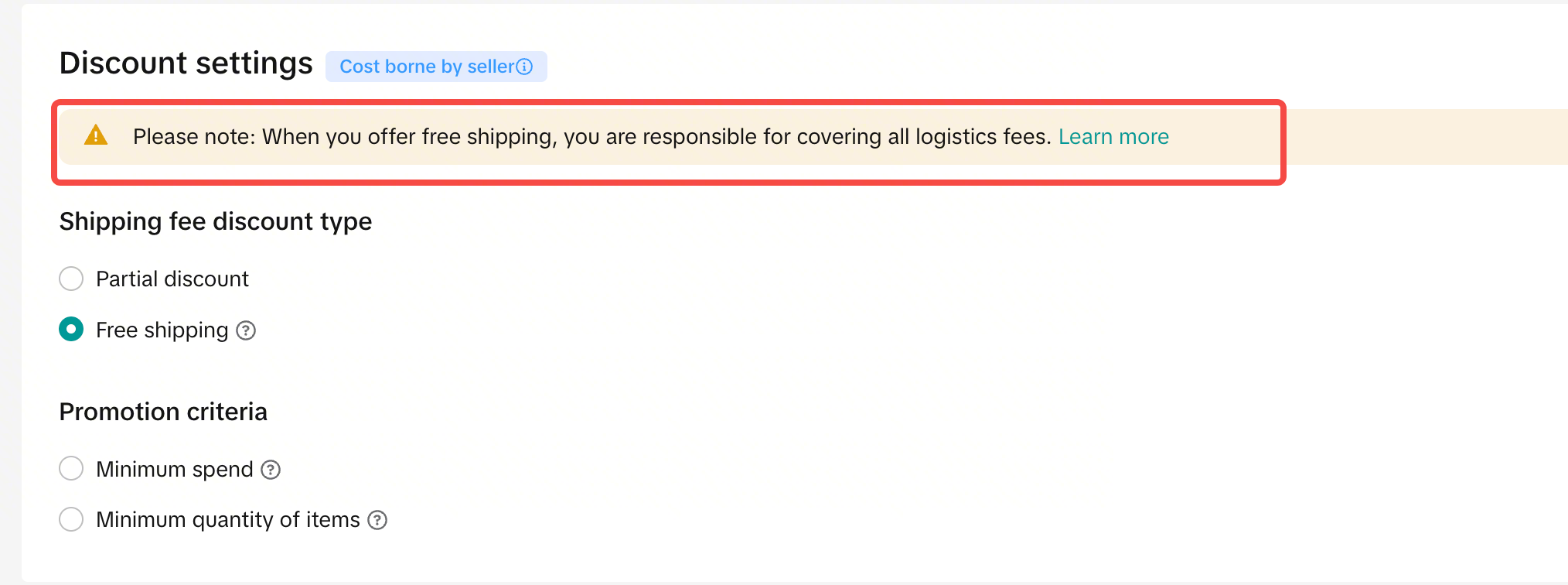
When you select the "Free Shipping" option, a yellow warning banner will appear on the campaign creation page to remind you: Choosing to cover shipping in full may lead to cost overruns. Please configure this option with caution.
What is Seller Shipping Fee Discount?
The Shipping Fee Discount is a shipping discount promotion set by the Seller in the Seller Center, where the Seller bears all/part of the shipping cost.The benefits of using Seller Shipping Fee Discount
- Seller shipping discounts can increase your basket size and help make buyers' purchasing decisions easier.
- Offer your customers subsidised shipping on selected products, minimum basket sizes or storewide.
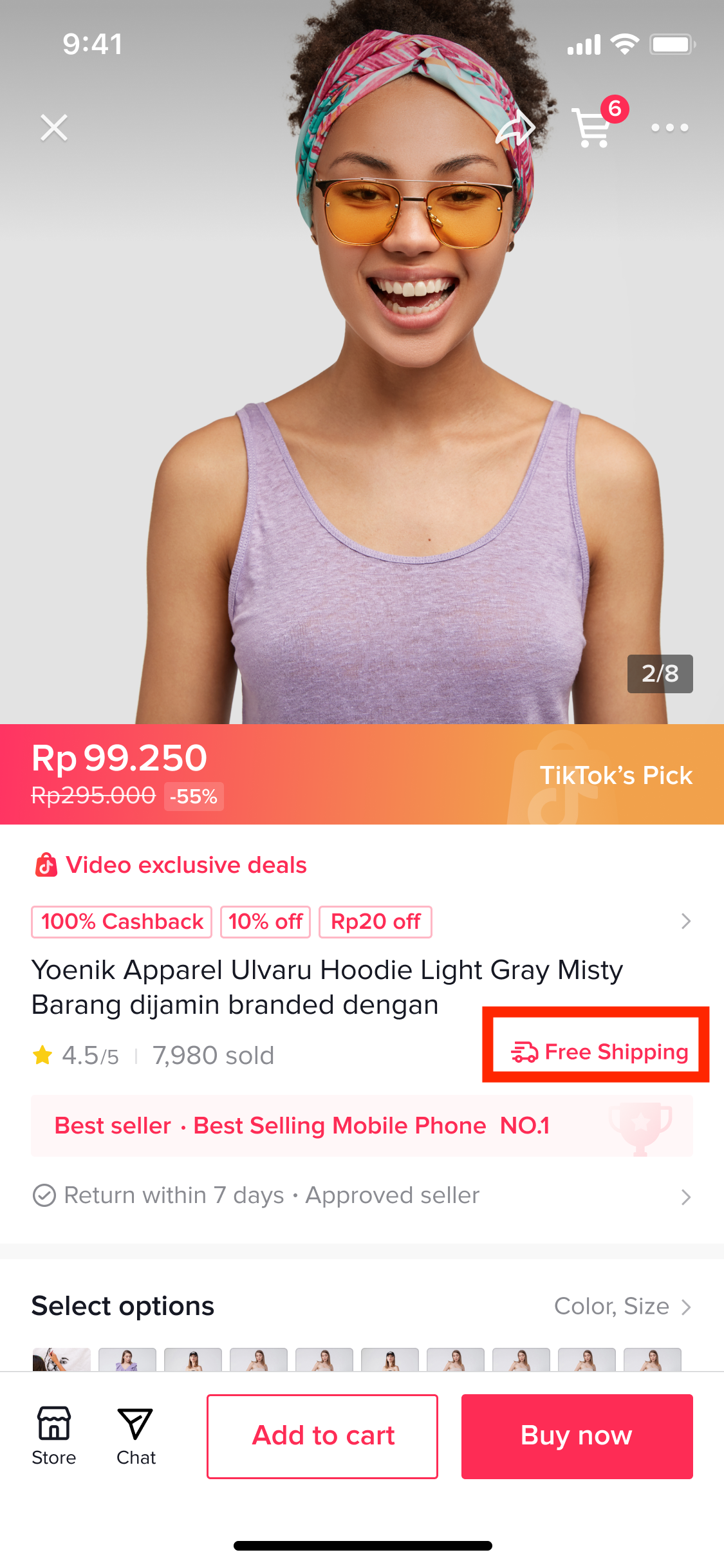
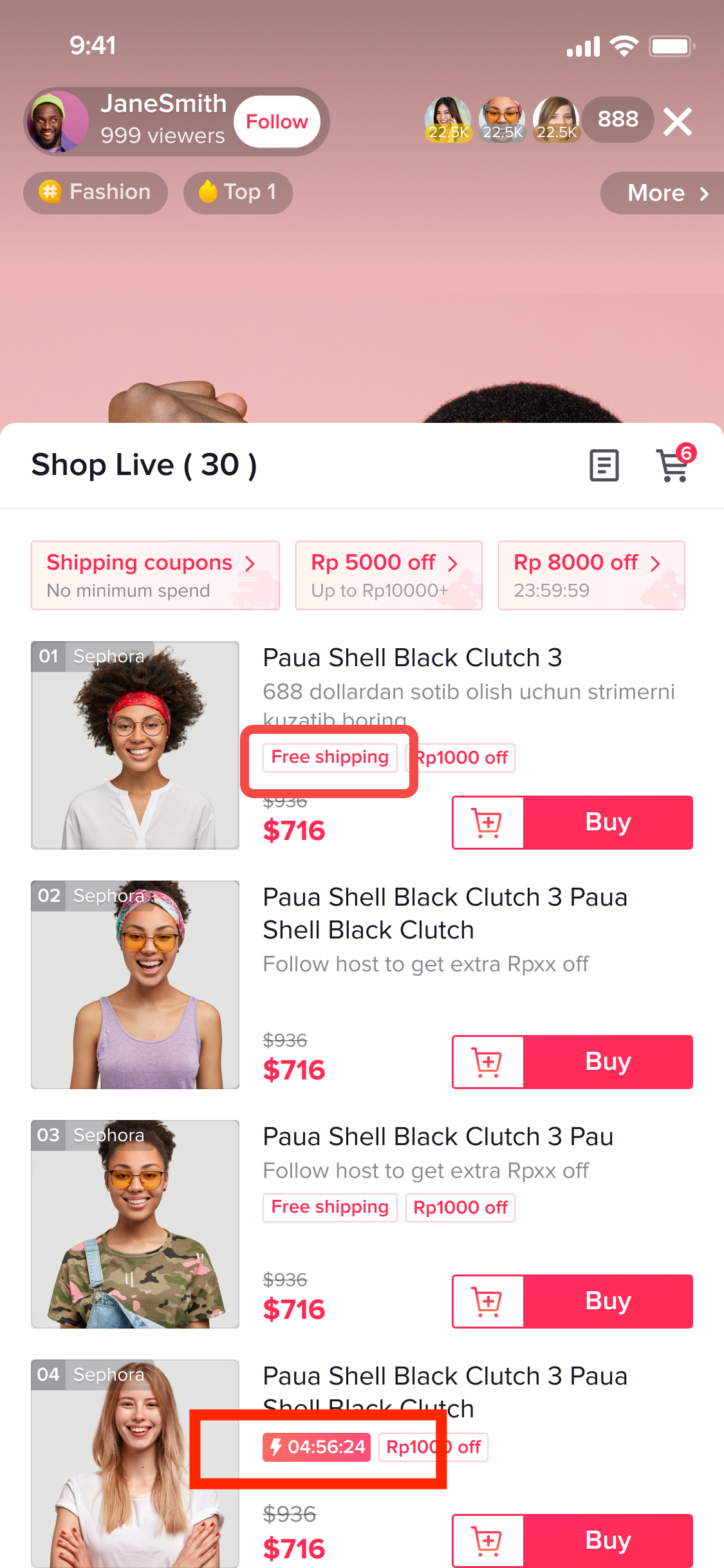
- More visibility: The Free Shipping label helps your products stand out and appear more attractive.
- The seller must maintain a positive shop account balance; and
- The seller account has passed the probation period

Customer Display
Here's how users will view and enjoy the Shipping Fee Discount.| Placing an order on PDP | On Livestream |
 |  |
Create Shipping Fee Discount
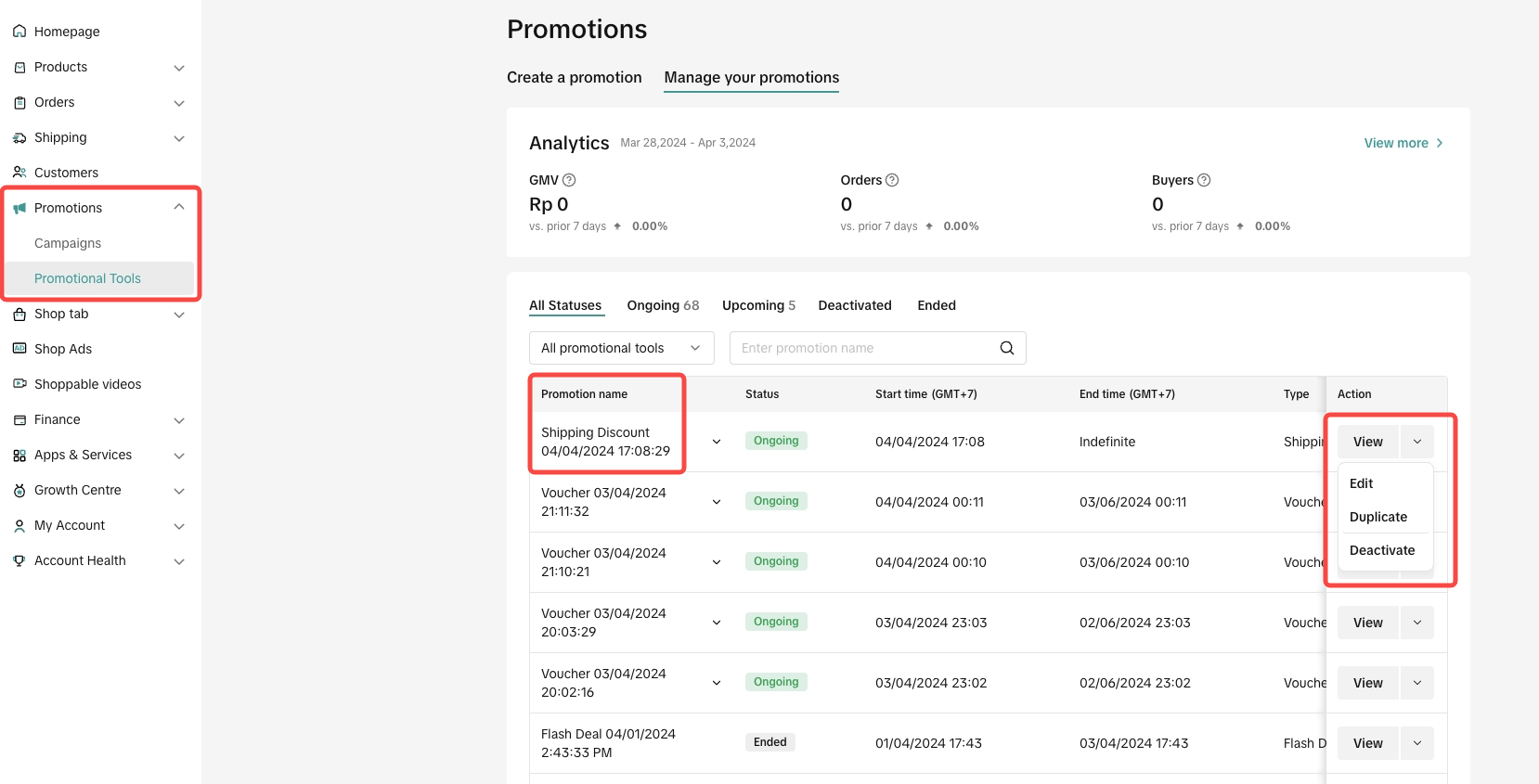
To create a Bundle Deal promotion on the Seller Center on PC, visit the Promotional Tools tab.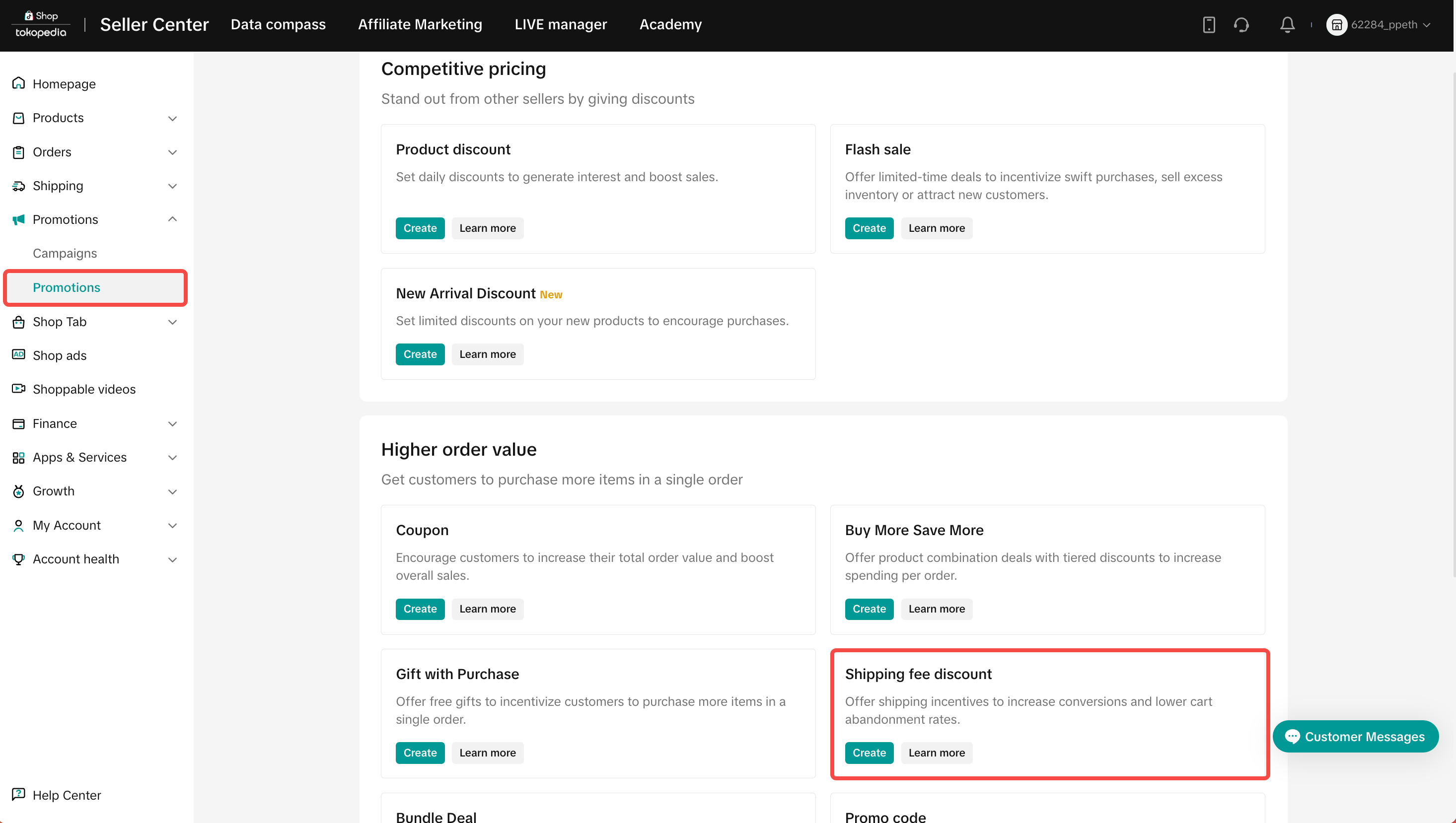 | 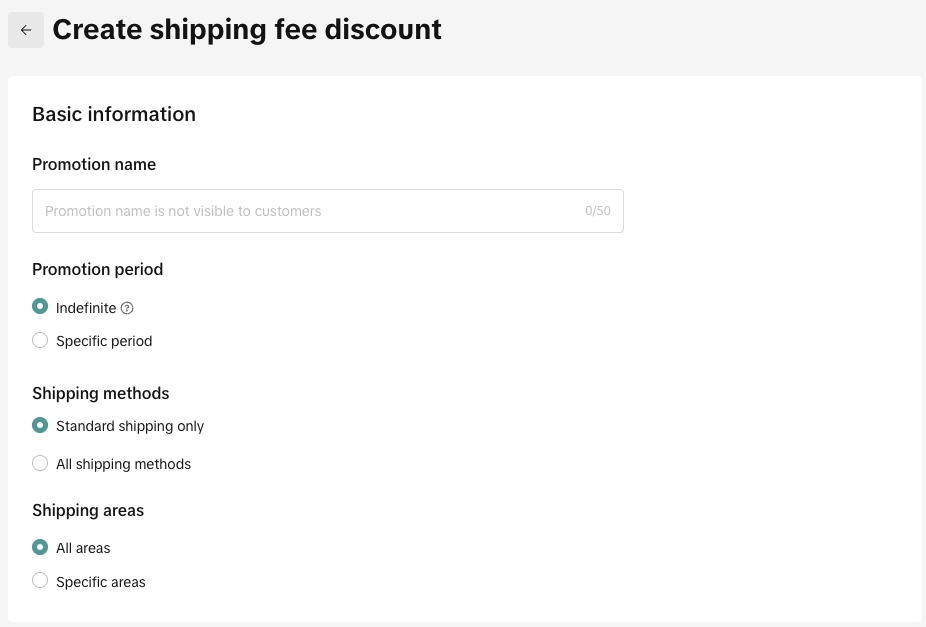 |
Basic Information
- Period: Set your period to indefinite and be more competitive all year round, or a specific duration to create a sense of urgency
- Indefinite
- Specific period
- Shipping Methods
- Standard shipping only: Economy and standard shipping
- All shipping methods: All shipping methods including express, next day delivery, economy and standard shipping.
- Shipping Area
- All areas
- Specific areas
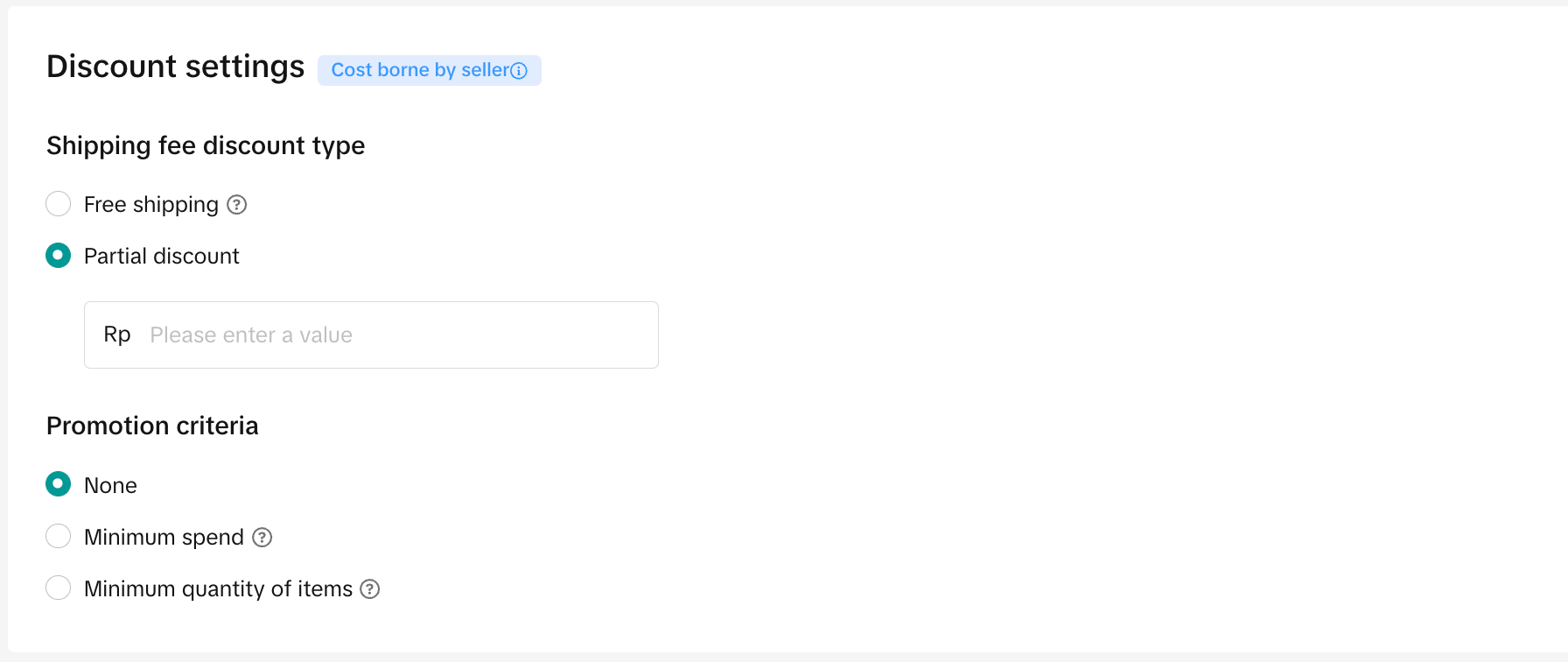
- Shipping Fee Discount Type: make sure your subsidised shipping fee does not cost more than your order value. This will result in a negative balance.
- Free shipping
- Partial discount
Promotion Criteria
- 💡 Pro Tip: Set your minimum spend slightly higher than your average order value. Get your buyers to spend more!
- Minimum spend: The order total amount that must be met in order for the Shipping Fee Discount to be applied
- Minimum quantity of items: The total number of SKUs to be added to the order for the Shipping Fee Discount to be applied
Manage Shipping Fee Discount
To manage a promotion on the Seller Center PC, visit Manage Your Promotions to review the details of ongoing, upcoming and deactivated promotions.FAQ
Why is my invoice negative when I offer seller shipping discount?What could be the reasons?
When you create a shipping discount and check the "Free Shipping" option, the full shipping cost will be borne by the seller. If the actual logistics cost exceeds the amount paid by the buyer, your invoice will show a negative balance—meaning "Revenue minus Shipping" results in a negative value.When you select the "Free Shipping" option, a yellow warning banner will appear on the campaign creation page to remind you: Choosing to cover shipping in full may lead to cost overruns. Please configure this option with caution.