

Manage Products
In this article, you will learn how to manage your product in TikTok Shop seamlessly. Managing your products is a crucial part of your success. Firstly, take a look at the process overview below to see the overall steps on how to manage your product in TikTok Shop.
On the Manage Product page, you can search for products by Seller SKU, category, and price as well as edit, delete, copy, deactivate, change price and stock of products one by one or in batch. You can also easily manage your TikTok Shop products that have been classified based on various product statuses.
 Click here to Manage Products on your own.
Important: All products must comply with the following TikTok Shop product guidelines.

Add a single product to TikTok Shop by using the Add New Product feature requires filling out four sections of information, with the following step by step process:
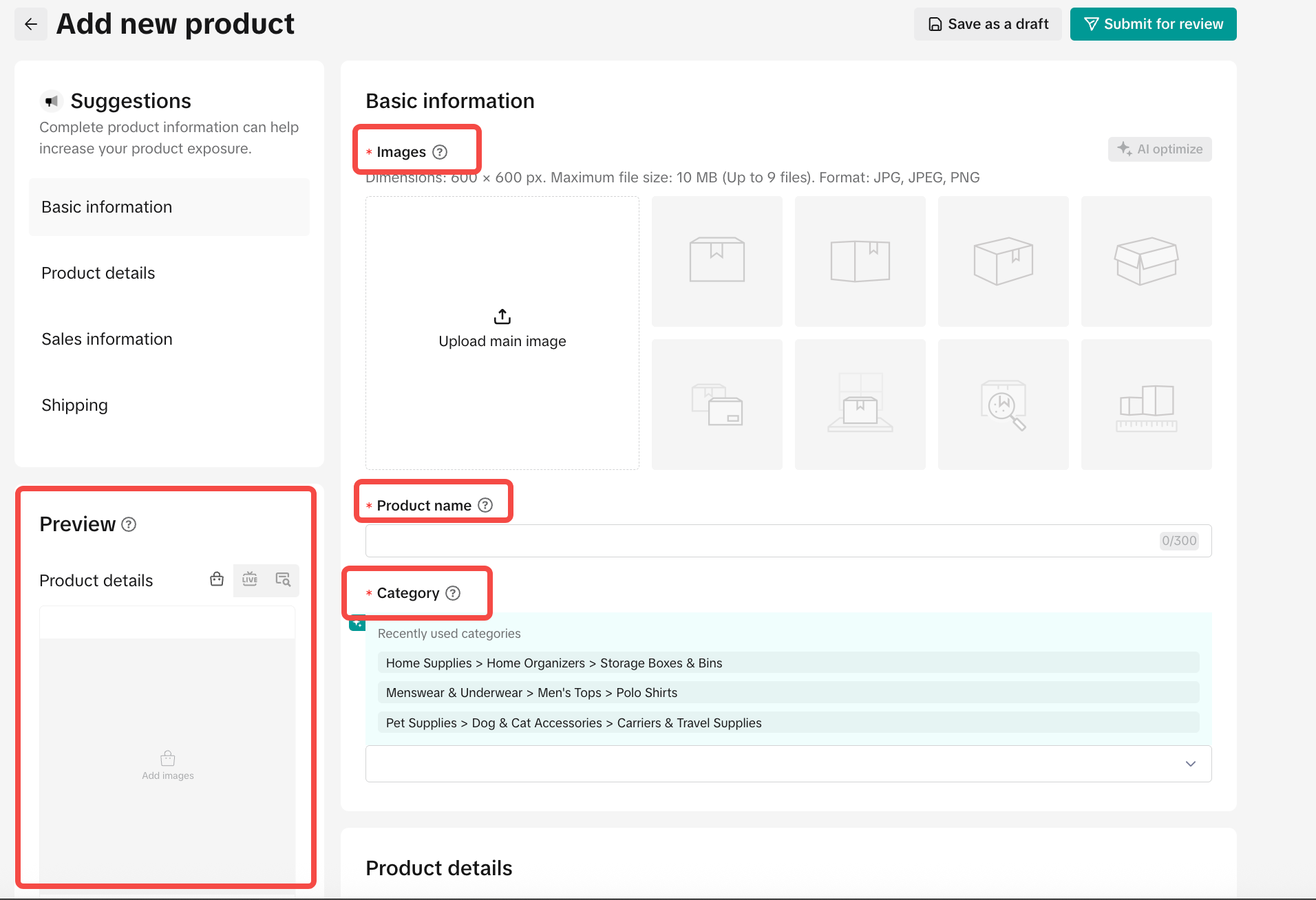
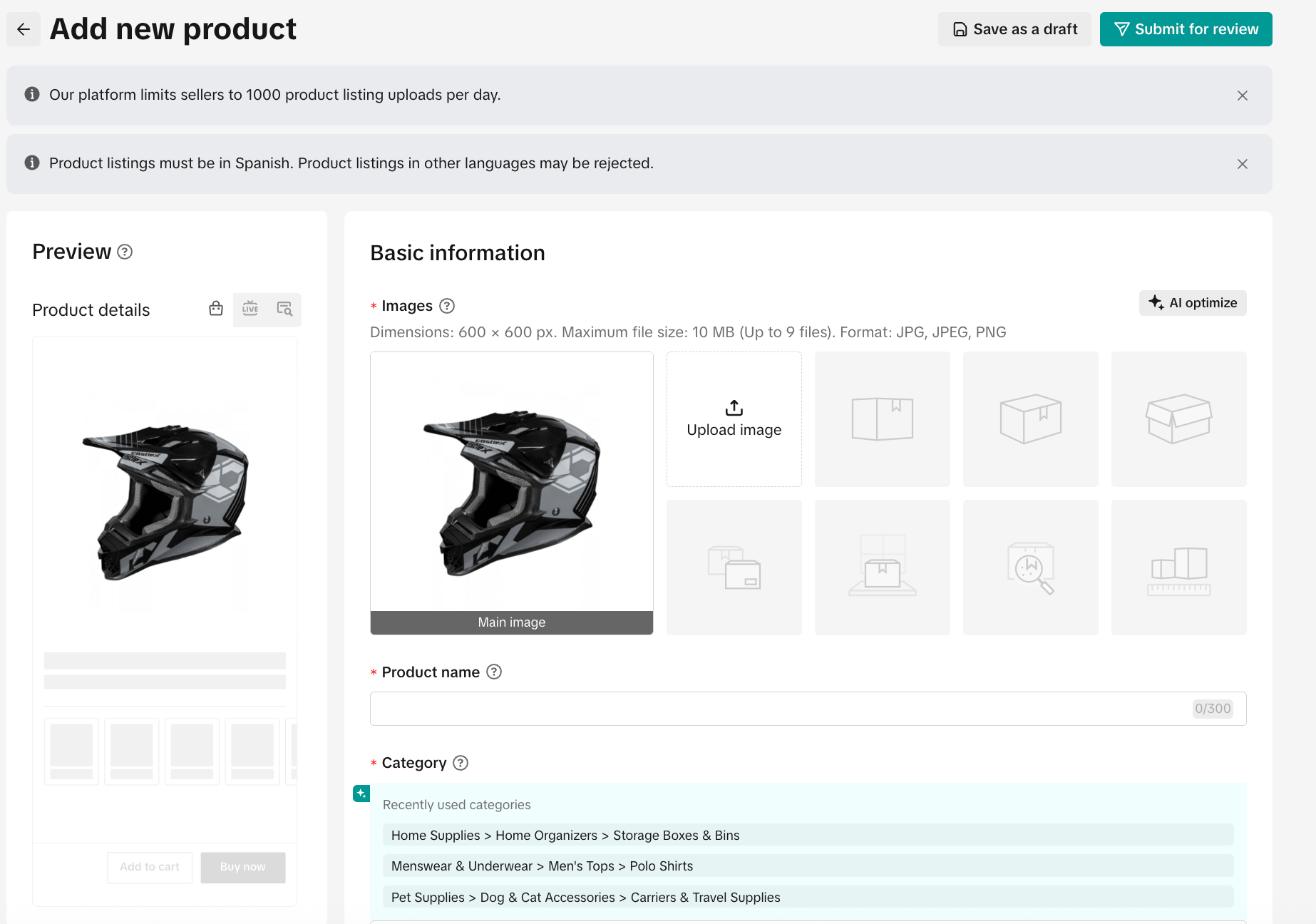 The product images, videos and description are the most direct way to attract consumers and help them understand the product.
Sellers can also click the question mark icon "?" to see tips for recommended requirements for image and video. Other recommendations:
For Image
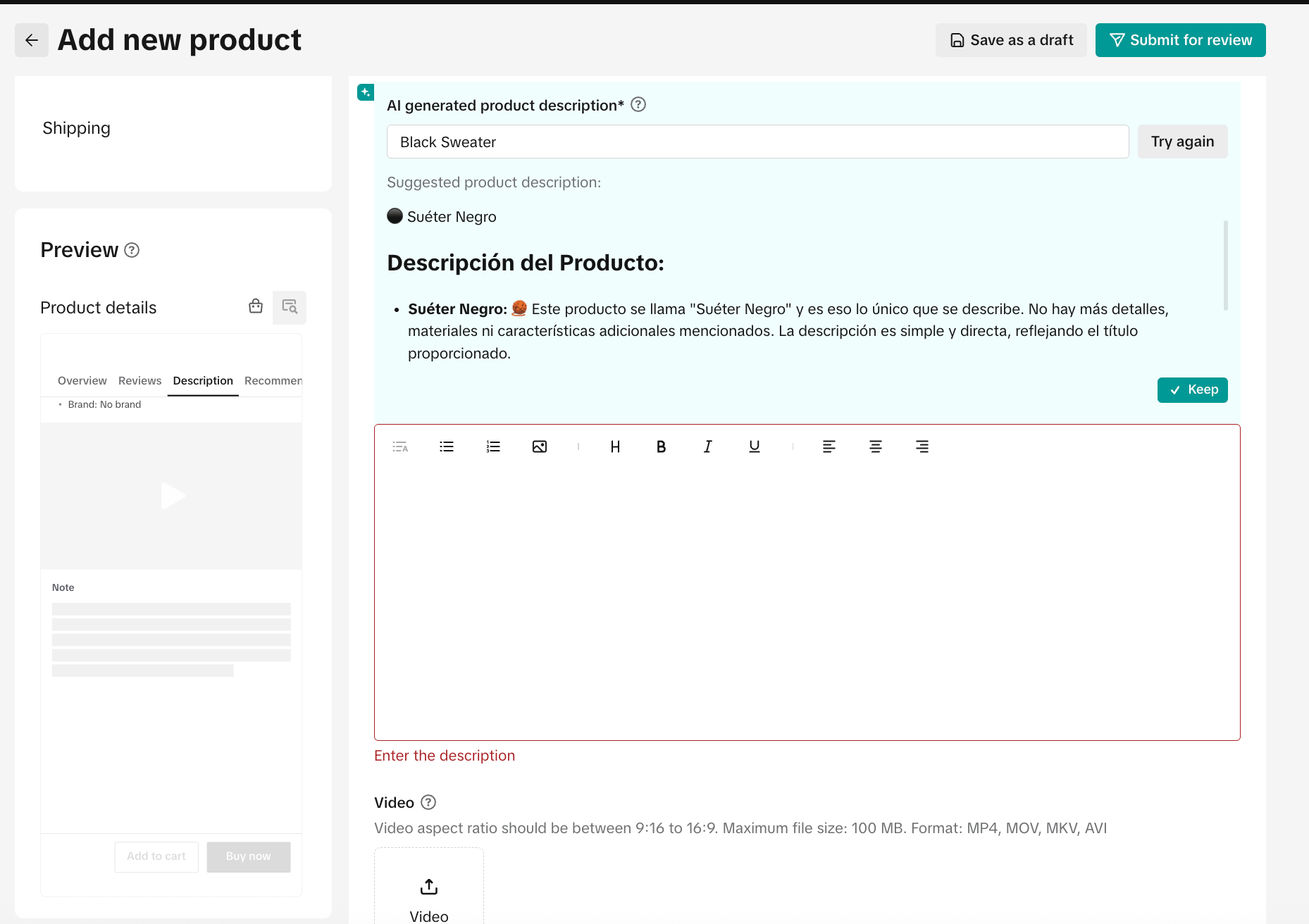 To make it easy to read, it is suggested to fill each selling point in separate paragraphs, preferably with auxiliary images. Avoid information redundancy, the total description of a single selling point should be less than 250 characters. Other recommendations:
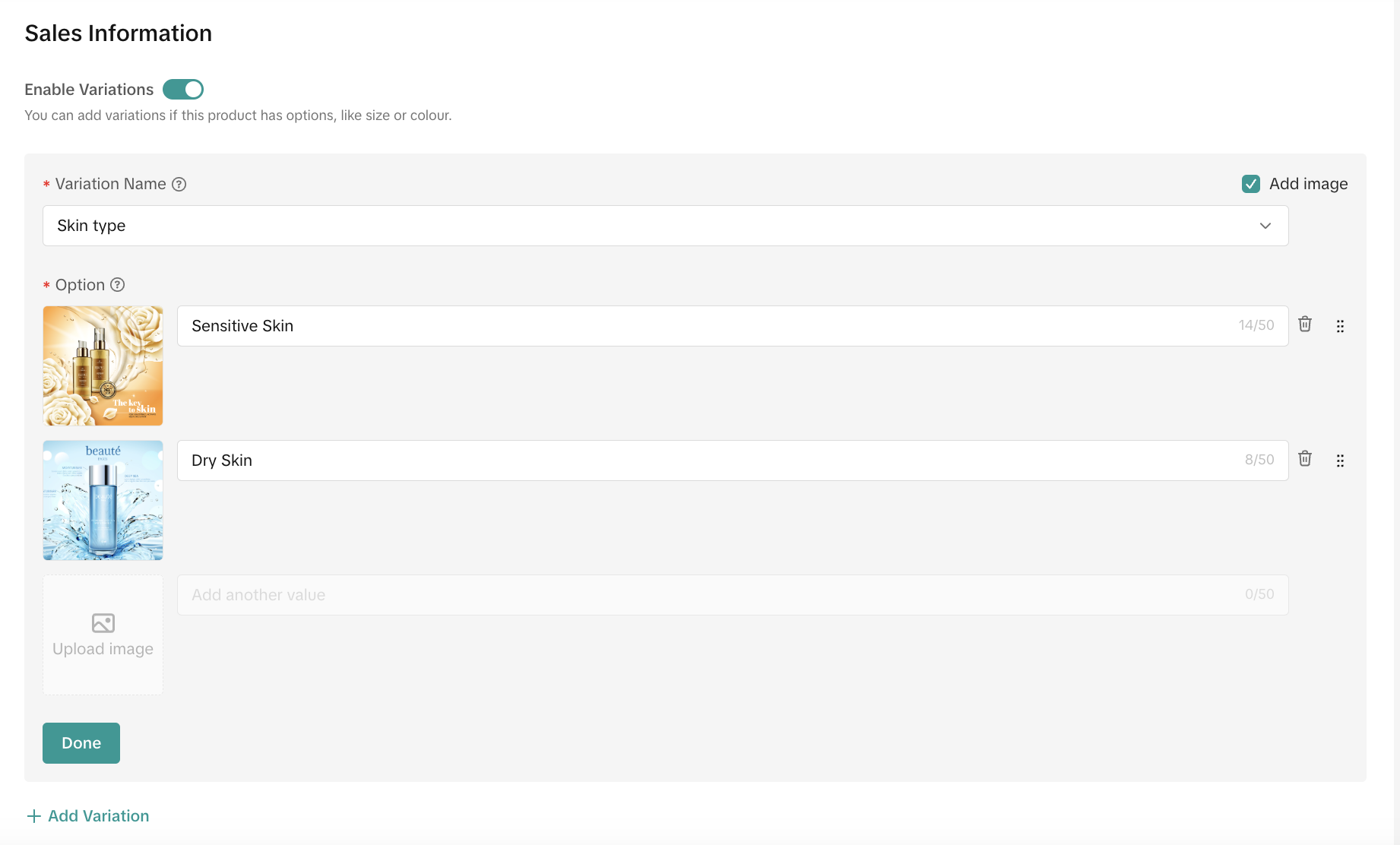
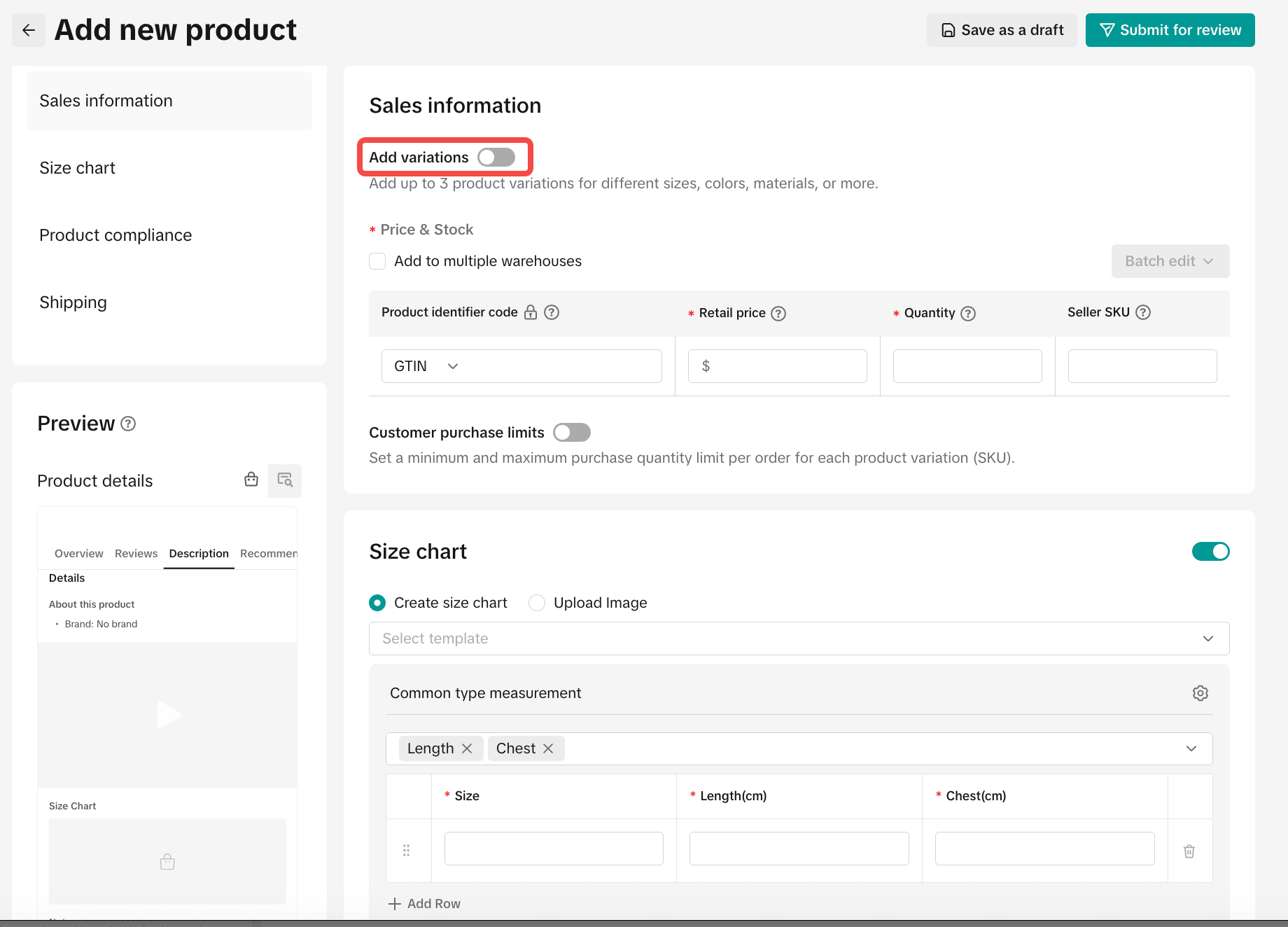 This section allows sellers to set the options available for their product. By default, there is one option(SKU). You can set up to 100 options(SKUs) by turning on the "Enable Variations" button.
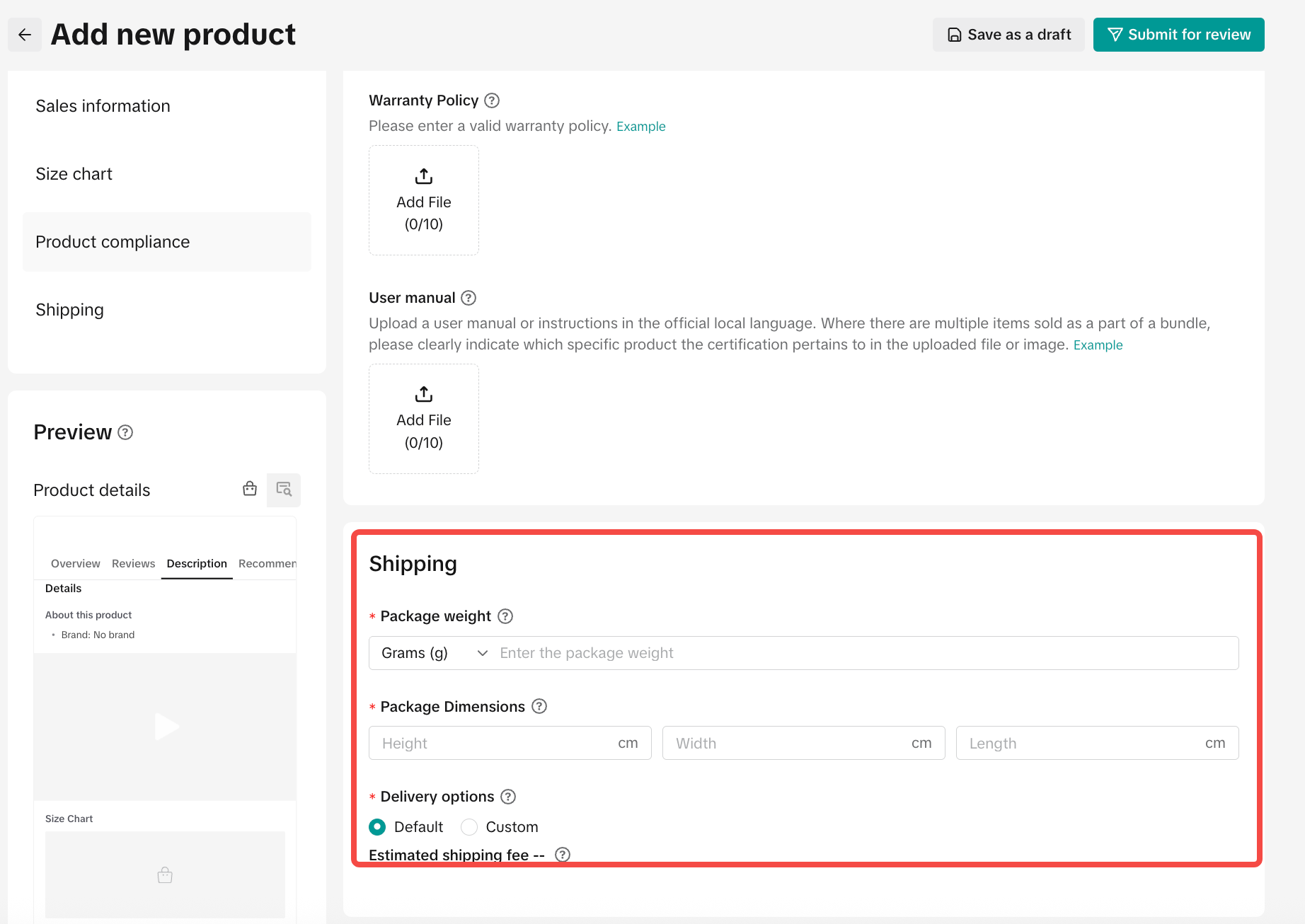 This part is to inform sellers of the estimated shipping fee for customers to pay, so that sellers can evaluate whether to join in campaigns such as shipping fee program, etc.
Parcel weight = Package weight + Wrapping (e.g. Box, bubble, or wood packing)
The allowed parcel weight is 1-30 Kilograms.

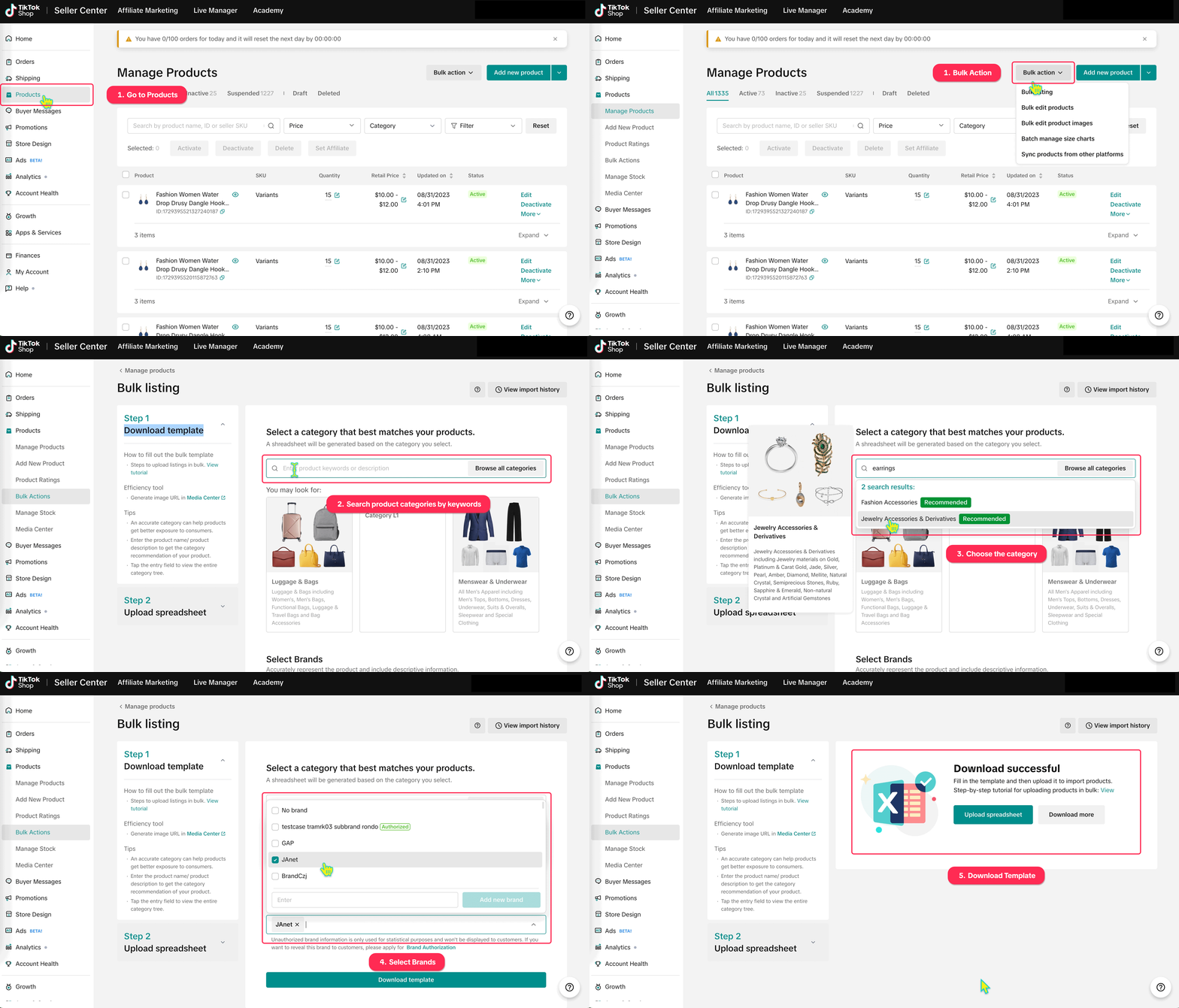
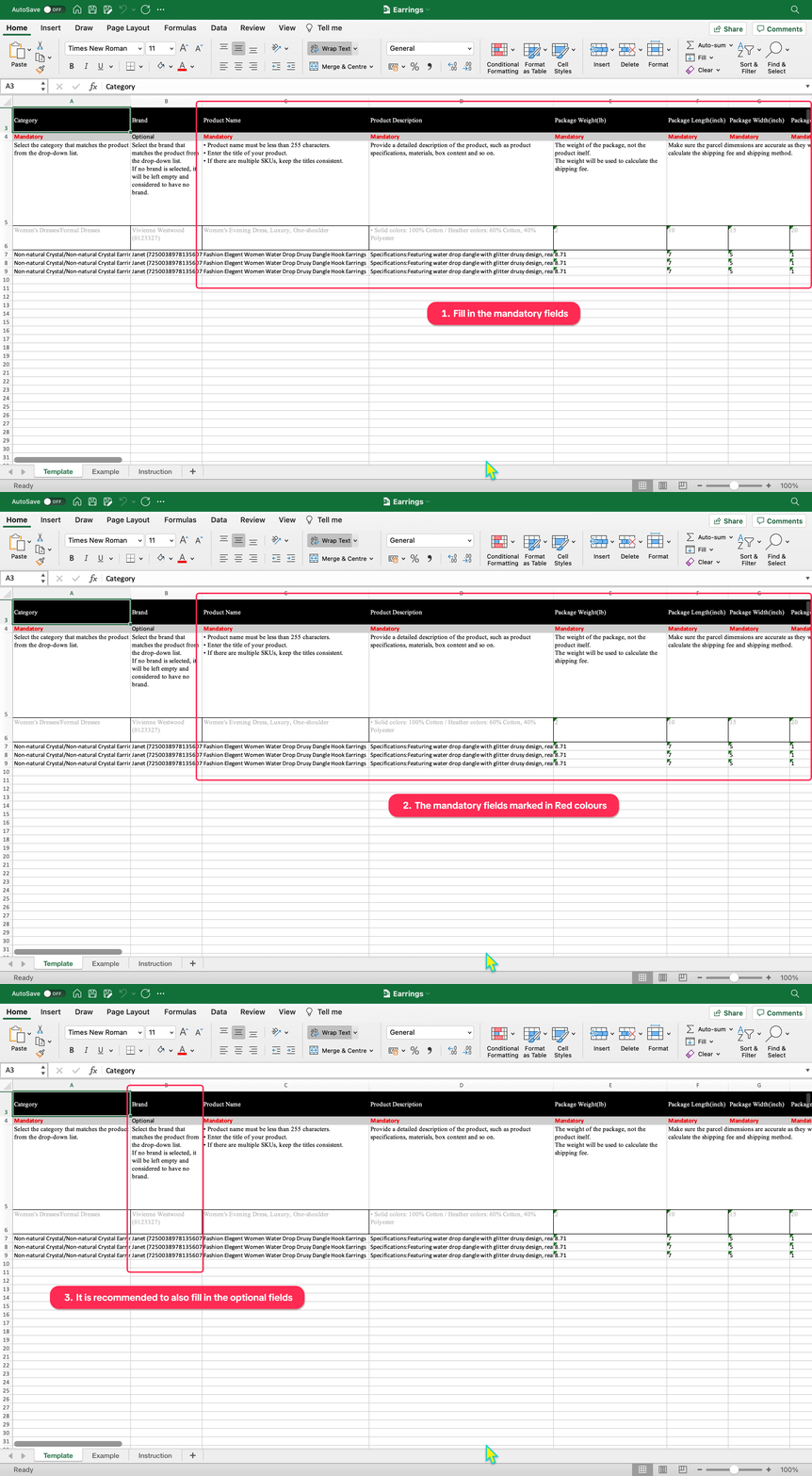 Important: Do not add or delete any rows or columns in the template.
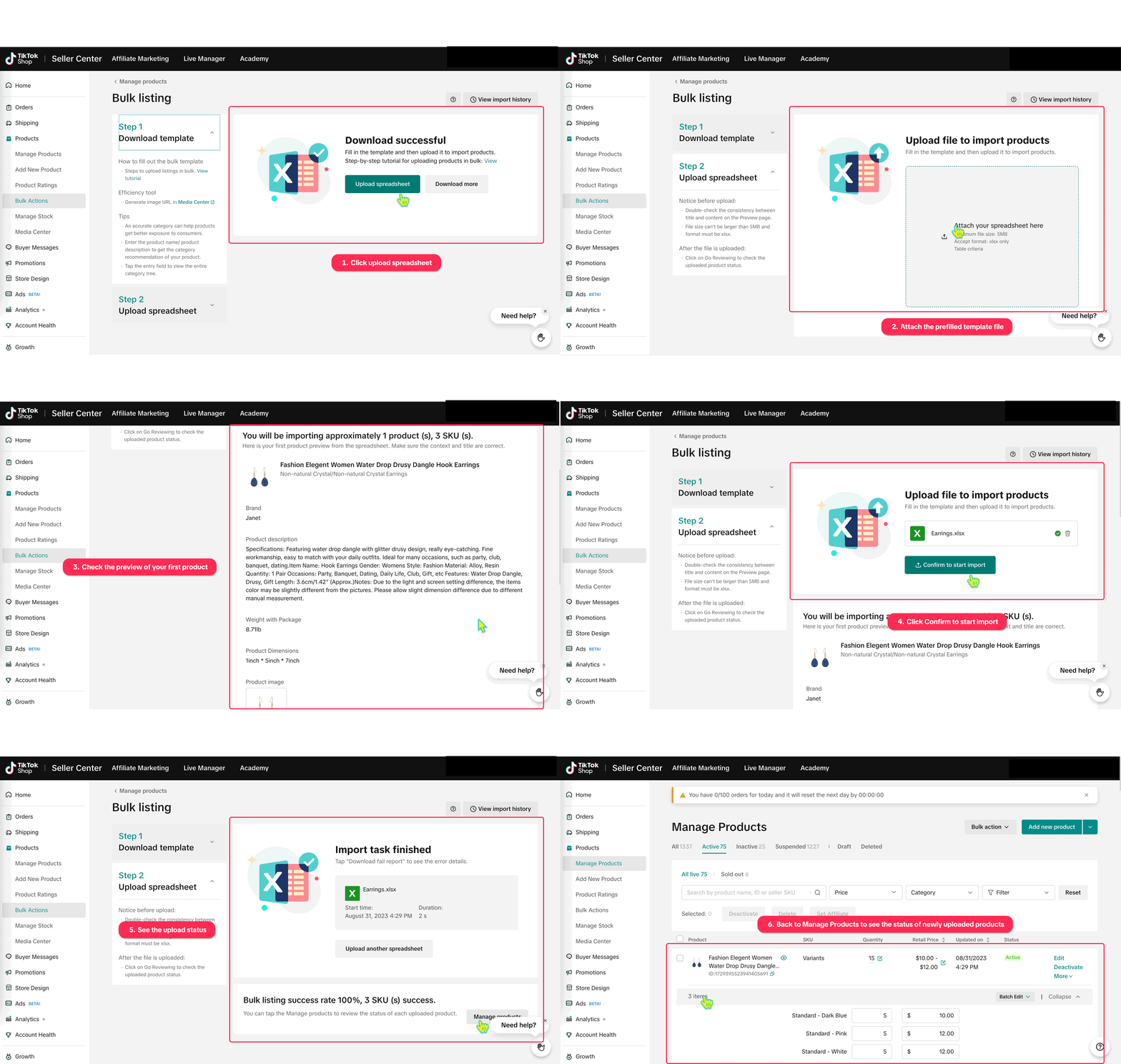
 After uploading, go the "Manage product" page to check the uploaded products.
Note:
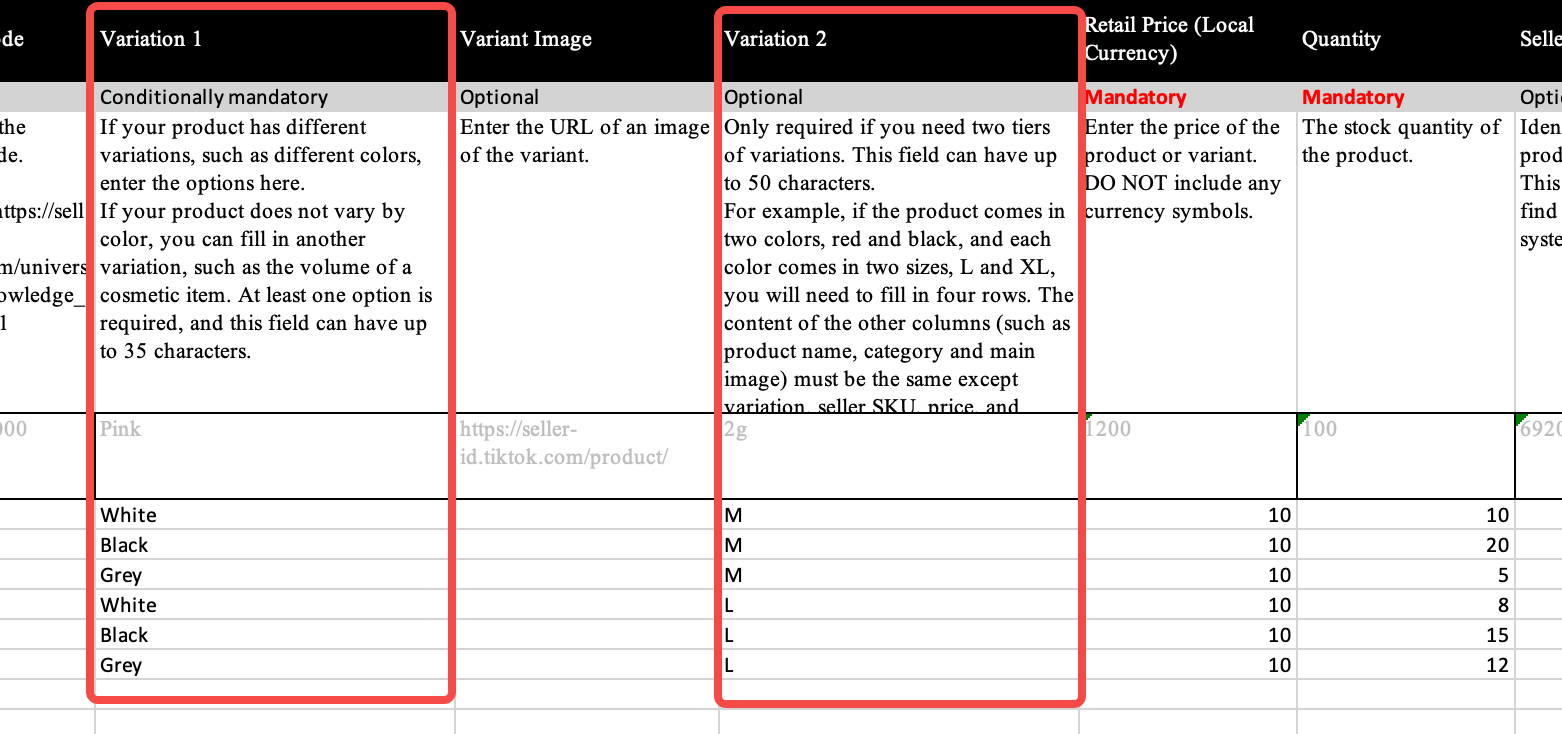
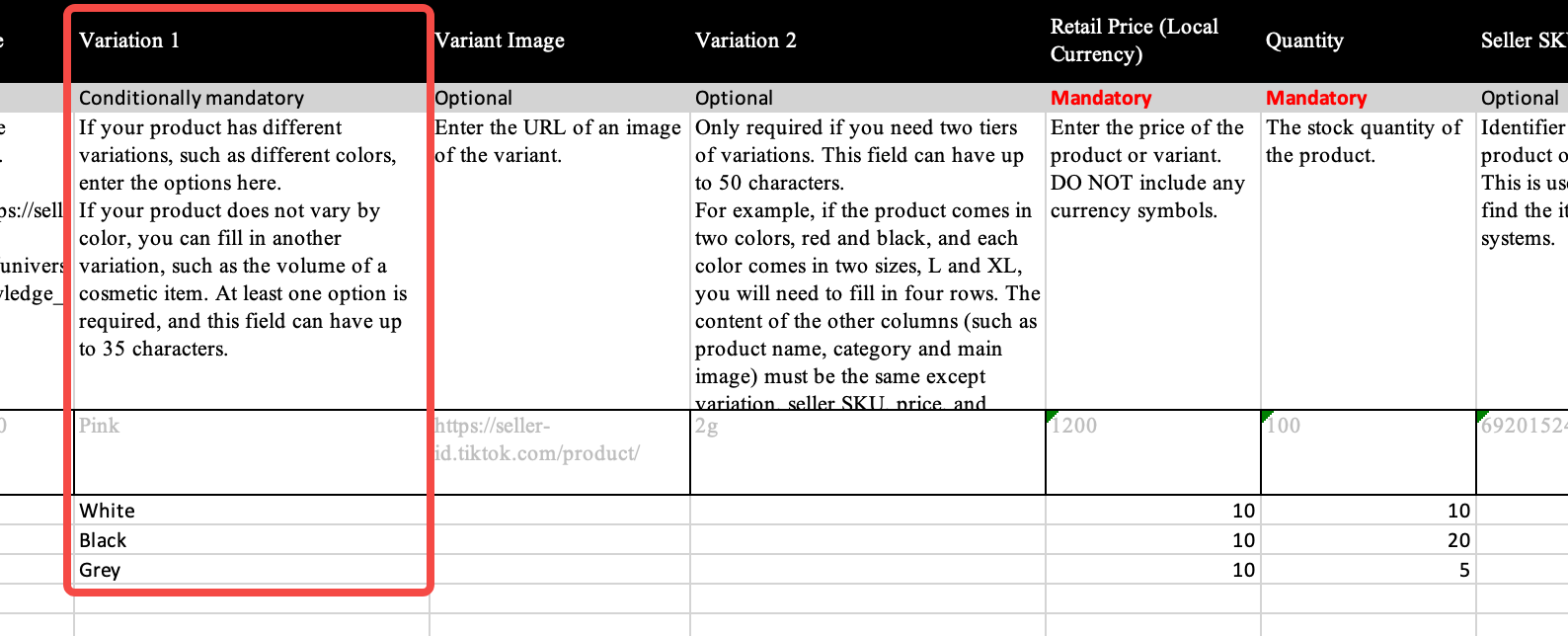 2) If the product comes in 3 different colours and 2 different sizes, there will be a total of 6 SKUs (3 colours × 2 sizes), with each SKU on a separate row.

 Select ProductsFilter the products, the filter conditions are:
 Select Products
 Important: There is no limitation on the number of active products that can be uploaded to TikTok Shop. However, sellers who have just onboarded and in probation period can list max 100 products/day, and 1000 products/day after passing the probation period.

We recommend all sellers to fill in as many product attributes as possible, to help customers see more complete information about the product. You can update these attributes directly from the 'Manage Products' page, or upload in bulk using the Batch Tool.
Here are some examples of an image URL:
https://example.com/images/picture.jpghttps://example.com/images.jpeg.abcd1234
 7. Which products will be archived? Products that have been inactive and not edited for over one year will be automatically archived.
8. What happens after a product is archived? Archived products will no longer be visible or searchable in Seller Center. To sell the product again, you’ll need to create a new listing.
On the Manage Product page, you can search for products by Seller SKU, category, and price as well as edit, delete, copy, deactivate, change price and stock of products one by one or in batch. You can also easily manage your TikTok Shop products that have been classified based on various product statuses.
Important: All products must comply with the following TikTok Shop product guidelines.
- TikTok Shop Prohibited Products Guidelines
- TikTok Shop Restricted Products Guidelines
Add Single Product
Currently TikTok Shop Seller Center supports single product uploads and batch product uploads that can display up to 1,000 products online.Add a single product to TikTok Shop by using the Add New Product feature requires filling out four sections of information, with the following step by step process:
Basic Information
Basic information including Images, Product Name and CategoryMedia
Sellers can also click the question mark icon "?" to see tips for recommended requirements for image and video. Other recommendations:
For Image
- Maximum 9 images per product
- 1:1 Image ratio
- Minimum image size is 600 x 600 px
- Maximum image file size is 5MB
- Suggested video ratio is 1:1, 9:16, or 16:9
- The maximum video file size is 20MB
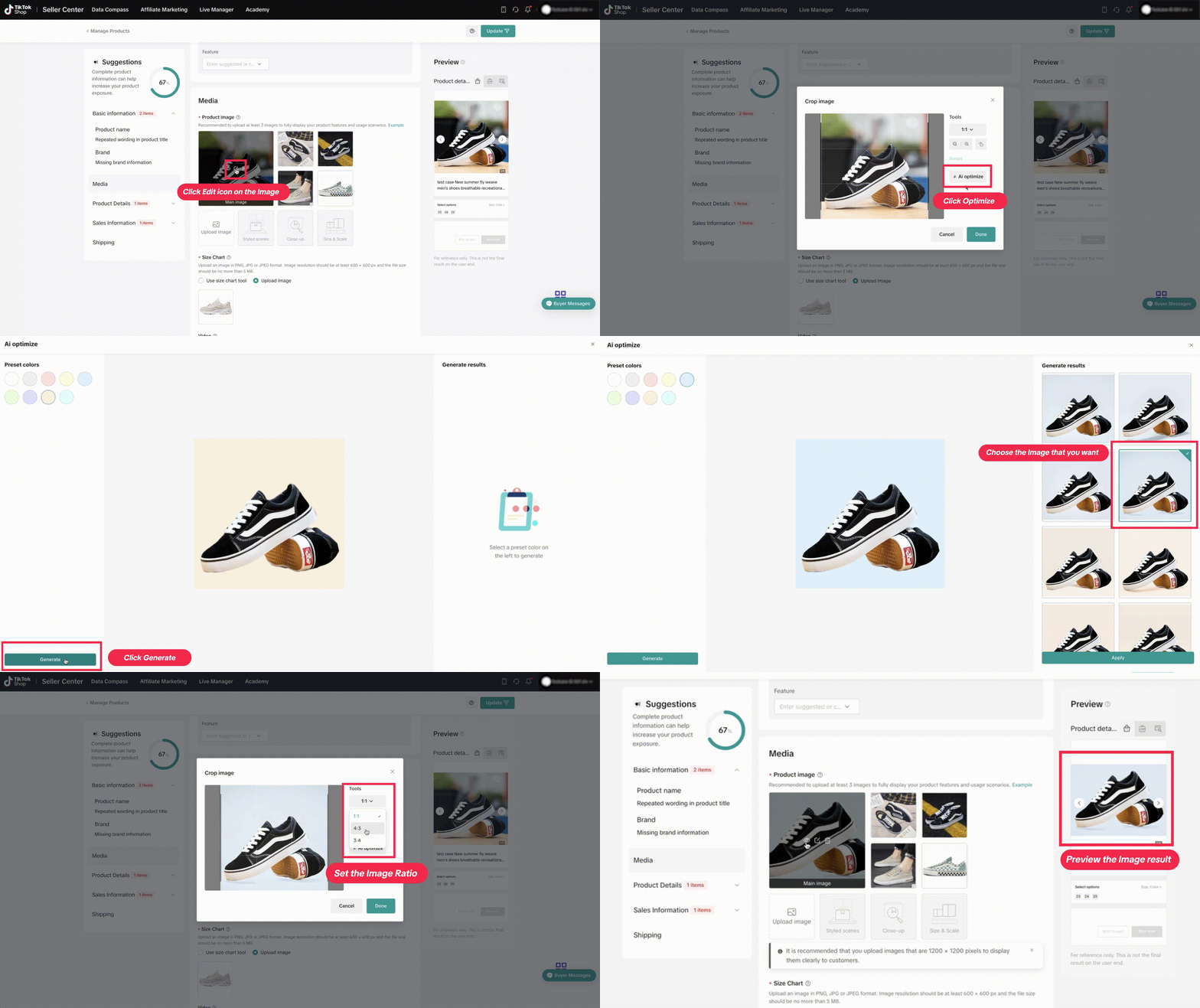
Image Editor
Sellers can now directly edit their image in Seller Center, such as removing the background, changing the background colour, and adjusting image ratio.Product Details
- Describe a product with text and bullet points
- Add up to 30 related banners or images.
- Add size chart image (if needed) on the product description
Sales Information
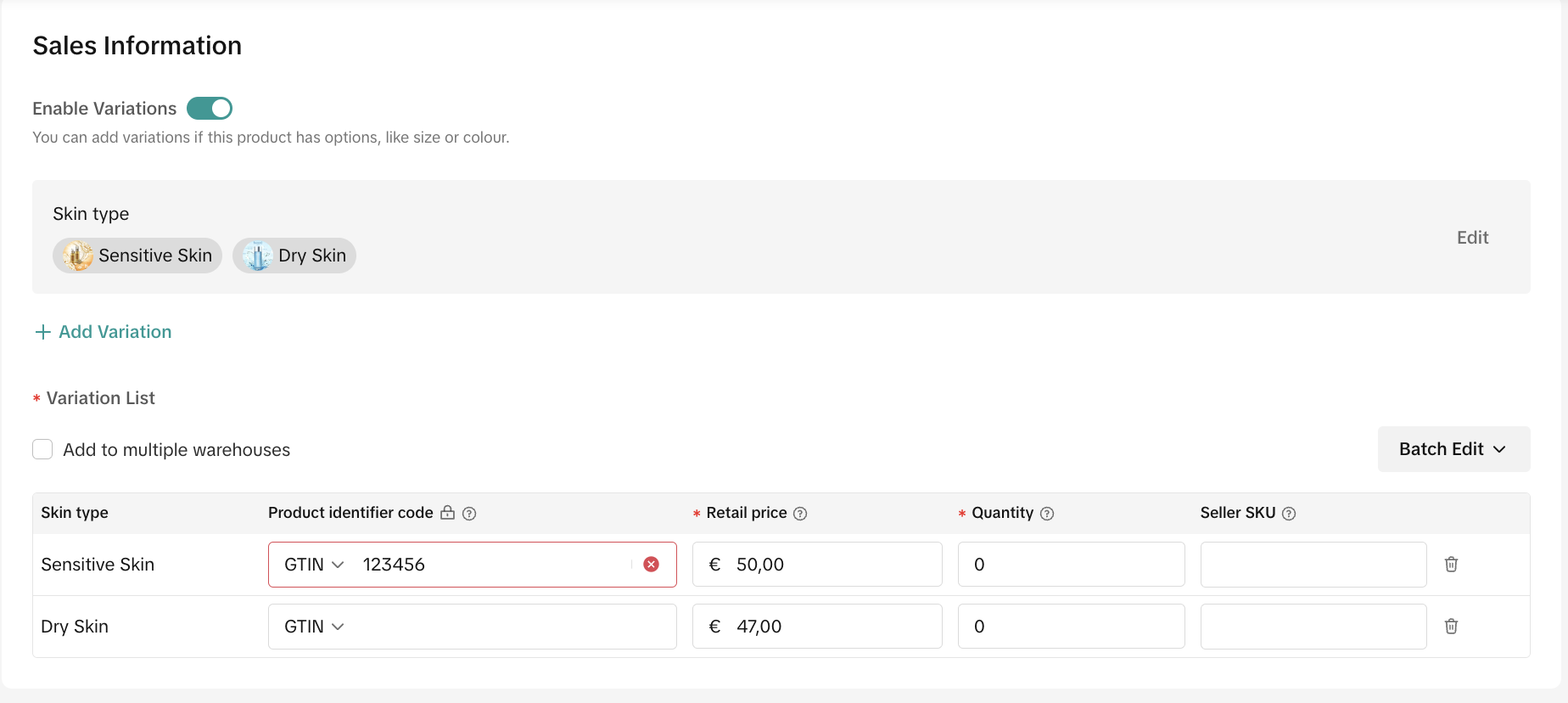
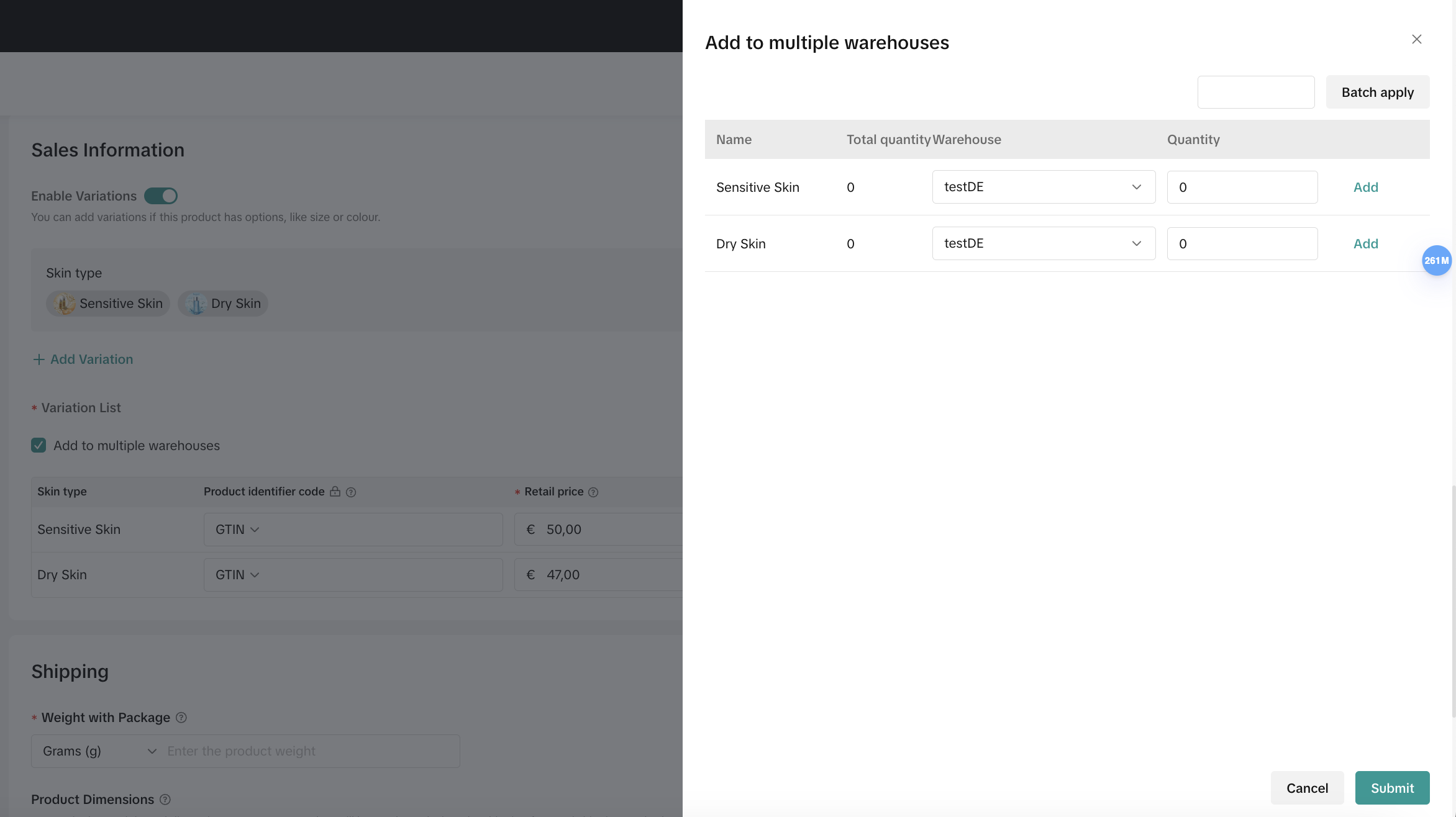
Variation | Variation List | Multiple Warehouses |
| Set up variation name, option details and Image that describe each options | Insert product identifier code (optional), retail price (required), stock quantity (required) and seller SKU (optional). | Sellers can enable this function if the product is stocked in multiple warehouses.Once the products are online, sellers will not be able to disable this function. |
 |  |  |
Shipping
This part is to inform sellers of the estimated shipping fee for customers to pay, so that sellers can evaluate whether to join in campaigns such as shipping fee program, etc.Parcel weight = Package weight + Wrapping (e.g. Box, bubble, or wood packing)
The allowed parcel weight is 1-30 Kilograms.
Save Draft or Publish
- Save as a draft: Save current description but product will not be submitted to the review process. Sellers can continue to edit this product later.
- Publish: Product will be submitted to the review process and will be active right after get approved.
Add Multiple Products
You can add multiple products to TikTok Shop in one go by using the Batch Tool feature under the Products menu. For guidance, follow the step-by-step process below:Batch Publish Product
Go to Products - Manage Product - Bulk ListingFollow these 3 steps to easily upload your products in bulk:Step 1: Download the Template
- Download a template by selecting the product category you want upload. To find the related category, you can search by product keyword or select from the Browse.
- It is recommended to add a product brand and have the brand authorized because it can help sellers gain trust from buyers, and then download the template.
- Currently, you can only select one category for each template.
Step 2: Fill in the Information
- Read this table below for more details on how to fill the template:
Field | Mandatory/optional | Description |
| Manufacturer ID | Mandantory under specific conditions | Enter or select IDs from the dropdown (you can find the IDs in the account setting-qualification center - Manufacturer/ Responsible Person) |
| Responsible Person (RP) ID | ||
| Category | Mandatory | Select the category that matches the product from the drop-down list. |
| Brand | Optional | Select the brand that matches the product from the drop-down list. If no brand is selected, it will be left empty and considered to have no brand. |
| Product Name | Mandatory | • Product name must be less than 255 characters. • Enter the title of your product. • If there are multiple SKUs, keep the titles consistent. |
| Product Description | Mandatory | Provide a detailed description of the product, such as product specifications, materials, box content and so on. A structured and informative product description can help customers make purchase decisions. It's recommended to provide 3-5 selling points and each one can be described within 250 characters and several images, like feel, usage and benefits, etc. Make it easier to read by good use of segmentation, bolding, numbering, etc. |
| Package weight | Mandatory | Make sure the parcel dimensions are accurate as they will be used to calculate the shipping fee and shipping method. Cells with red borders are required. |
| Package length | Mandantory under specific conditions | |
| Package width | Mandantory under specific conditions | |
| Package height | Mandantory under specific conditions | |
| Delivery options | Optional | The delivery options for this product are the same as the delivery options for the shop. |
| Variation 1 | Mandantory under specific conditions | List the variations of your product (e.g., color) in this column. Be sure to include at least one option for each variation (e.g., Red). Each entry can be up to 35 characters. Remember, products must share the same product name and package dimensions to be grouped as variants. Please refer to the 'Example' sheet for examples. |
| Variation 2 | Optional | Complete this column only if your product has additional variations beyond those in the previous Variation column. Here, you can specify more detailed options, such as sizes within colors or other secondary variations. For example, if your product comes in two colors (red and black), with each color having two sizes (S and M), you'll need to complete four rows. Each entry can be up to 50 characters. Remember, products must share the same Product name and Package dimension' to be grouped as variants. Please refer to the 'Example' sheet for examples. |
| Variant image | Optional | Enter the URL of an image of the variant. |
| Retail Price (Local Currency) | Mandatory | Enter the price of the product or variant. DO NOT include any currency symbols. |
| Quantity / Quantity in xx warehouse | Mandantory under specific conditions | Please enter the quantity of the product in the corresponding warehouse. For product categories with a limitation on quantity, the cells are grayed out. The quantity will be set as 1 by default when publishing. If you have multiple warehouses, the first warehouse will be used here automatically. Any edits to the quantity information on this template will not take effect. You can only edit the quantity in Seller Centre on PC. For more information, please visit TikTok Shop Academy. |
| Quantity in testIE | Mandantory under specific conditions | Please enter the quantity of the product in the corresponding warehouse. For product categories with a limitation on quantity, the cells are grayed out. The quantity will be set as 1 by default when publishing. If you have multiple warehouses, the first warehouse will be used here automatically. Any edits to the quantity information on this template will not take effect. You can only edit the quantity in Seller Centre on PC. For more information, please visit TikTok Shop Academy. |
| Seller SKU | Optional | Identifier of the product or variant. This is used to quickly find the item in other systems. |
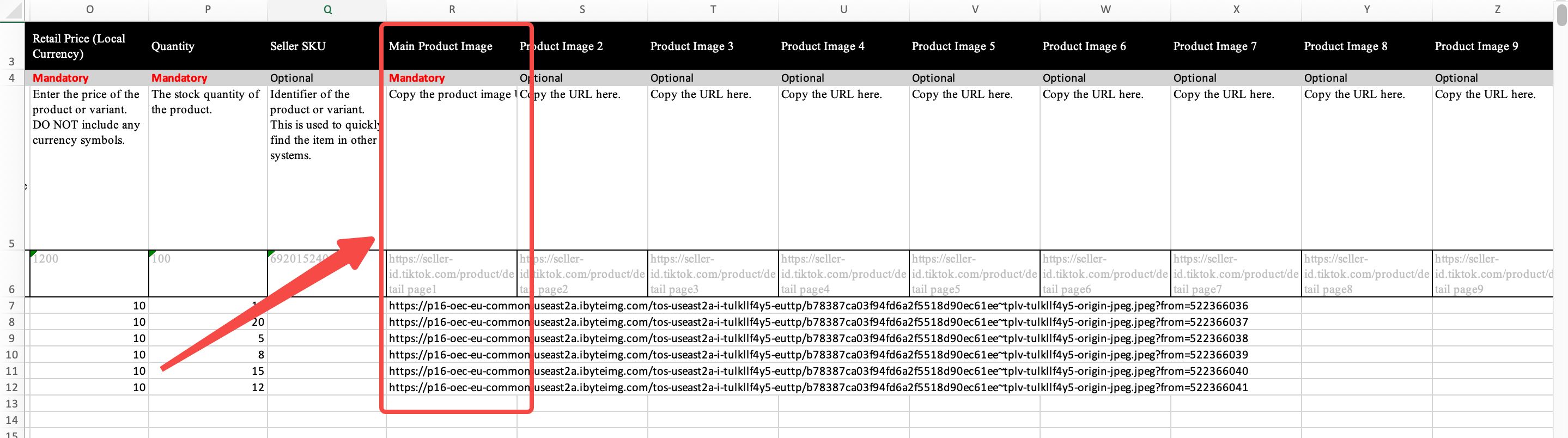
| Main Product Image | Mandatory | Copy the product image URL here. This image will be the cover image of the product. • Main product image aspect ratio: Between 3:4 and 4:3. • Picture pixel range: Between 100×100 px and 1200×1200 px; the higher, the clearer. It's recommended to provide 6 images to communicate the selling points and features of your products, inform and interest customers, and reinforce your brand. It's recommended to use a white background image as the first image instead of using an image with other elements. Good images make it easy for customers to evaluate the product. Images should be clear, informative, and attractive. |
| Product Image 2 | Optional | Copy the URL here. |
| Product Image 3 | Copy the URL here. | |
| Product Image 4 | Copy the URL here. | |
| Product Image 5 | Copy the URL here. | |
| Product Image 6 | Copy the URL here. | |
| Product Image 7 | Copy the URL here. | |
| Product Image 8 | Copy the URL here. | |
| Product Image 9 | Copy the URL here. | |
| Size Chart | Mandantory under specific conditions | Copy the URL or enter the size chart template ID here. This field is not supported for some product categories. If you enter information for a product in an affected category, the information entered for this field won't be published. Other information will be published as normal. |
Step 3: Upload Spreadsheet
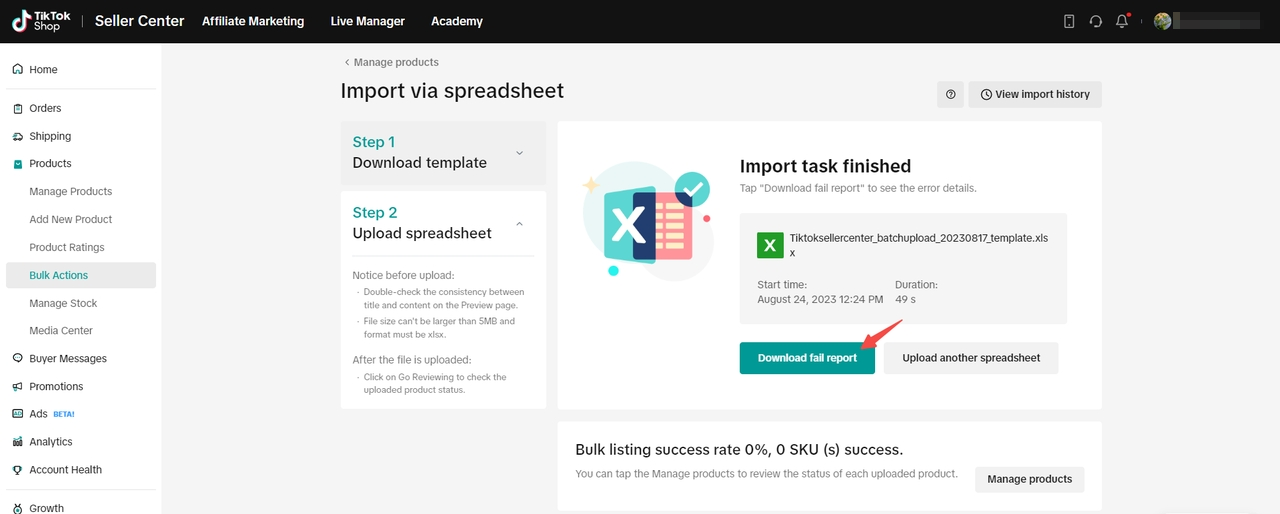
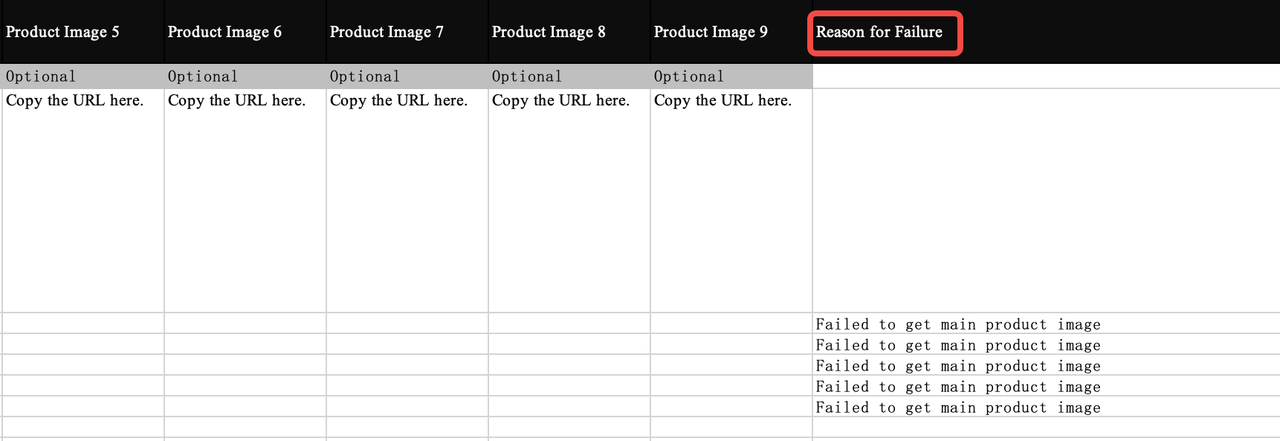
If Products Fail to Upload
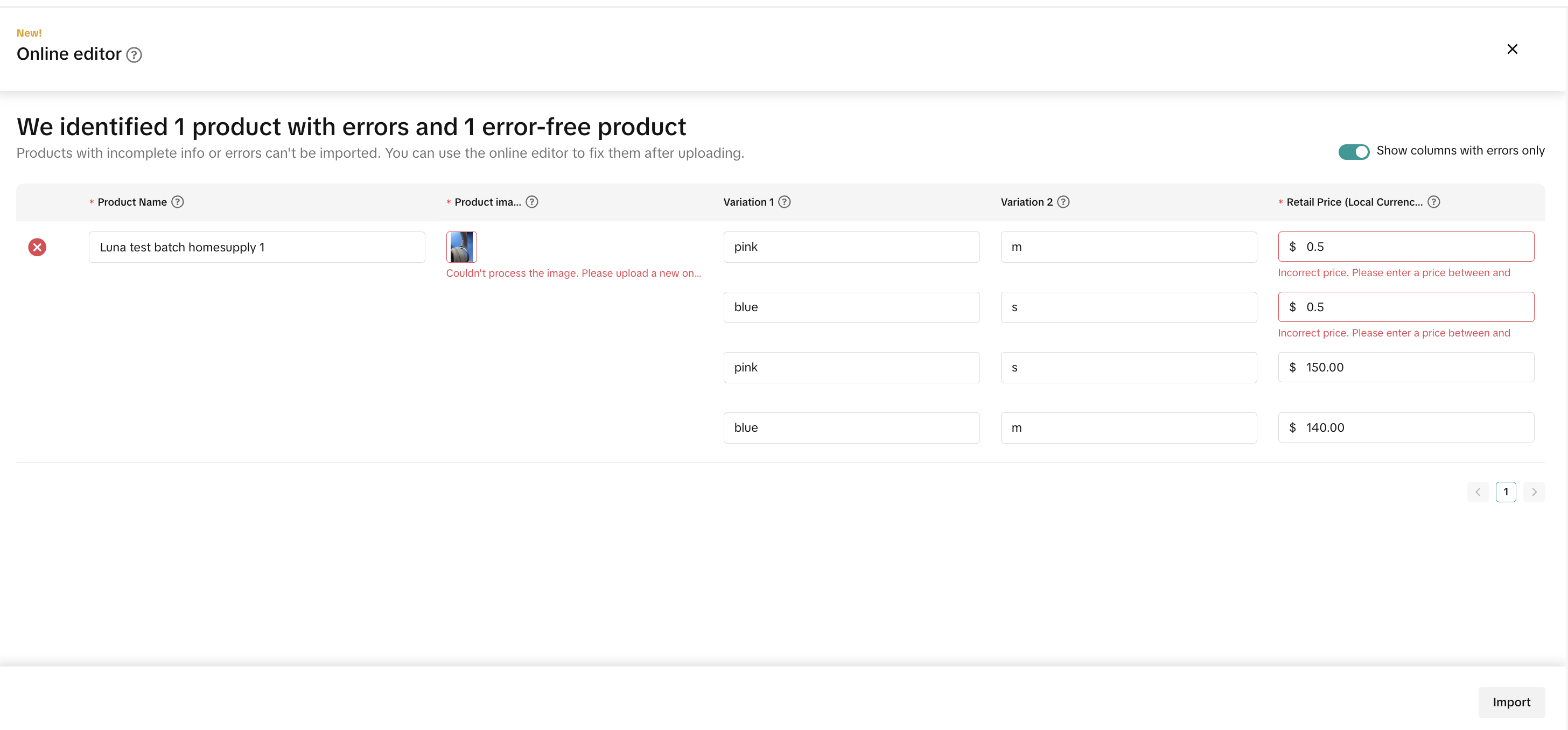
If products fail to upload, now we allow sellers to edit online- Shows "Prechecking your file... "

- If there is something wrong, jump to the online editing page, seller can correct the info based on suggestions then import
After uploading, go the "Manage product" page to check the uploaded products.Note:
- Duplicate templates can only be uploaded once;
Tips
"Variation 1" is mandatory for multiple variation products.1) "Variation 1" is required. Please enter the names of different variants on a new row, such as "White", "Black" and "Grey."2) "Variation 2" is only required if you need two tiers of variations, such as colours and sizes.3) "Variation 1" will be regarded as "Colour", and "Variation 2" as "Specification" by default.4) Same product's variation values have to be different.- Each SKU should be placed on a separate row.
- Product common information should be kept exactly the same.
Examples
| Type | Seller Center screenshot | Template file for reference |
| Product with 3 different colours | 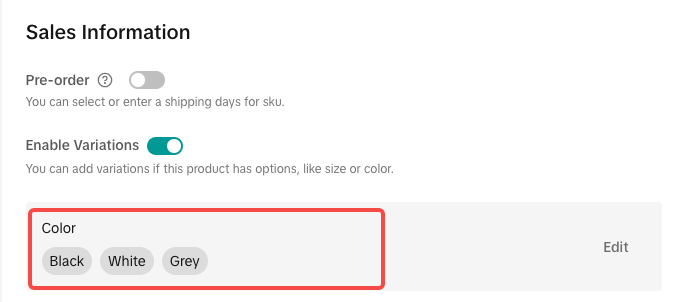 | Template - Product with 3 colors.xlsx |
| Product with 3 different colours and 2 different sizes | 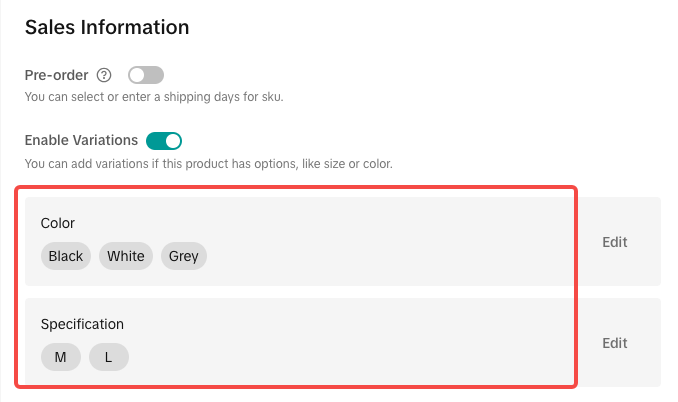 | Template - Product with 3 colors and 2 sizes.xlsx |
| *Cells requiring exact content consistency have been highlighted in red within the template. | ||
Batch Edit Product
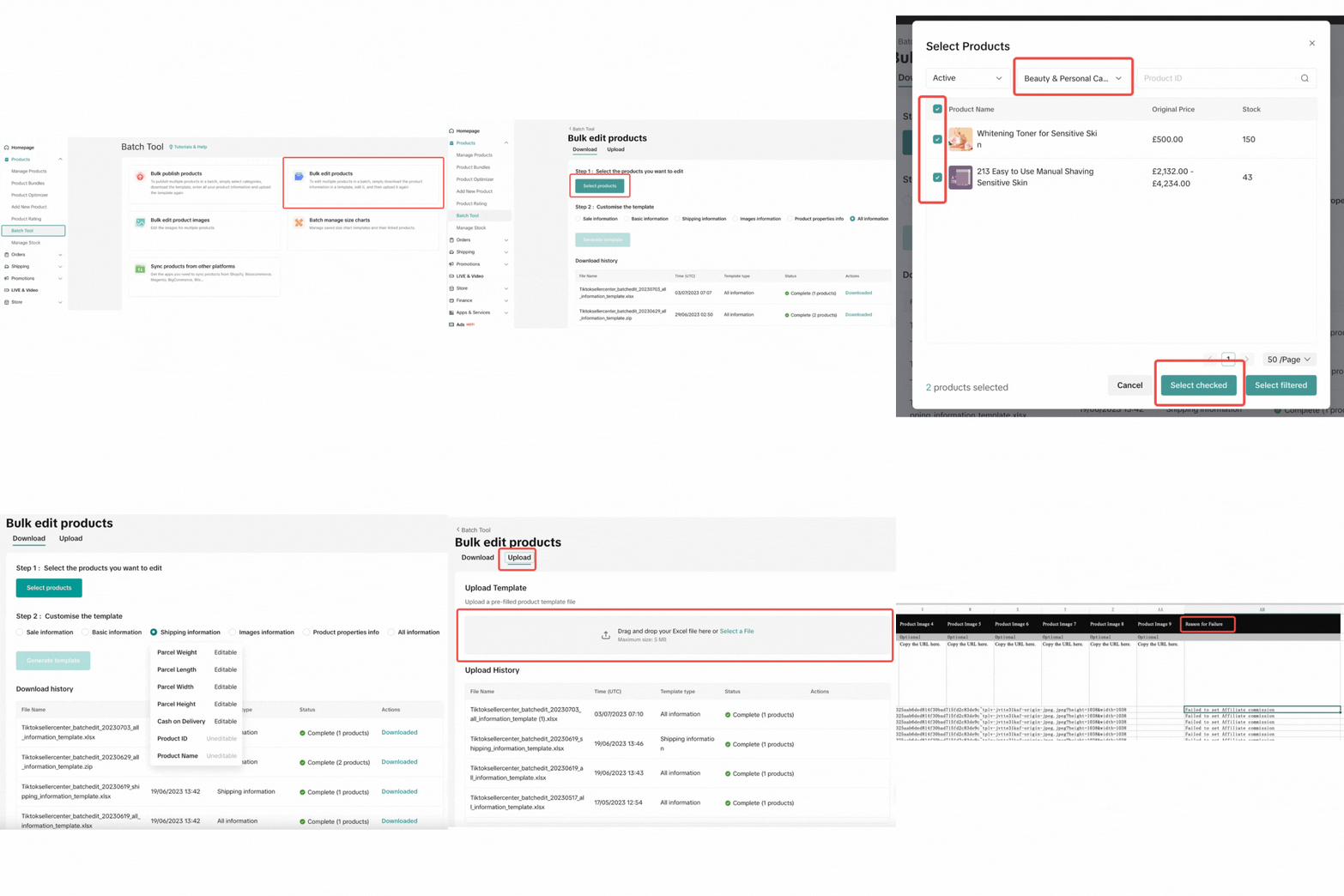
Products - Batch Tool - Bulk Edit Products- Product status: Active/Inactive/Draft
- Product Categories
- Product Name/Product ID/Seller SKU
- Method 1: Click designated products
- Method 2: All products that meet the filter conditions can be selected(Maximum 50000 Products)
- Select "Template", the editable content of 5 templates will be different:
- Sale information: Editable-price/quantity/SKU
- Basic information: Editable-Product name/Product description/Affliate commission
- Shipping information:Editable-weight / length, width, height / Warranty Period /Enable COD
- Images information: Editable-Images links
- Product properties information
- All information (Recommended): a combination of the 4 templates. The above information can be modified at the same time
- Click "Download" template
- Editable content and whether they support editing will be displayed when you hover each template
- Up to 5000 products information can be downloaded in a single template
- If the seller selects 50000 products and then clicks Generate , it will be split into 10 templates for download.
- Modify the product information in the downloaded template
- Upload the template which has been modified
- View template upload status: “Upload history ”will display
- Number of completed products
- Number of failed products: Click "download failed entries" to view the reason for the failure, and modify according to the prompts, then please upload again.
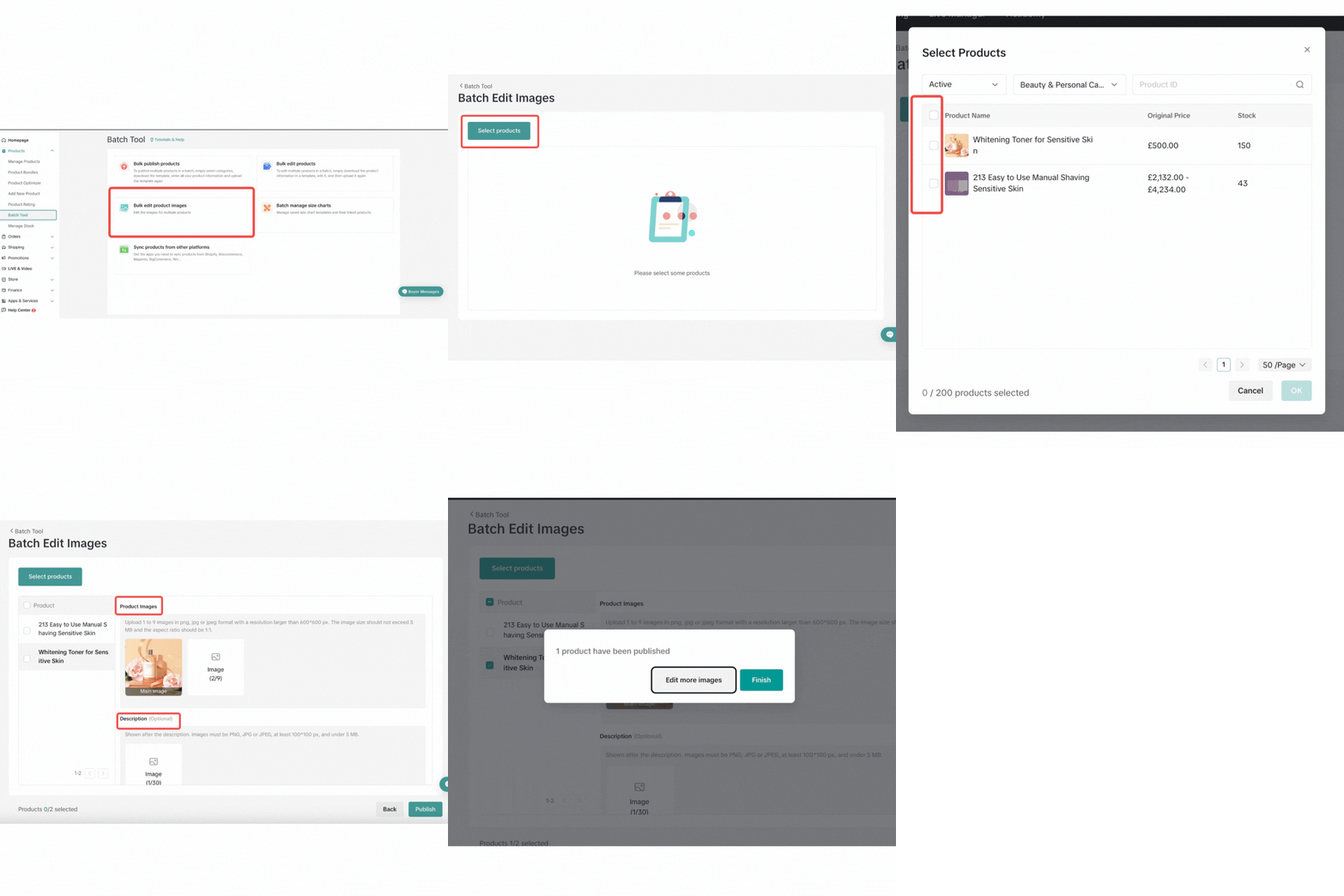
Batch Edit Images
Products - Batch Tool - Bulk Edit Product Images- Product Status: Active/Inactive
- Product Categories
- Product Name/Product ID/Seller SKU
- Click single or multiple products
- Upload product materials in bulk:
- Product images
- product description
- Product video
- Product Variation's images
- Click “Publish”

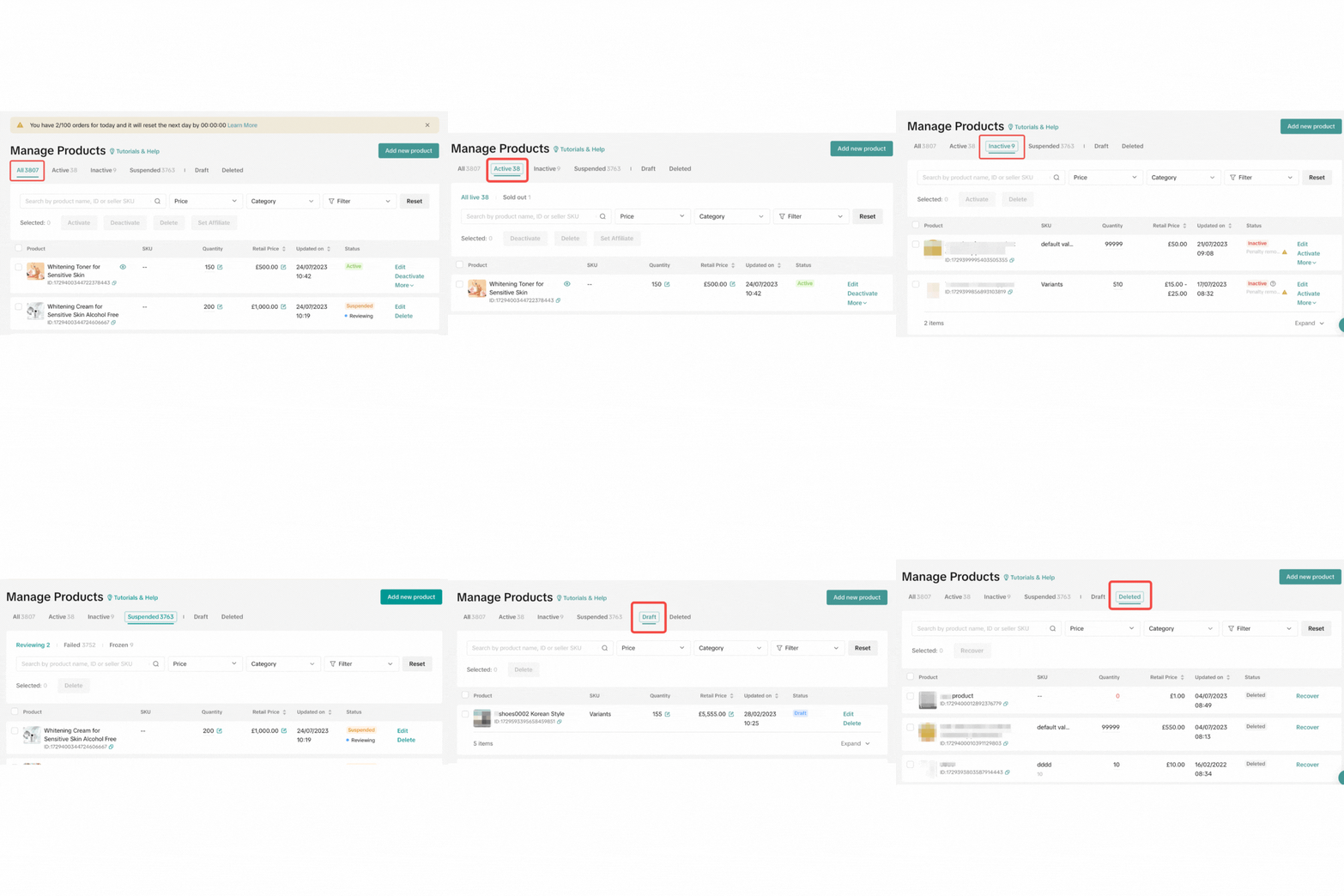
Product Statuses
Manage your TikTok Shop products that have been classified based on various product statuses which separated by following tabs:| All | Show all products with various statuses | Sellers can do:
|
| Live | Show all products that are visible online and can be purchased by customers | Sellers can do:
|
| Deactivated | Products that sellers make them offline | Sellers can do:
|
| Suspended | Products are being suspended due to some reasons. |
|
| Draft | Show products that the information has been filled with but not submitted yet | Sellers can do:
|
| Deleted | Show products that have been deleted by sellers | Sellers can return deleted products to the deactivated product list by clicking "Recover" |
FAQ
- How to fill in the product title?
- How to fill in the product attributes?
We recommend all sellers to fill in as many product attributes as possible, to help customers see more complete information about the product. You can update these attributes directly from the 'Manage Products' page, or upload in bulk using the Batch Tool.
- Any requirements for uploading product images?
- How to manage product stock?
- What is "image URL"?
Here are some examples of an image URL:
https://example.com/images/picture.jpghttps://example.com/images.jpeg.abcd1234
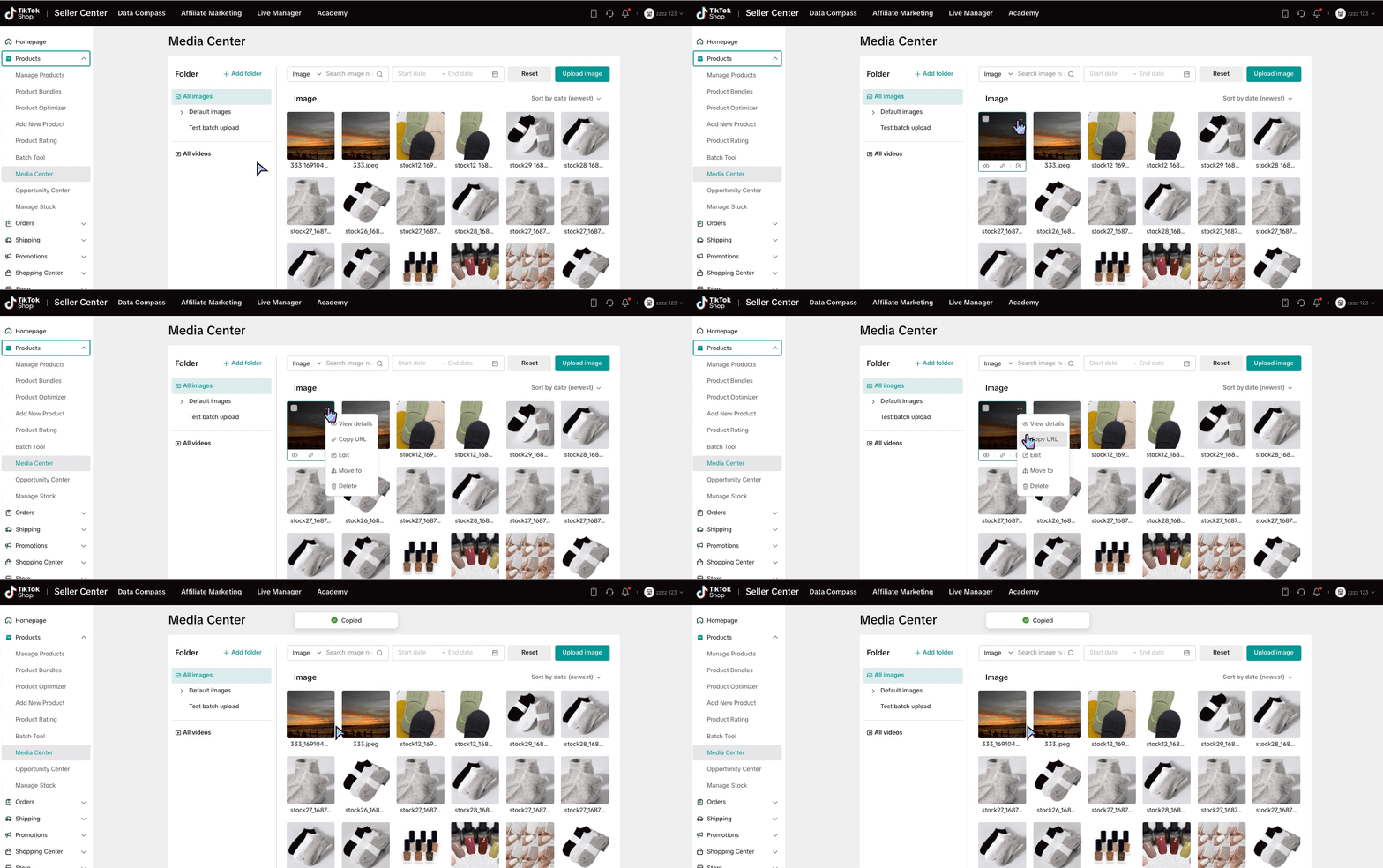
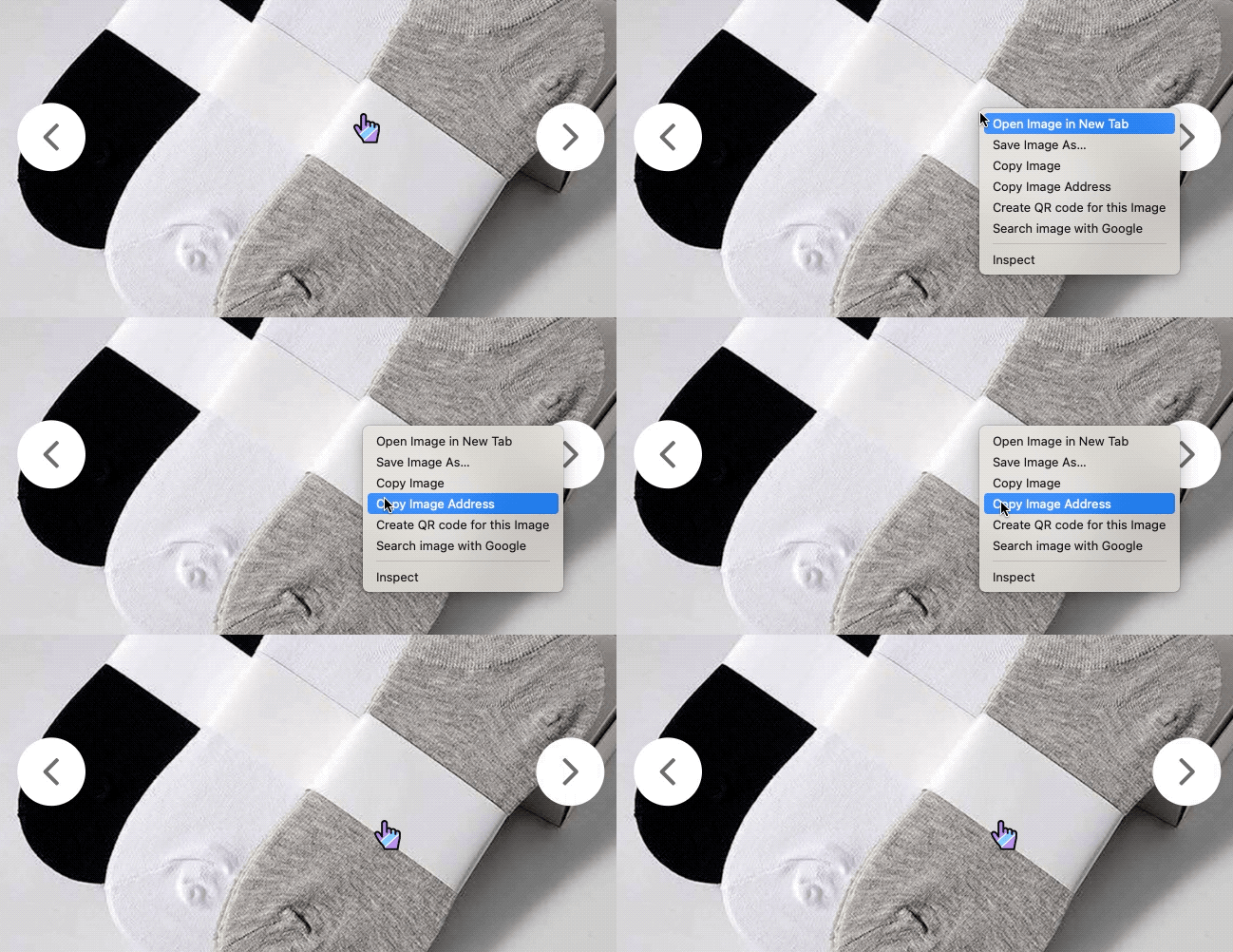
- How can I get the image URL?
- If images are stored on your computer:
- For online images:
- Right-click on the image
- Select "Copy image address/URL/location" in your browser
- Paste the URL where needed
8. What happens after a product is archived? Archived products will no longer be visible or searchable in Seller Center. To sell the product again, you’ll need to create a new listing.