

LIVE Giveaway
This article will teach you how to use LIVE Giveaway as a Creator to collaborate with Sellers. This feature can increase your engagement, viewers, and average watch time. We will focus on the Creator side of this collaboration tool to help you with your day-to-day video and livestream strategy.

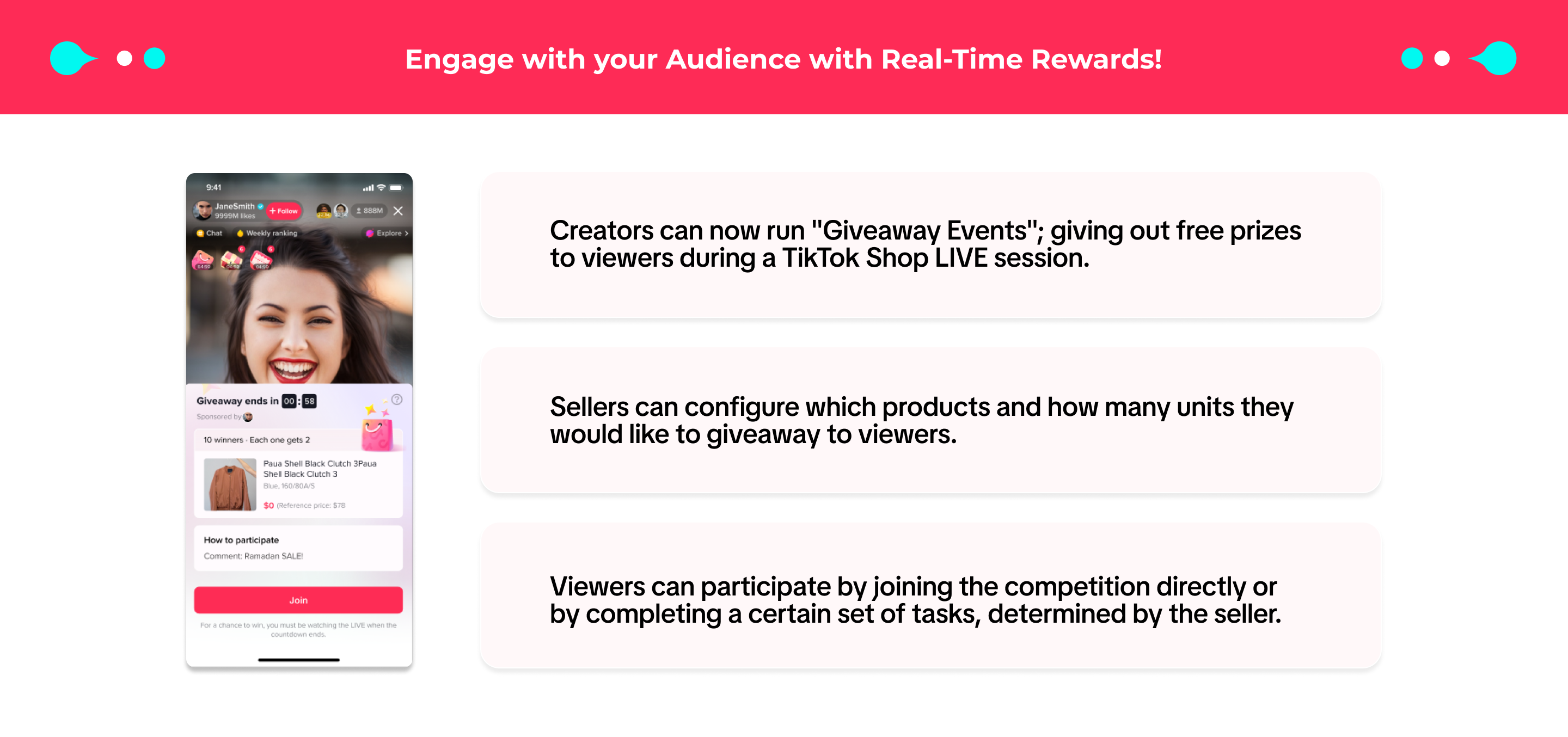
For Creators, this feature can help your LIVE Sessions be more effective and special:
To understand how this collaboration feature works, we will guide you through both the Seller's and Creator's perspective of Creator LIVE Giveaway

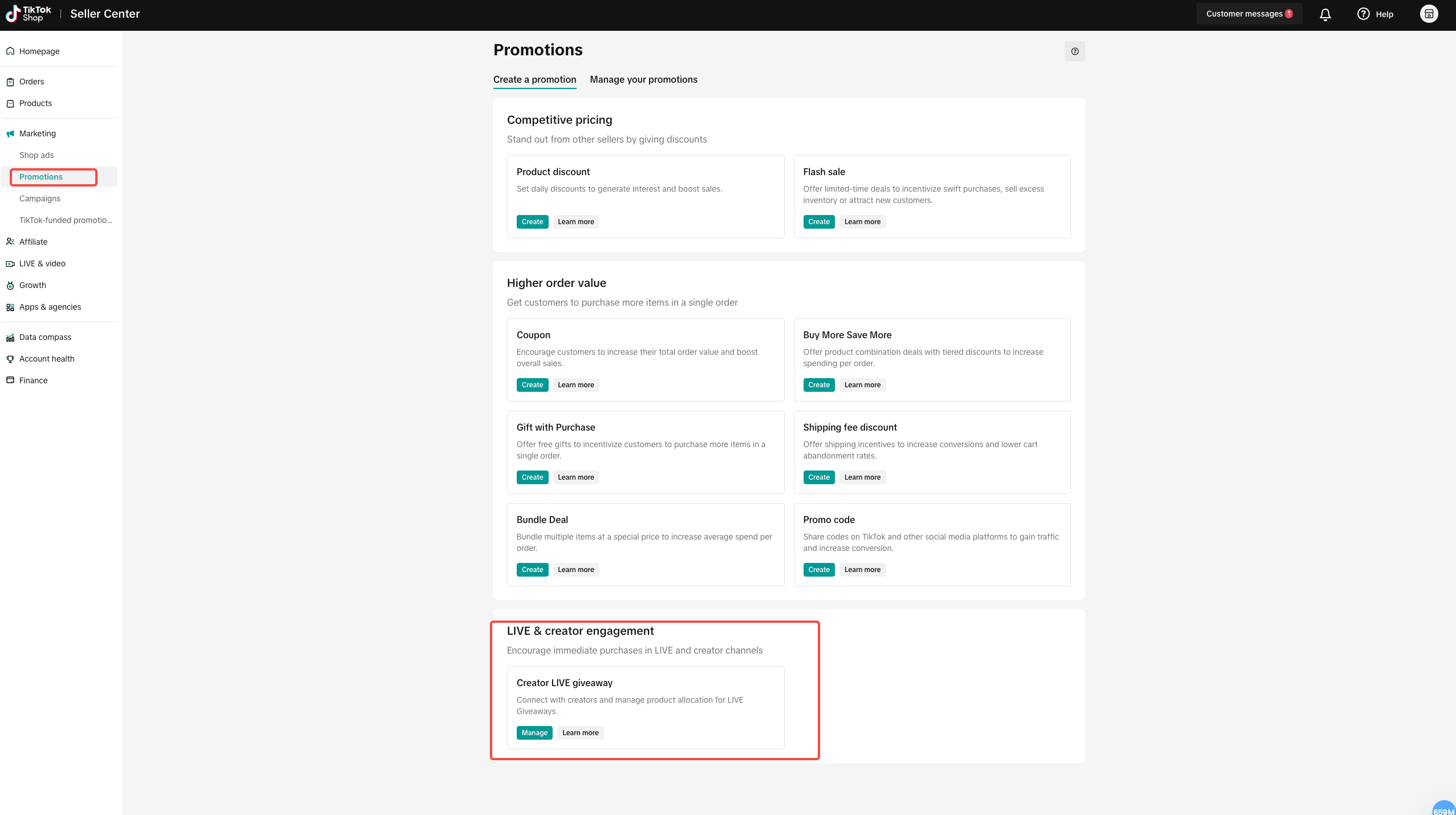
⚠️ Please note: This pathway only supports Giveaway configuration for Marketing Accounts and Affiliate Creators. For Official Account, Giveaways can be created directly in Live Manager.
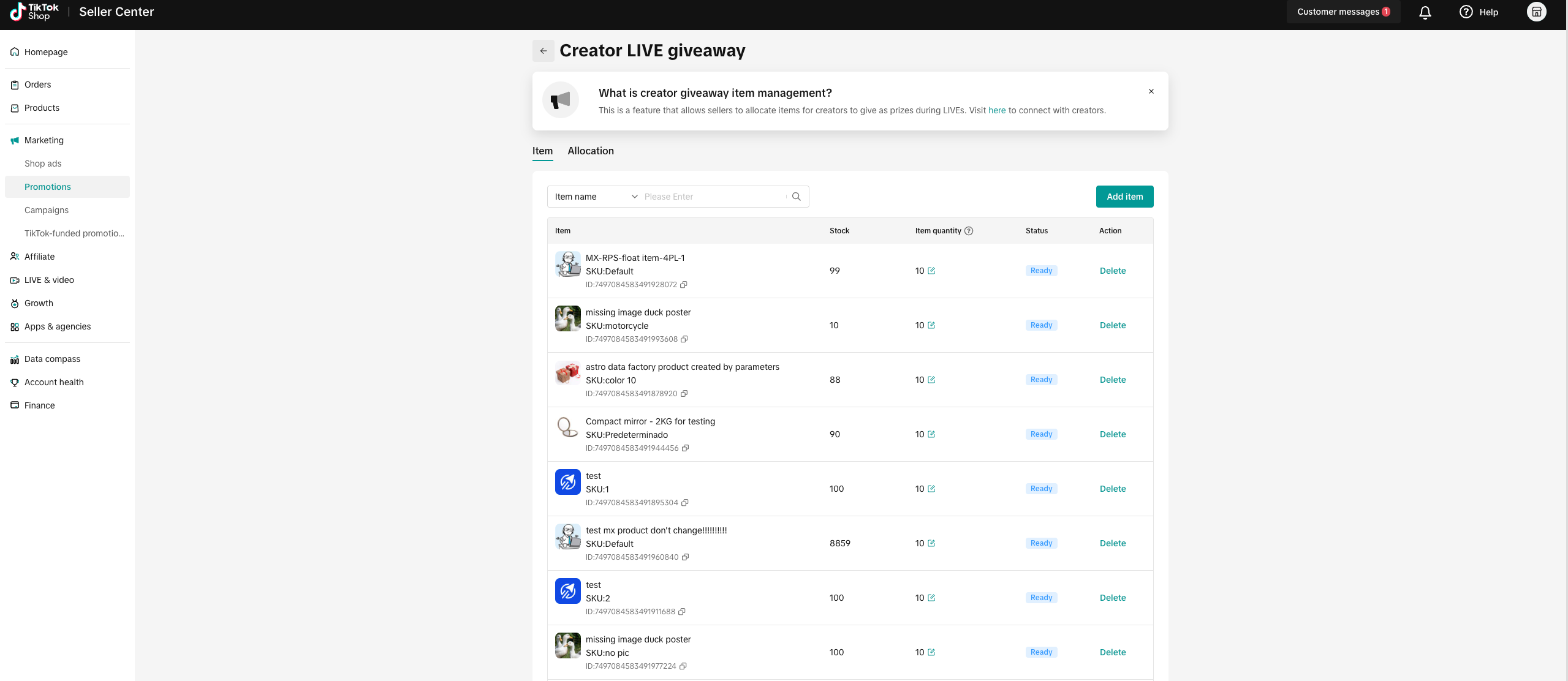
Step 1: Click on Creator Live Giveaway entry point under Promotions tool
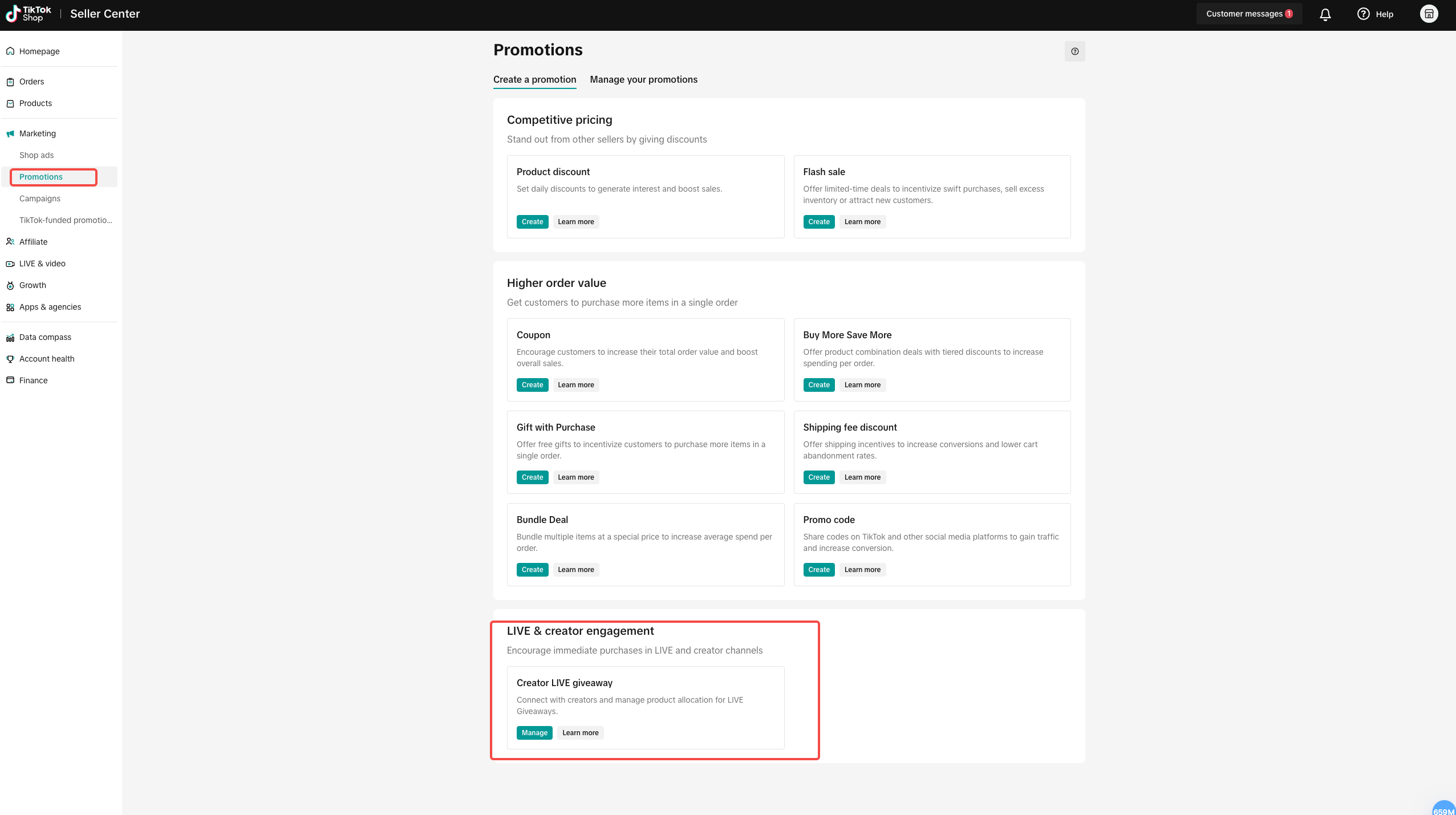 Step 2: Once you are on the Live giveaway setup page. Please go to the Item tab then click "Add Item"
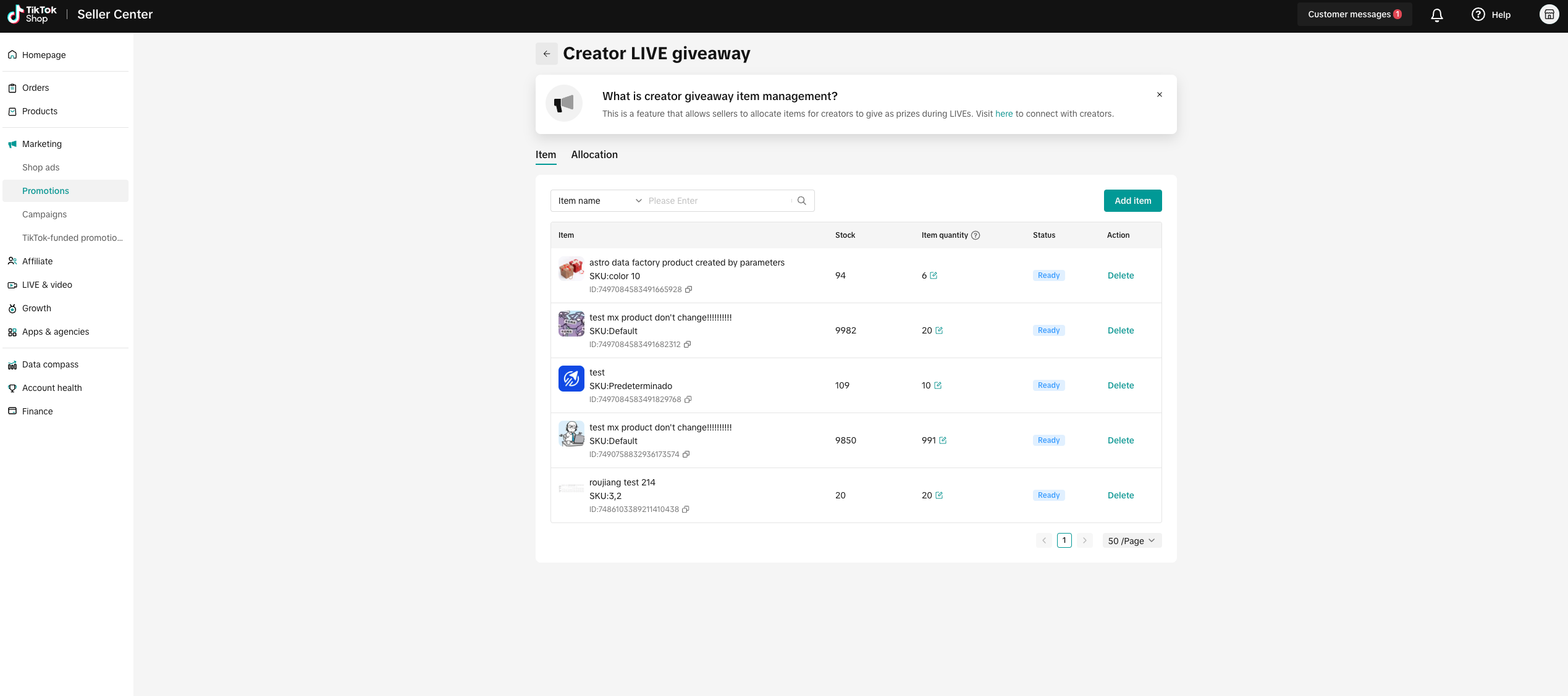 Step 3: Click Select Product, then there will be a pop-up to show list of products under your seller's store
 Step 5: Assign quantity to each product for giveaway

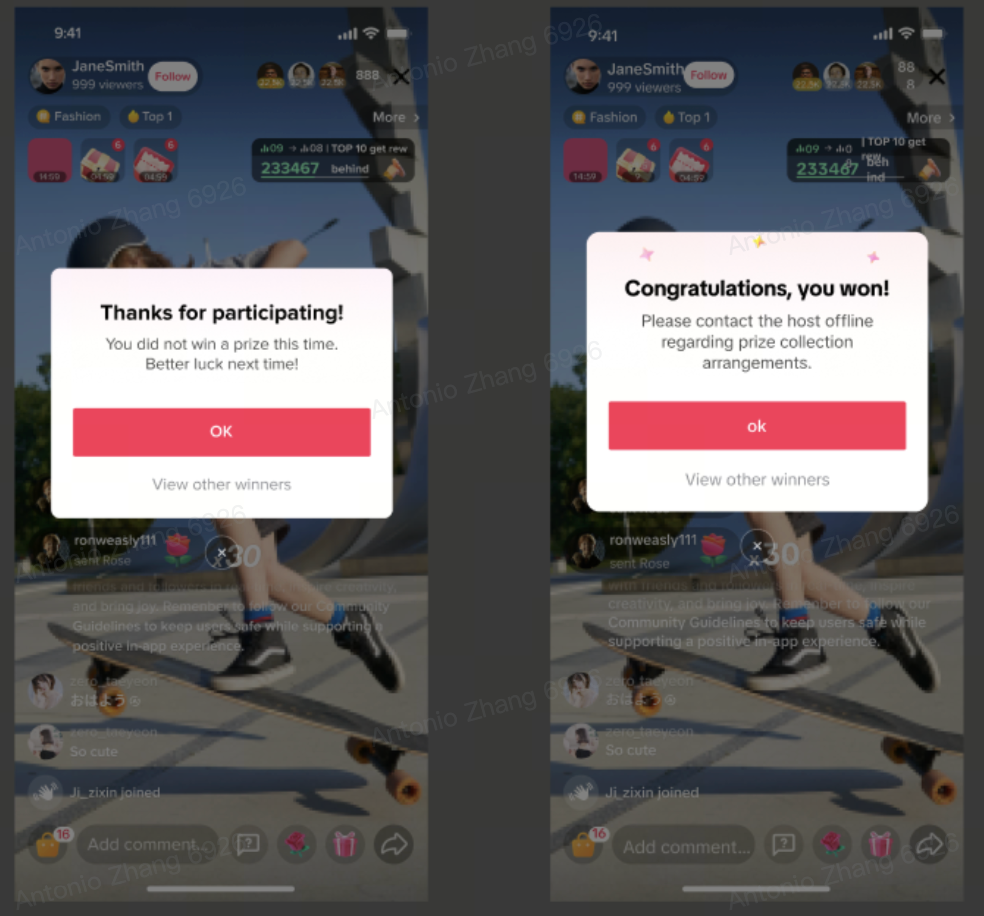 After the Giveway is finished
After the event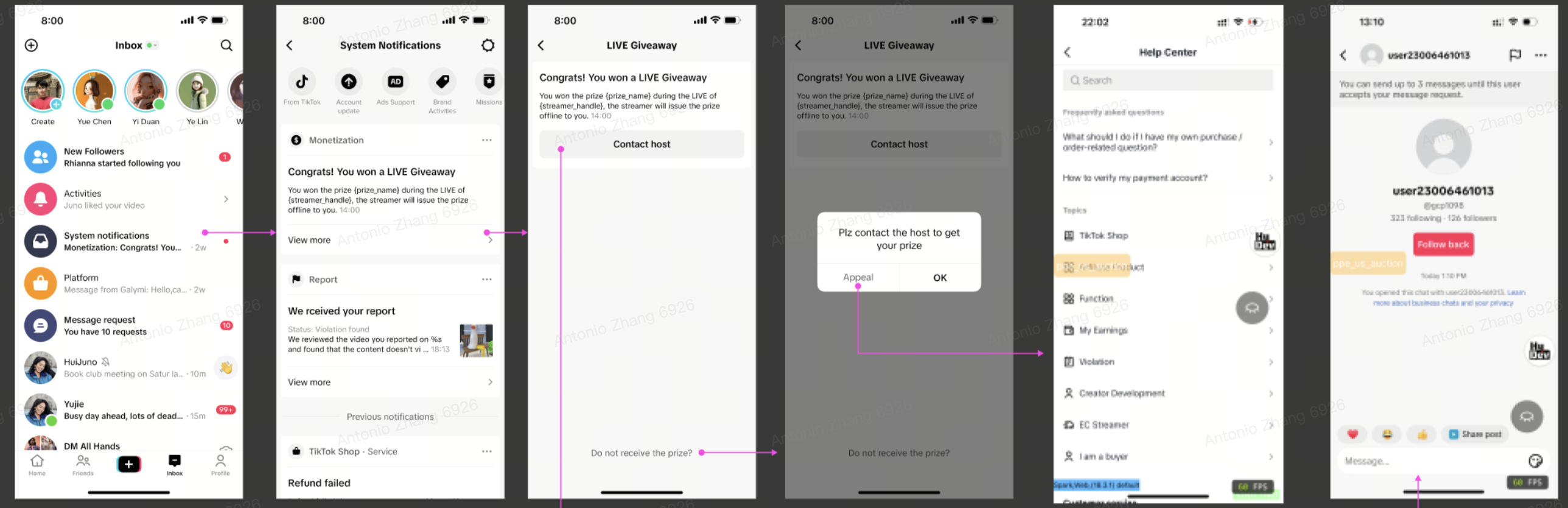

What is Creator LIVE Giveaway?
Creator LIVE Giveaway is a seller-funded interactive tool that allows Sellers to collaborate with Creators during a TikTok Shop LIVE session. The collaboration is in the form of giveaways during the Creator's LIVE Session care of the Seller.Benefits of using Creator LIVE Giveaway
Creator LIVE Giveaway is a feature that can possibly increase both shop traffic and rapport with your collaborator.For Creators, this feature can help your LIVE Sessions be more effective and special:
- Boost Engagement: Live Giveaway drives unparalleled engagement by immersing your audience in an interactive experience
- Foster Customer Loyalty: The thrill and transparency of Live Giveaway creates a deep sense of trust and loyalty among your customers, ensuring they remain devoted to your brand.
- Stand Out from the Competition: Live Giveaway sets you apart by offering a unique, dynamic, and unforgettable user experience, distinguishing your brand and leaving a lasting impression on your audience.
Types of Giveaway:
There are two types of giveaways that creators can launch during a LIVE:- Normal Product Giveaway: A product provided by the seller to the creator, allowing the creator to host a giveaway during the LIVE session.
- Customized Reward: A creator-defined prize not tied to product fulfillment. This can be anything the creator chooses to offer the giveaway winner.

How to use Creator LIVE Product Giveaway?
The Creator Live Giveaway tool is a two-party collaboration feature that requires both sides to take action before it can be seen by the customer (viewer). We will show you how to set up Creator Live giveaway step by step.To understand how this collaboration feature works, we will guide you through both the Seller's and Creator's perspective of Creator LIVE Giveaway
Seller Setup
Live Giveaway is one of the promotional tools for sellers located inside Seller Center.Follow this pathway on Desktop: Seller Center > Promotions > Promotions > Create a Promotion
Set up Giveaway Product
Setting up a giveaway Product is the first mandatory step for you to kick-off a Creator Live Giveaway campaign. This set up process is simple and can be done within 6 steps.⚠️ Please note: This pathway only supports Giveaway configuration for Marketing Accounts and Affiliate Creators. For Official Account, Giveaways can be created directly in Live Manager.
Step 1: Click on Creator Live Giveaway entry point under Promotions tool
- Only products that passed listing criteria will be displayed
- Only products with stock available will be displayed

- Item stock in LIVE Giveaway vs seller's store is managed separately. Stock changes to the original product listed will not affect the stock of the giveaway item.
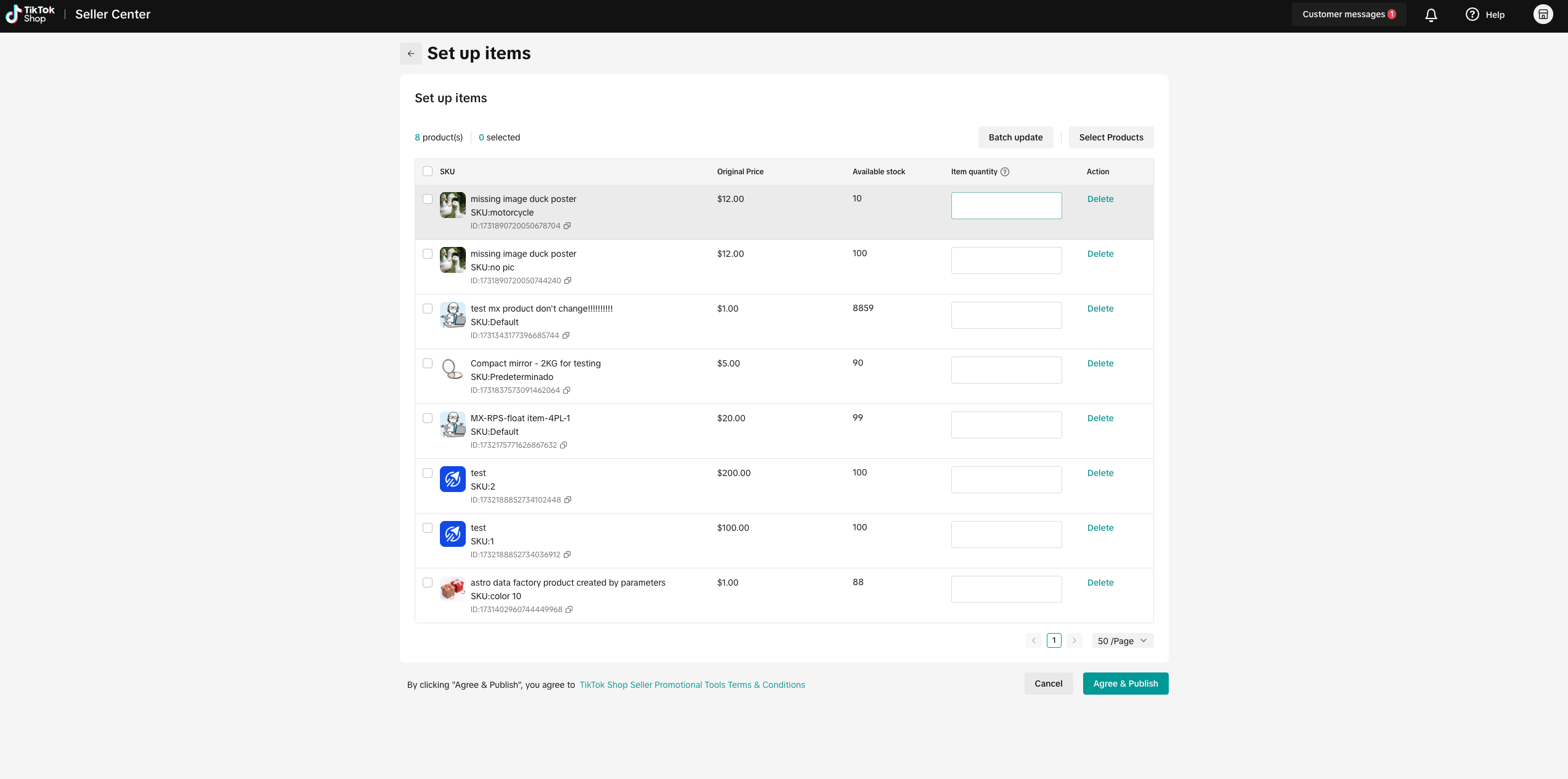
❗️ Please take note, you always have to create a prize first before you can allocate the prize to Creator
Allocate Giveaway to Creators
After you have completed the setup prize steps, now you will need to assign Creators to your Live Giveaway's prize.- Once you are on the Live giveaway setup page. Please go to the Allocation tab then click "Allocation Settings"
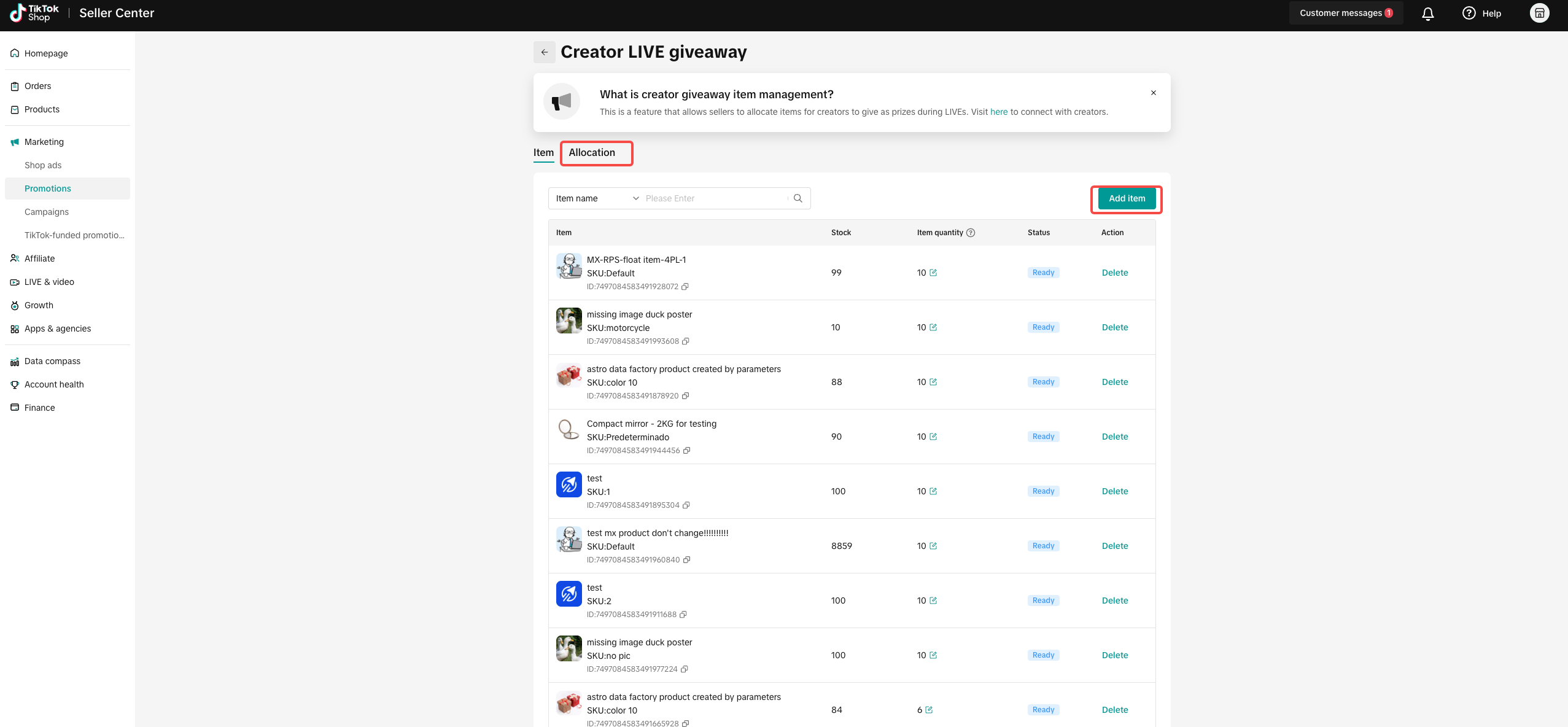
- To add Creators, search their account handle or ID in the search bar. The system will display related creators according to your input
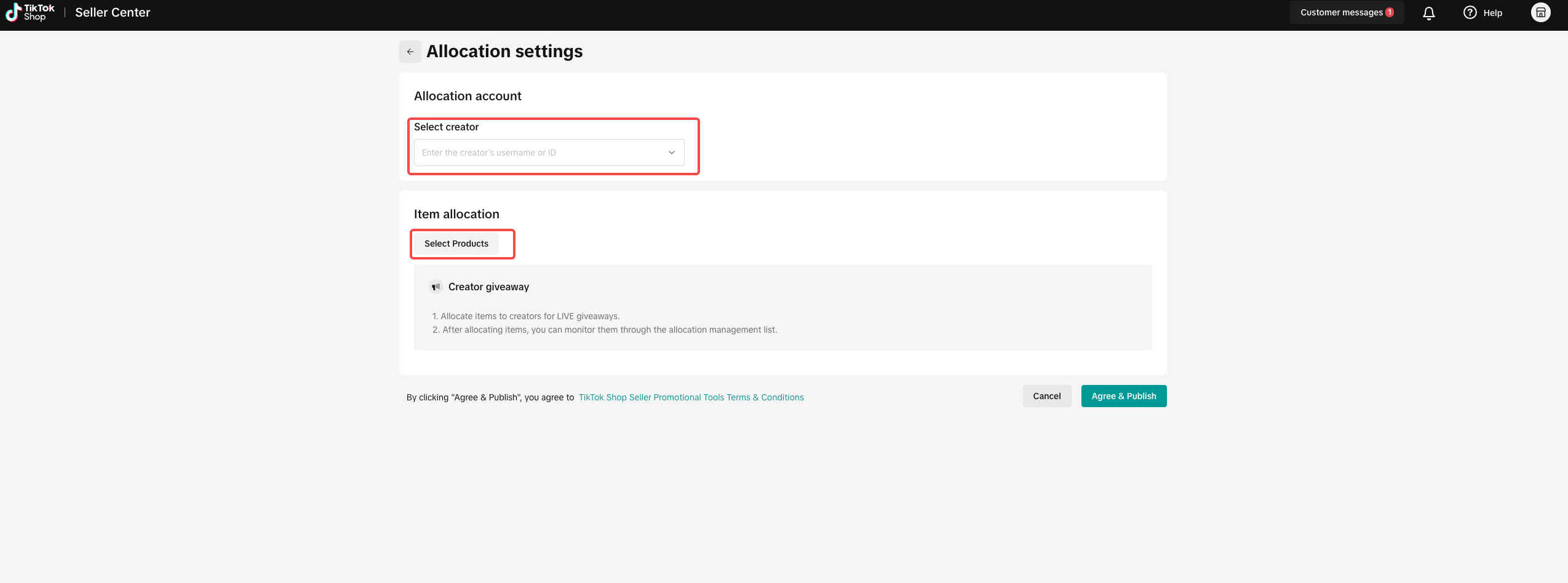 ❗️ Please take note, you won't be able to click on "Allocation Setting" if you haven't completed the prize setup
- Click "Select Product" to select the product that you would like to allocate to creator. Check the tick box in front and click Done
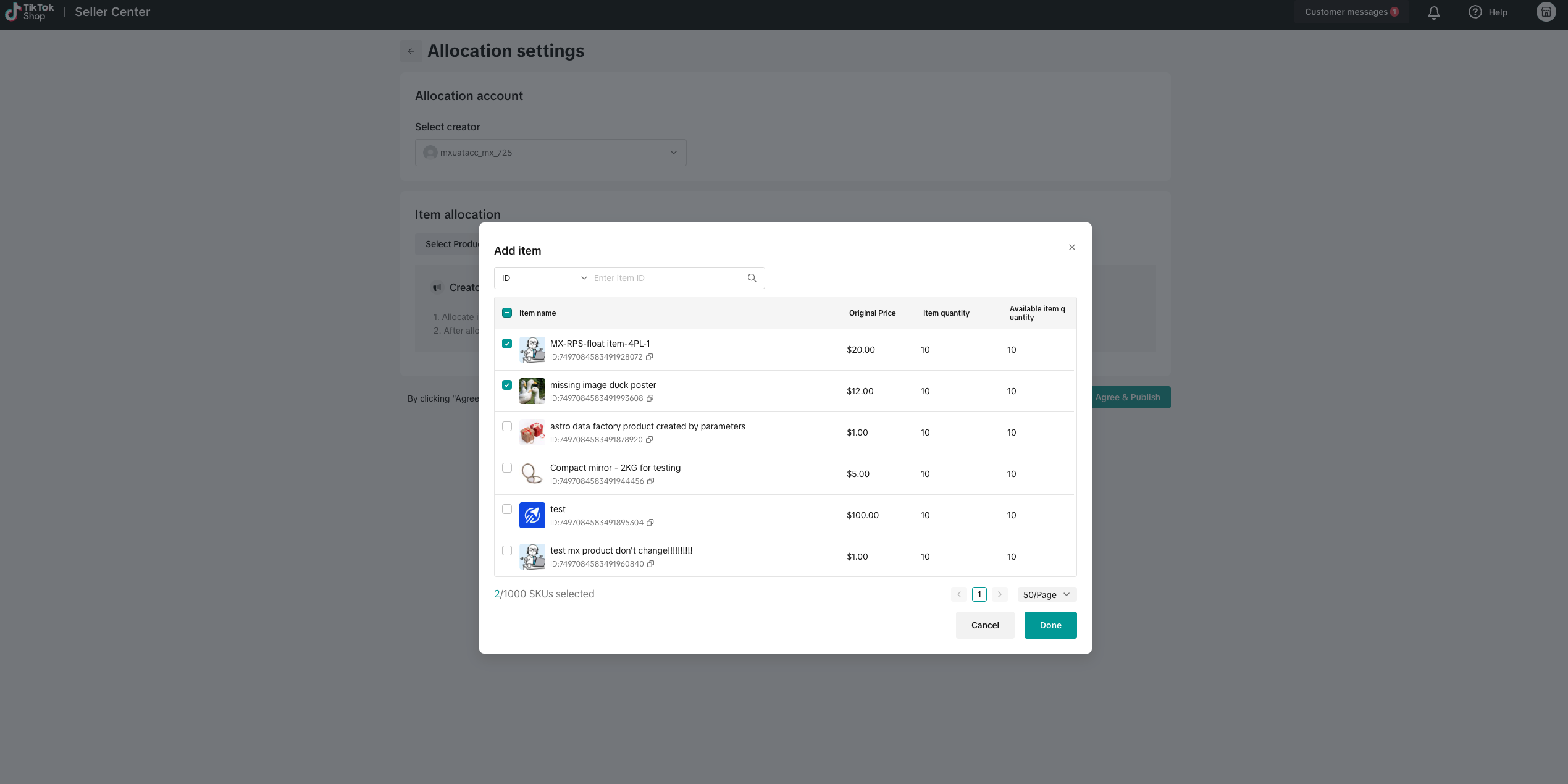
- Allocate product quantity for each Creator. Assign quantity numbers and click Agree & Publish
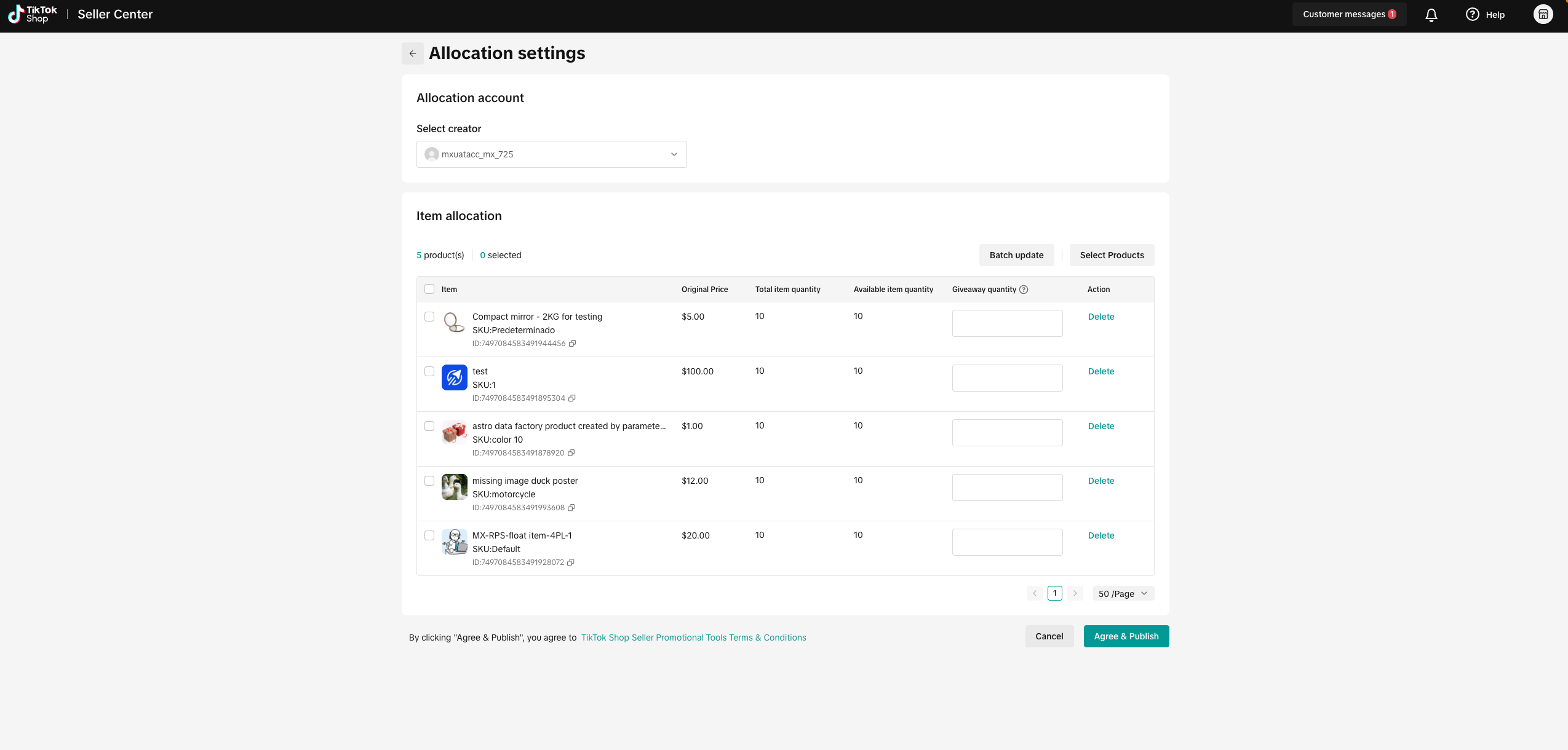
- Once the allocation is ready, you will see the list of Creators you are currently partnering with together with the list of eligible products for Creator LIVE Giveaway
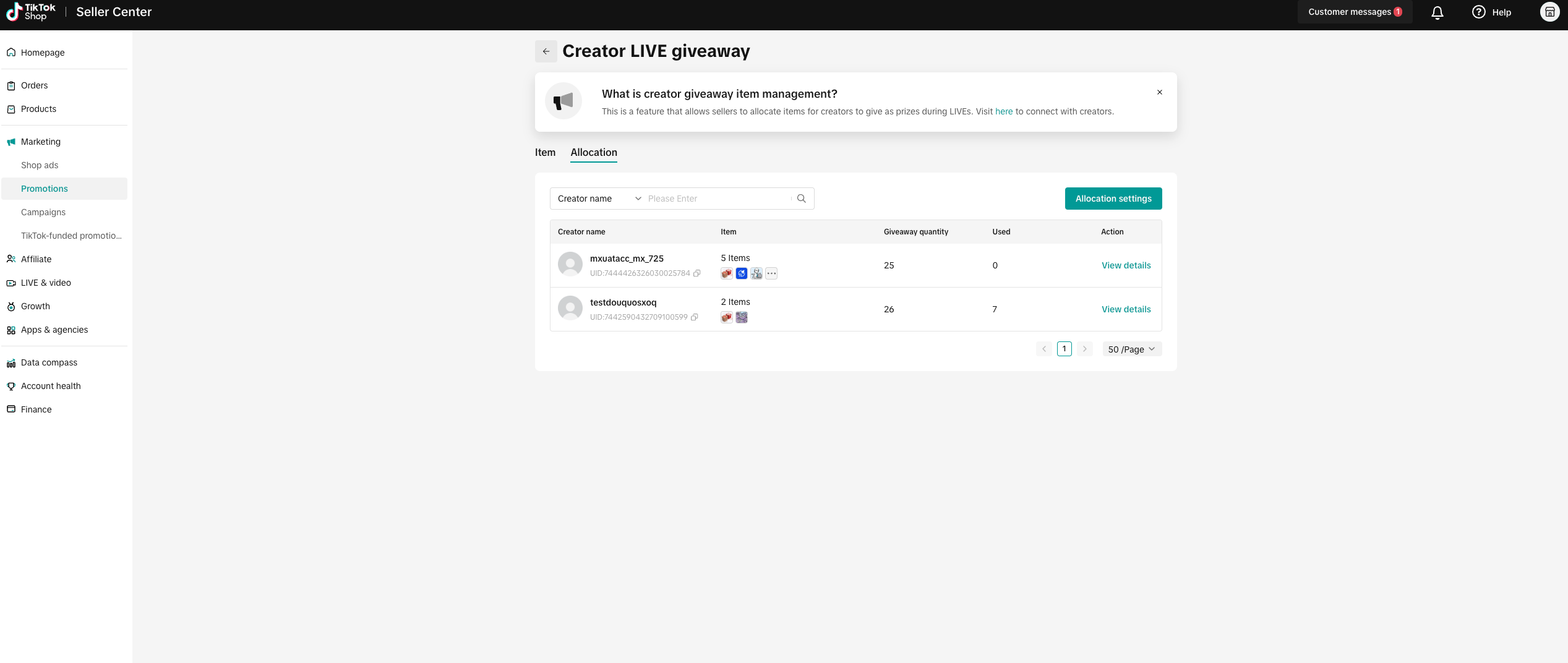
- You can click view details to see full details of product live giveaway under each Creator.
- Sellers are allowed to edit the prize at anytime.


- Sellers are allowed to edit the prize at anytime.
Creator/Streamer Setup
After seller has completed setup Live Giveaway, now let's check what creator has to do on their end:On TikTok App
During the LIVE
| Step 1: Click on Shop and select the LIVE GIVEAWAY option. |  |
| Step 2: Click on “Create New” to add a new product for the LIVE GIVEAWAY, or select from the list of products you’ve already created for giveaways. | 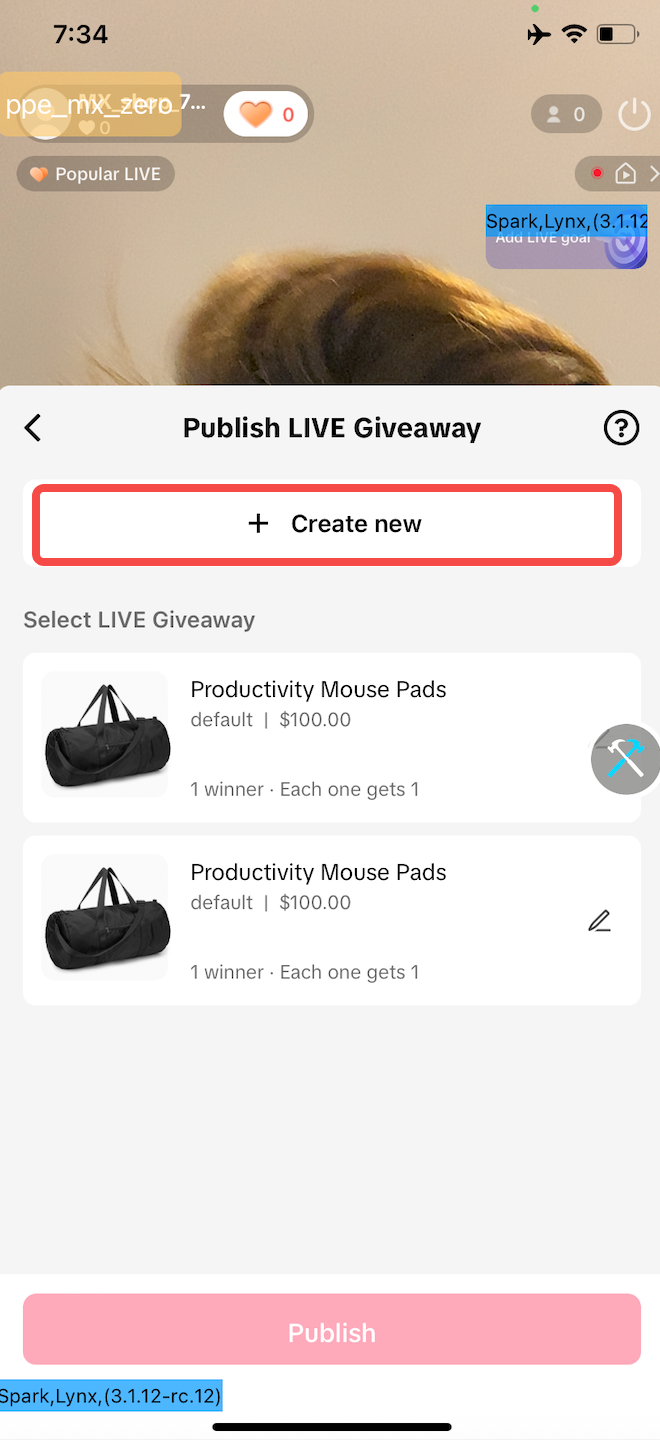 |
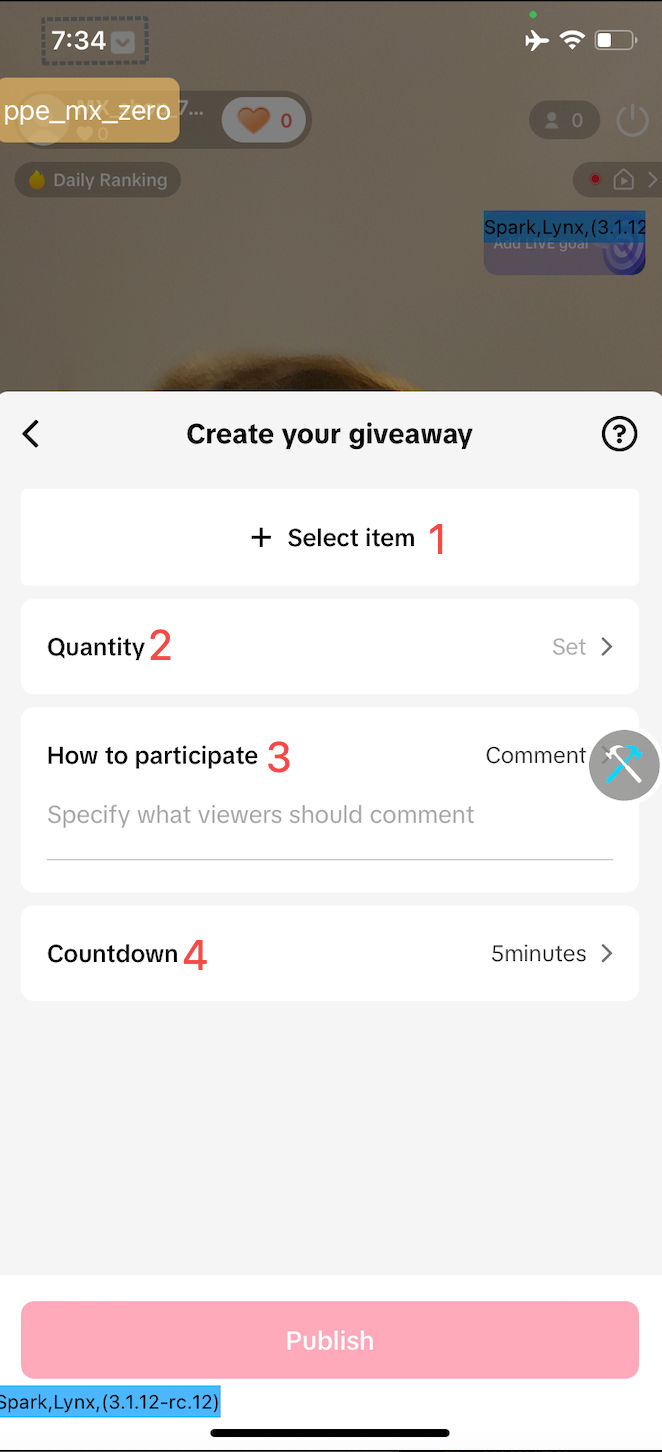
Step 3: Customize your giveaway settings to boost engagement during your LIVE:
|  |
| Step 4: Review and confirm the details of your LIVE GIVEAWAY setup and click on Publish. | 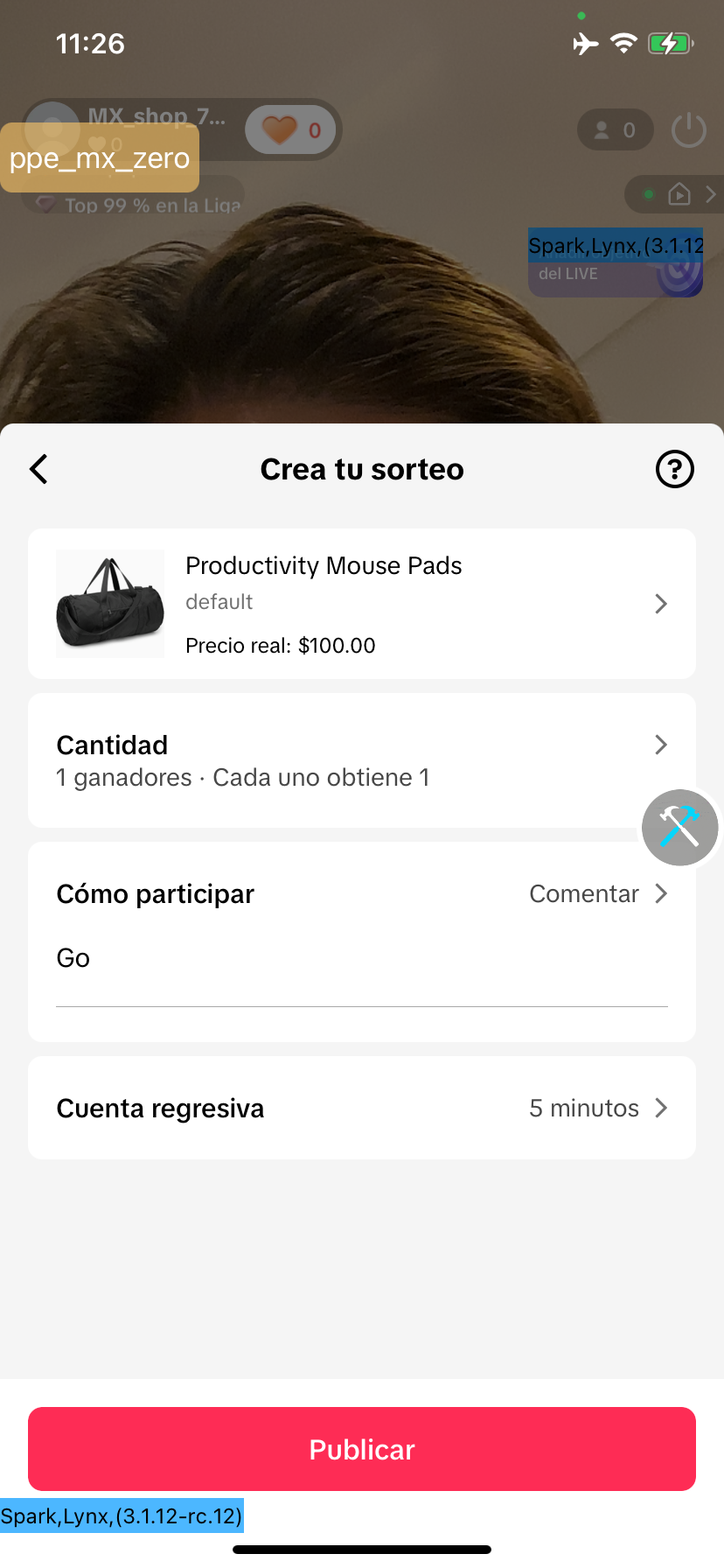 |
Before starting the LIVE
| Step 1: Navigate to TikTok Shop Toolkit in EC Creator Center, and click on LIVE GIVEAWAY |  |
| Step 2: Click on “Create” to add a new product for the LIVE GIVEAWAY, or select from the list of products you’ve already created for giveaways. | 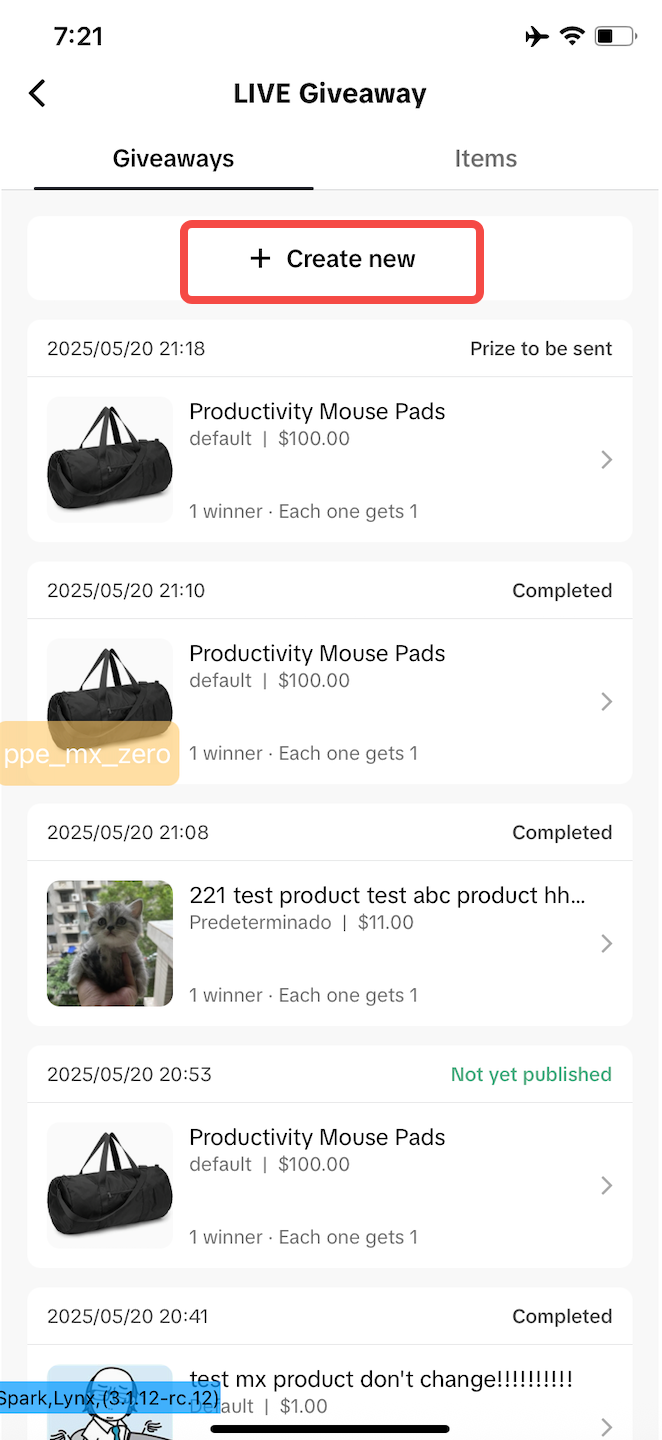 |
Step 3: Customize your giveaway settings to boost engagement during your LIVE:
| 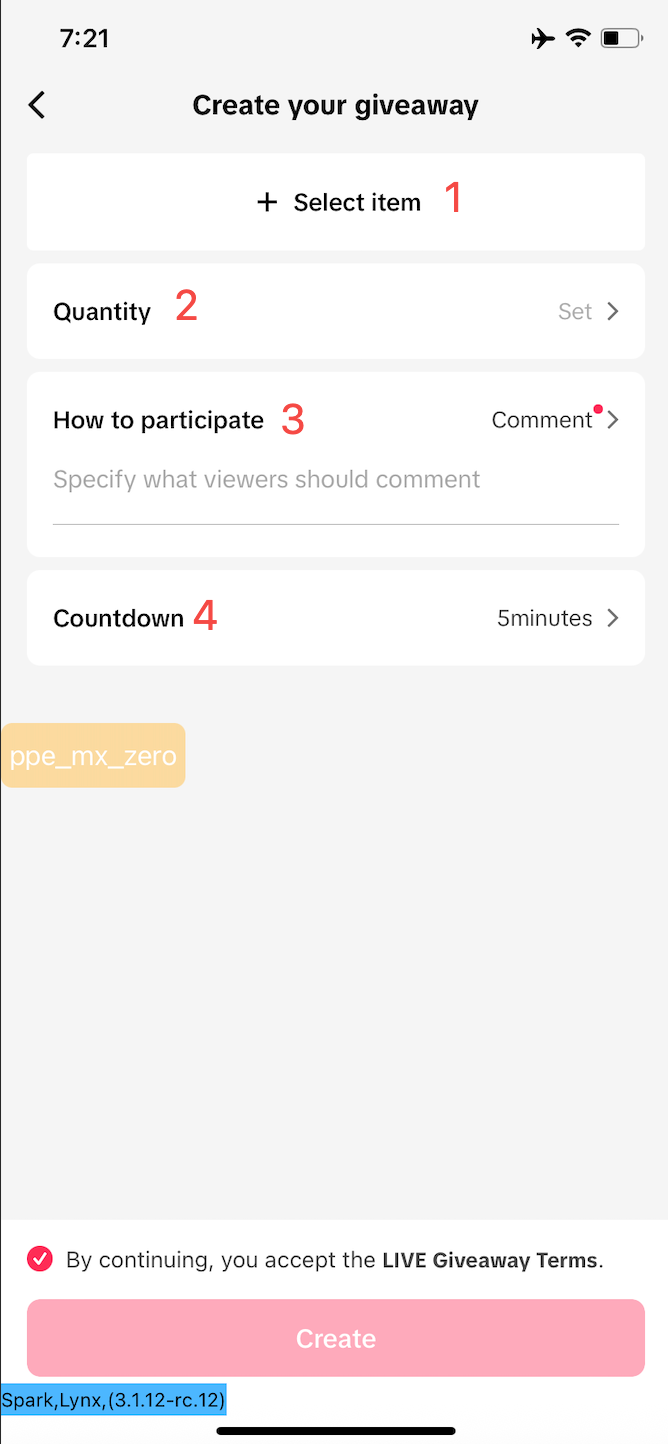 |
| Step 4: Review and confirm the details of your LIVE GIVEAWAY setup. | 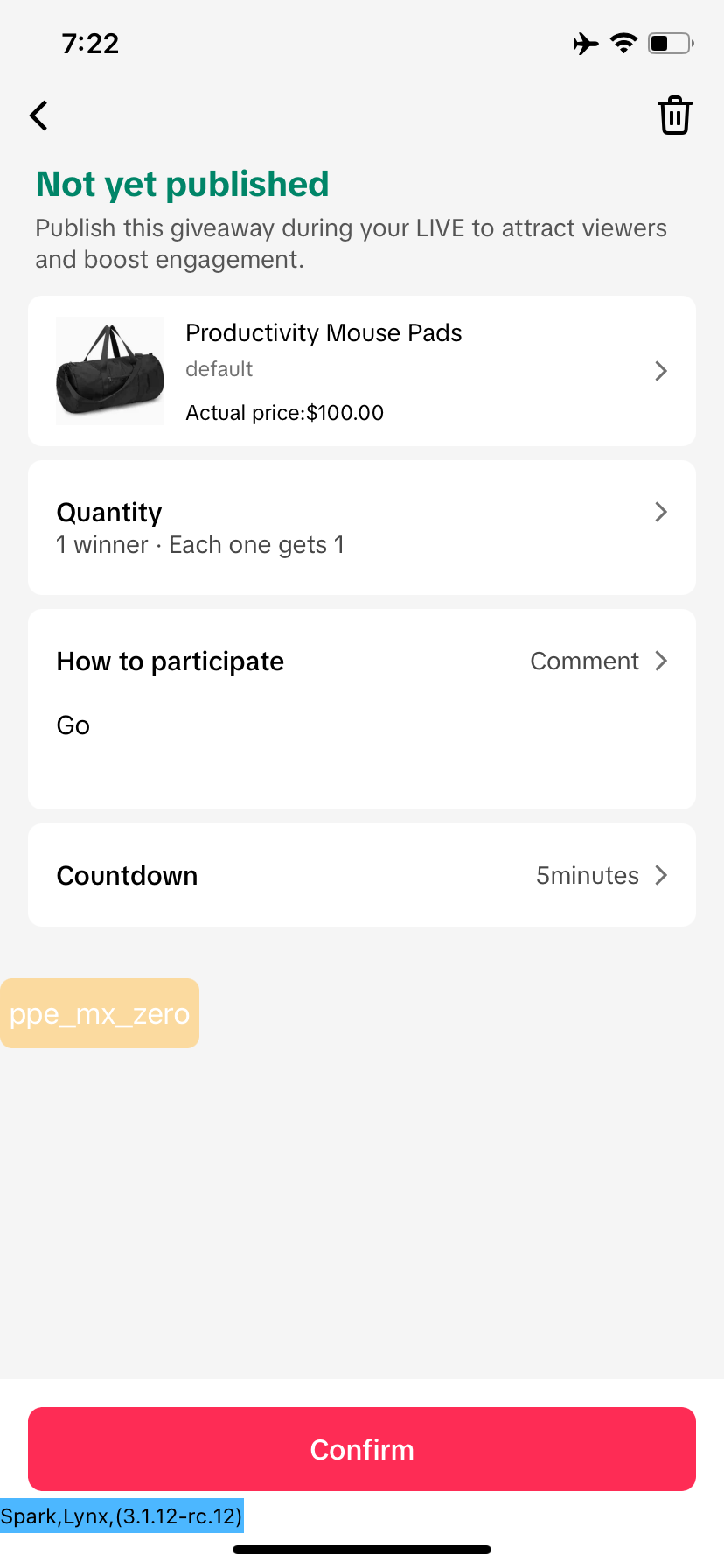 |
| Step 5: Once on LIVE, choose the product that you have created for Giveway and click on Publish. | 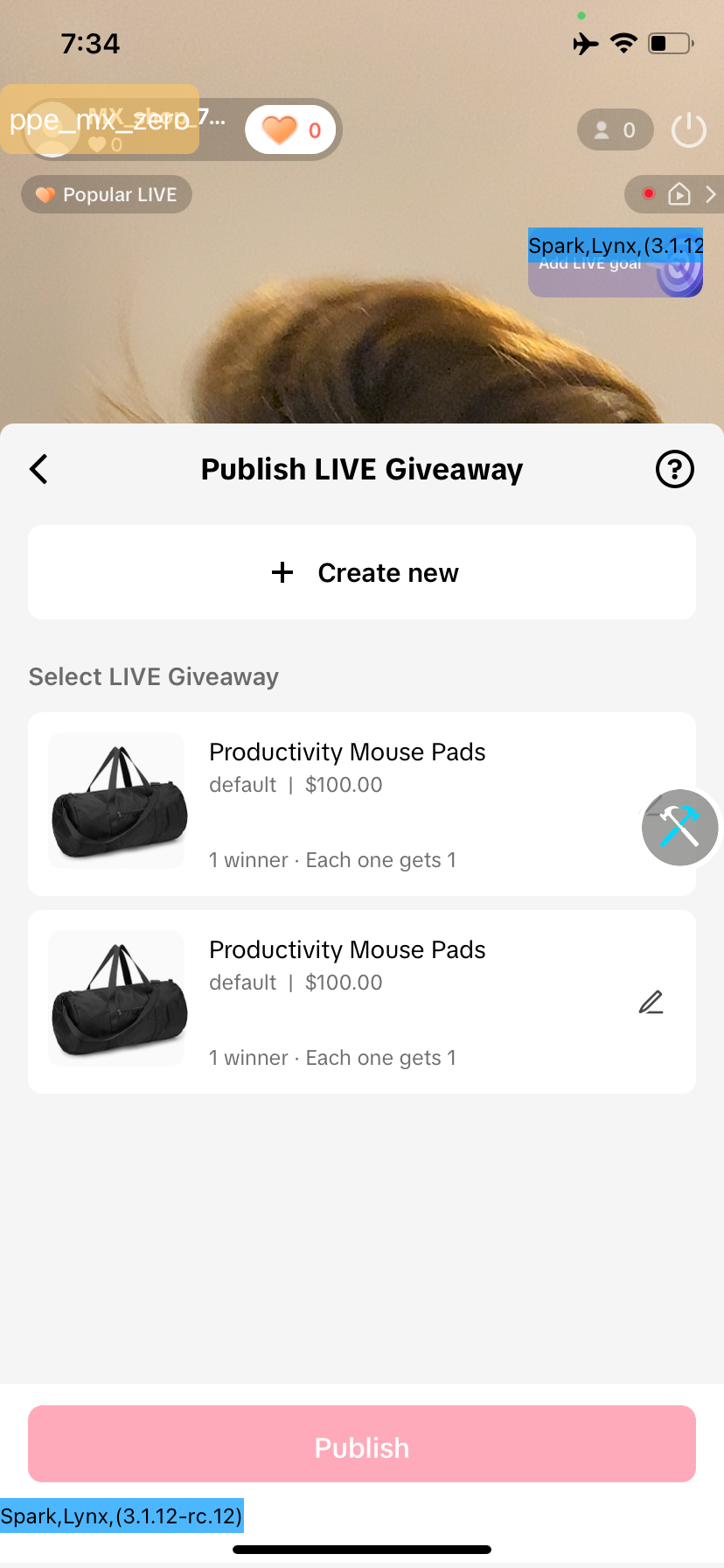 |
On LIVE Manager
You can set up a LIVE Giveaway in LIVE MANAGER using products from your shop through any of the following three options:
| LIVE Tools - LIVE GIVEAWAYFor first time creating a LIVE Giveaway product | LIVE Tools - LIVE GIVEAWAYFor users who already created a giveaway | LIVE Dashboard - Add Products |
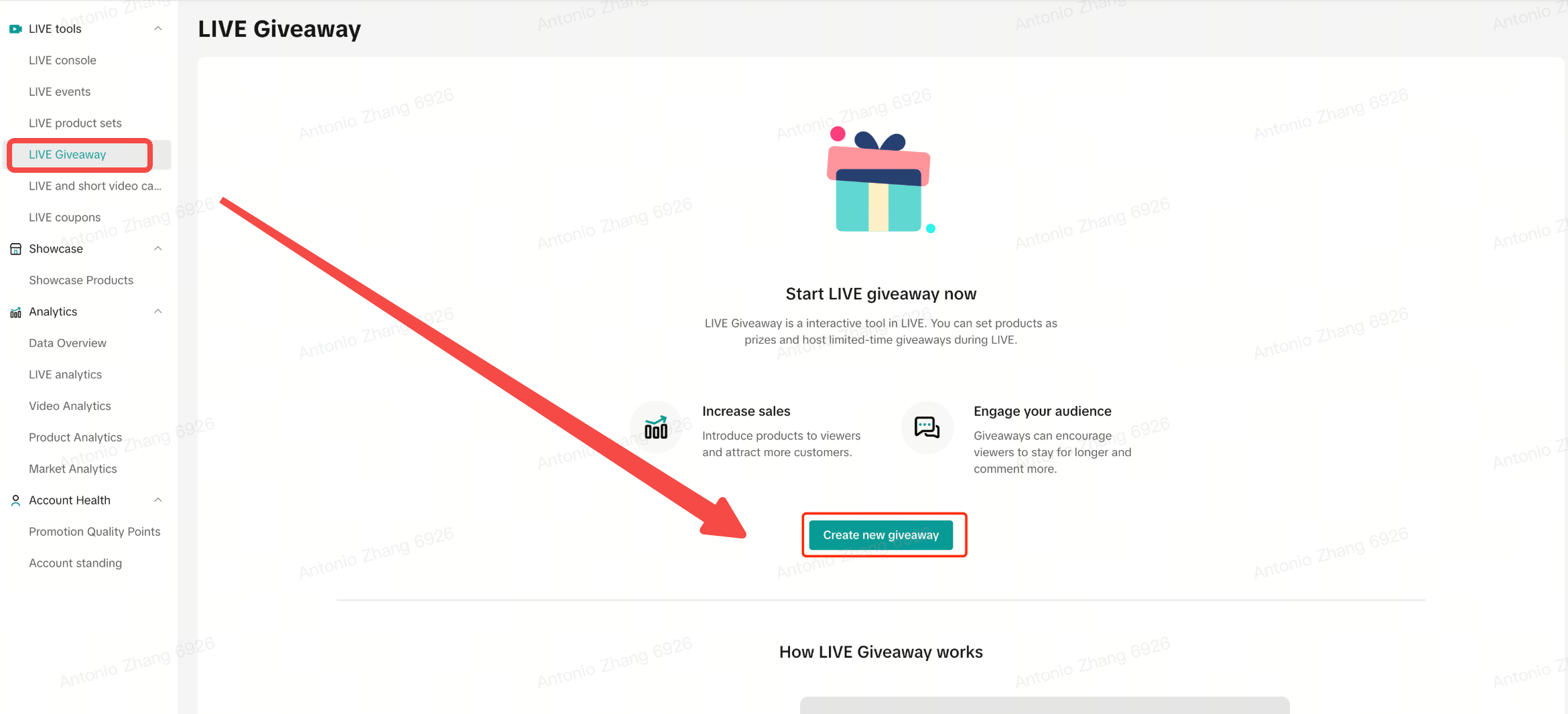 | 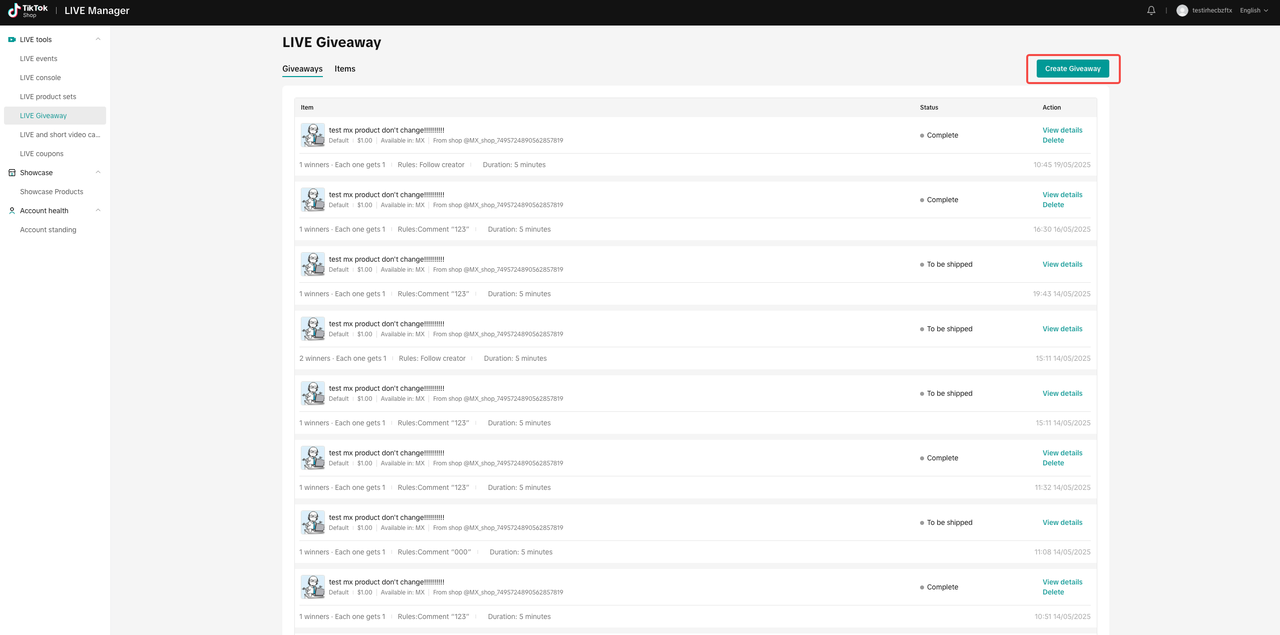 | 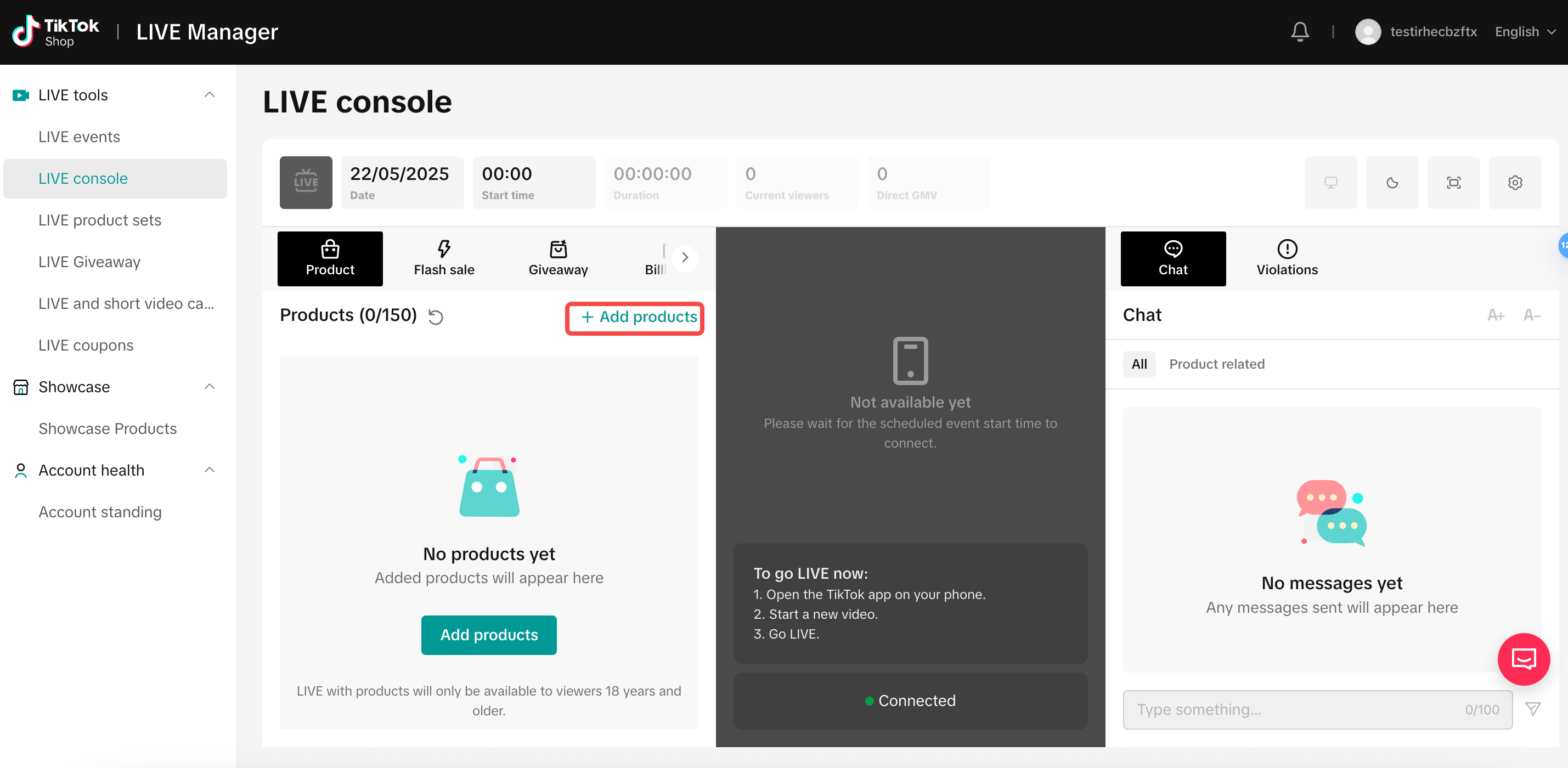 |
| Step 1:Create the Product for LIVE GIVEAWAY | 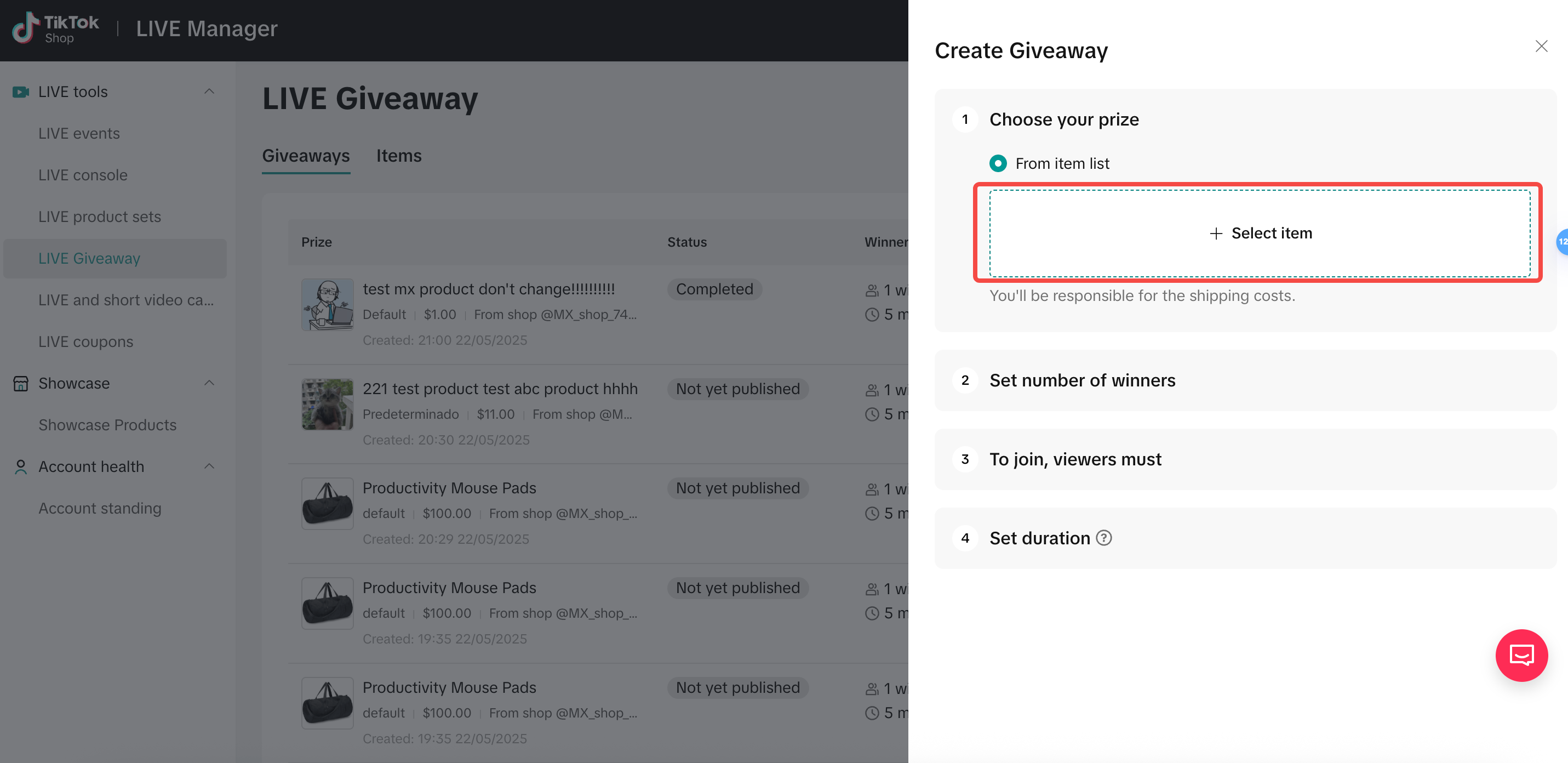 |
| Step 2: Add an Item for the LIVE GIVEAWAY by clicking on ¨Add item¨Or choose from the already created ones. | 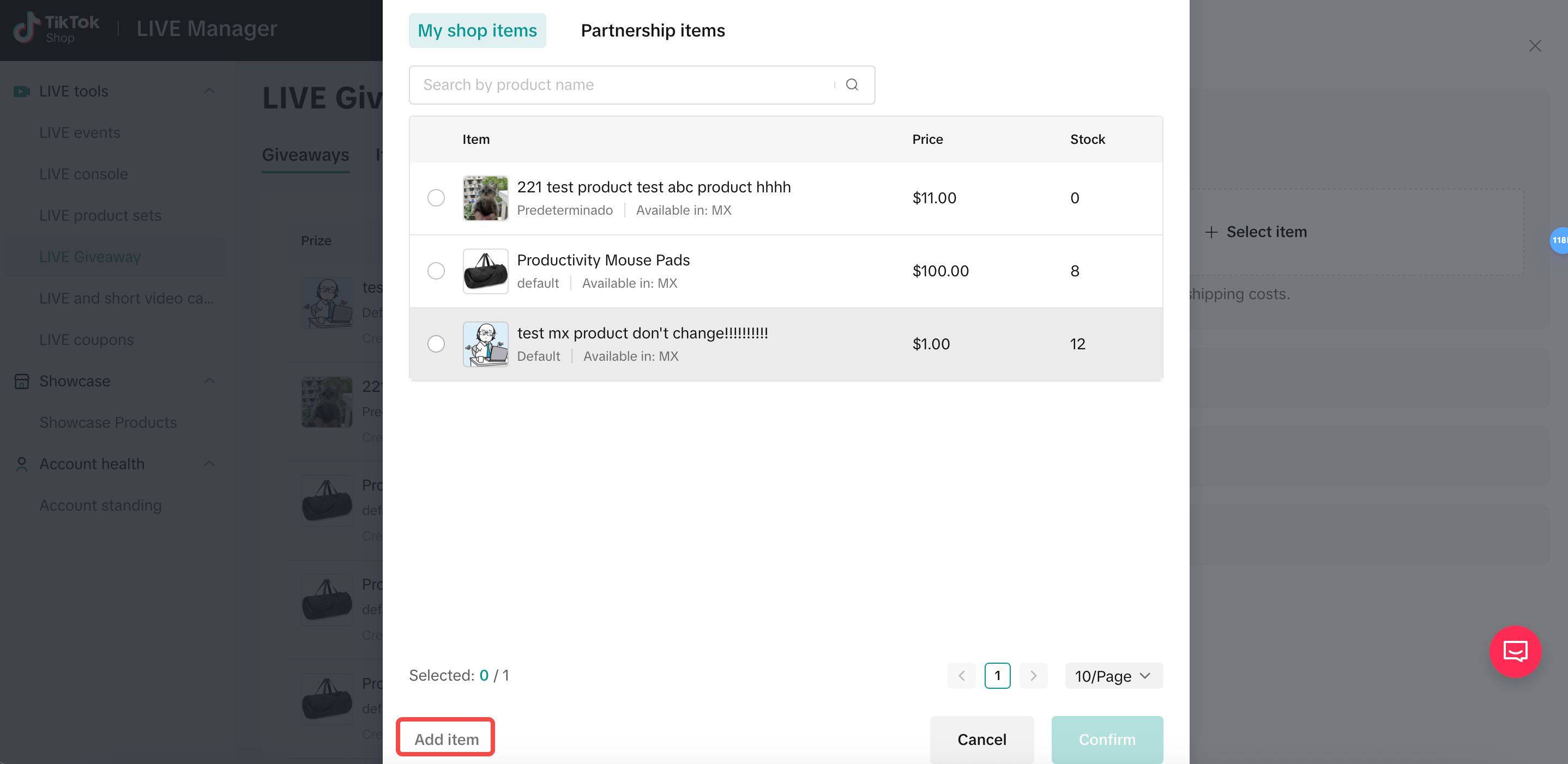 |
| Step 3: Choose the product you want to include in the LIVE GIVEAWAY and click “Add.” | 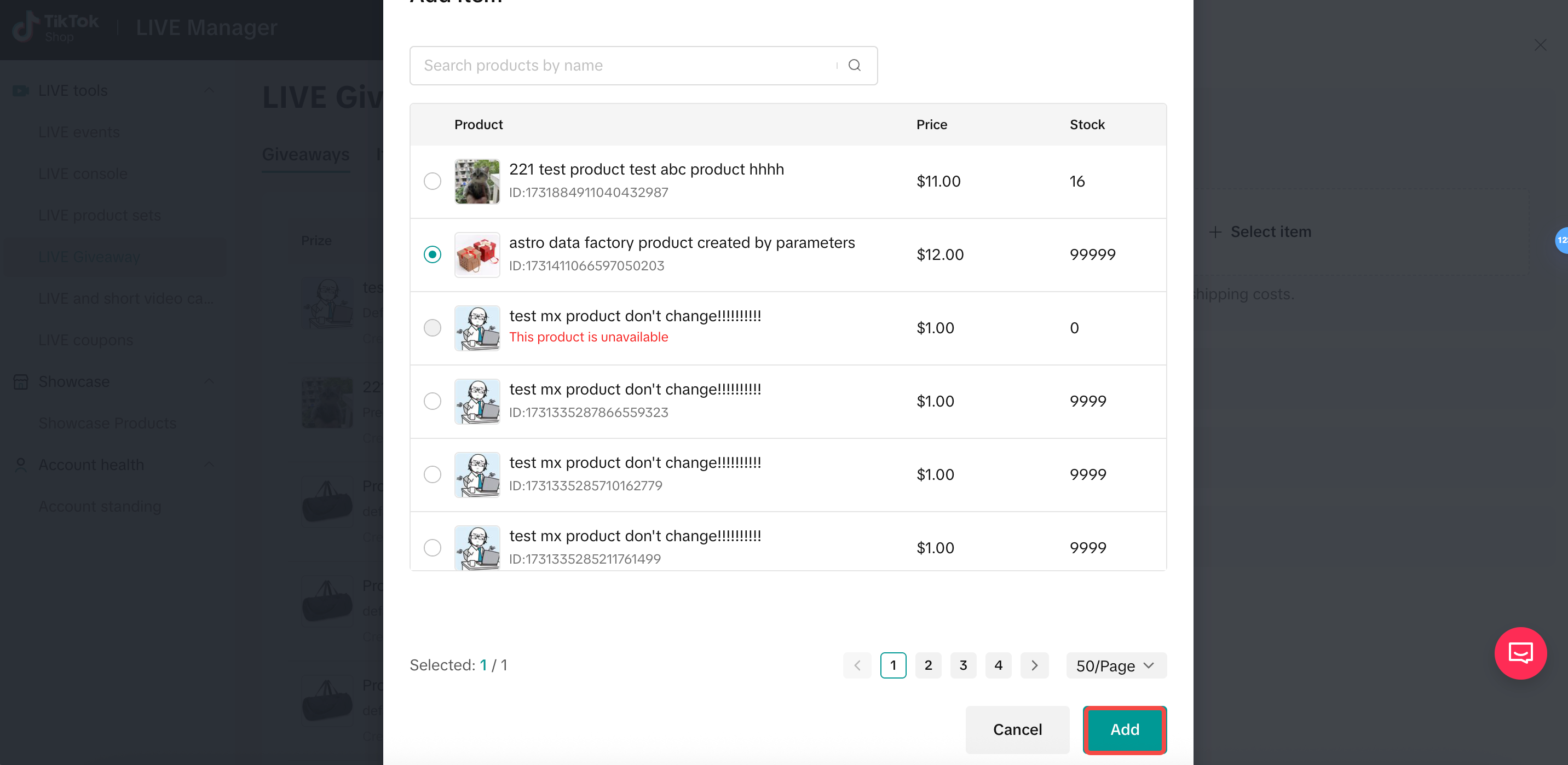 |
| Step 4: Define Giveaway Quantity
|  |
| Step 5: Configure the number of winners, participation rules, and countdown duration for the Giveaway. |  |
| Step 6:While you're on LIVE, navigate to the top menu on the left panel, click on Giveaway, select the product you want to feature, and click Publish to launch it. | 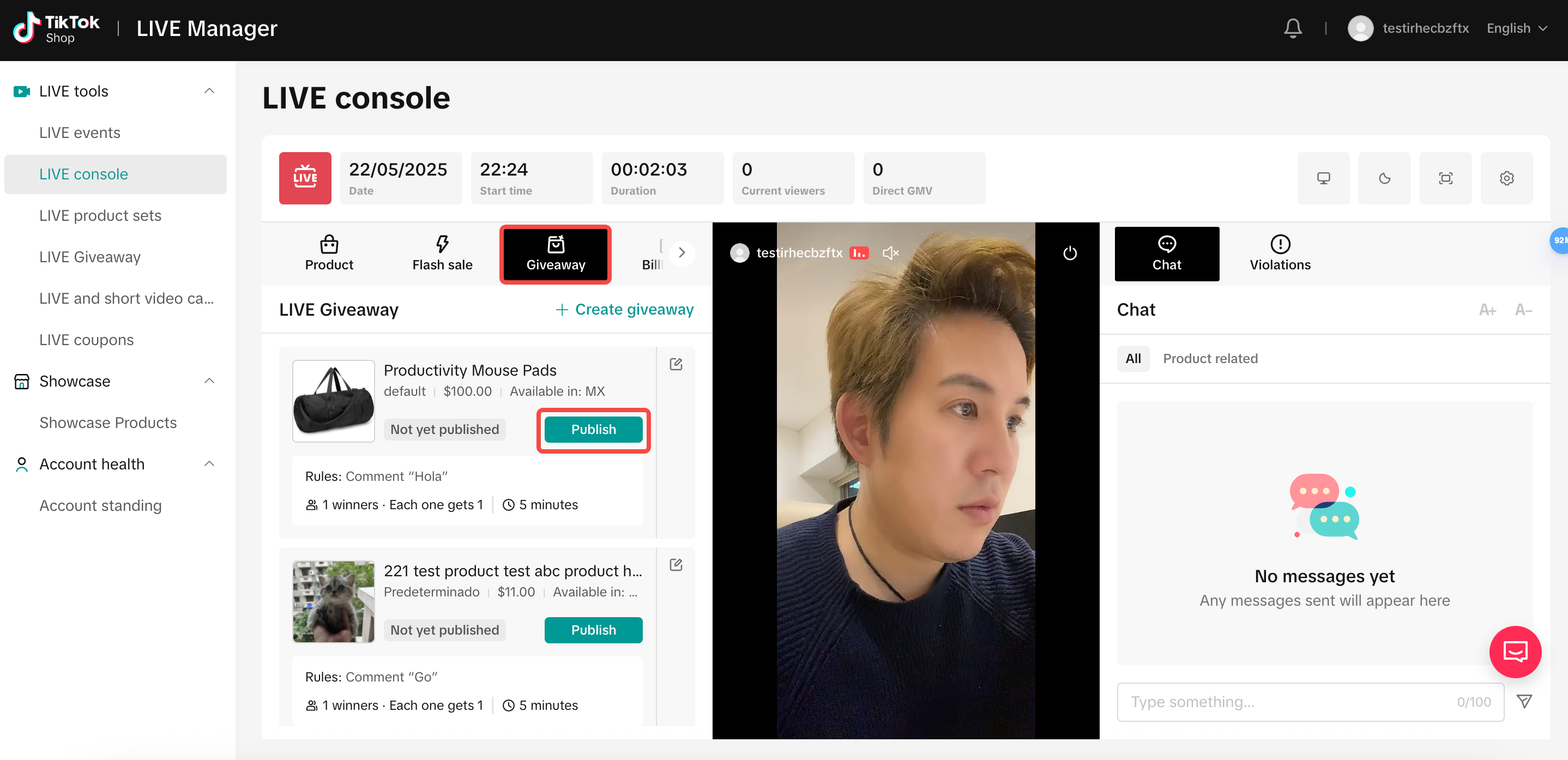 |
How to Ship out Giveaway?
| Step 1:In Live Manager, navigate to the Live Giveaway section from the Live Console menu.Here, you can view all previously conducted giveaways along with their current status.For giveaways marked as “Prize to be Sent,” click on “See Details” to review the fulfillment status and take necessary actions. | Step 2:A window will slide out on the right side displaying the winner’s details and the current status.By clicking “To be shipped,” you’ll be redirected to Seller Center, where you can fulfill the order just like any regular order. |
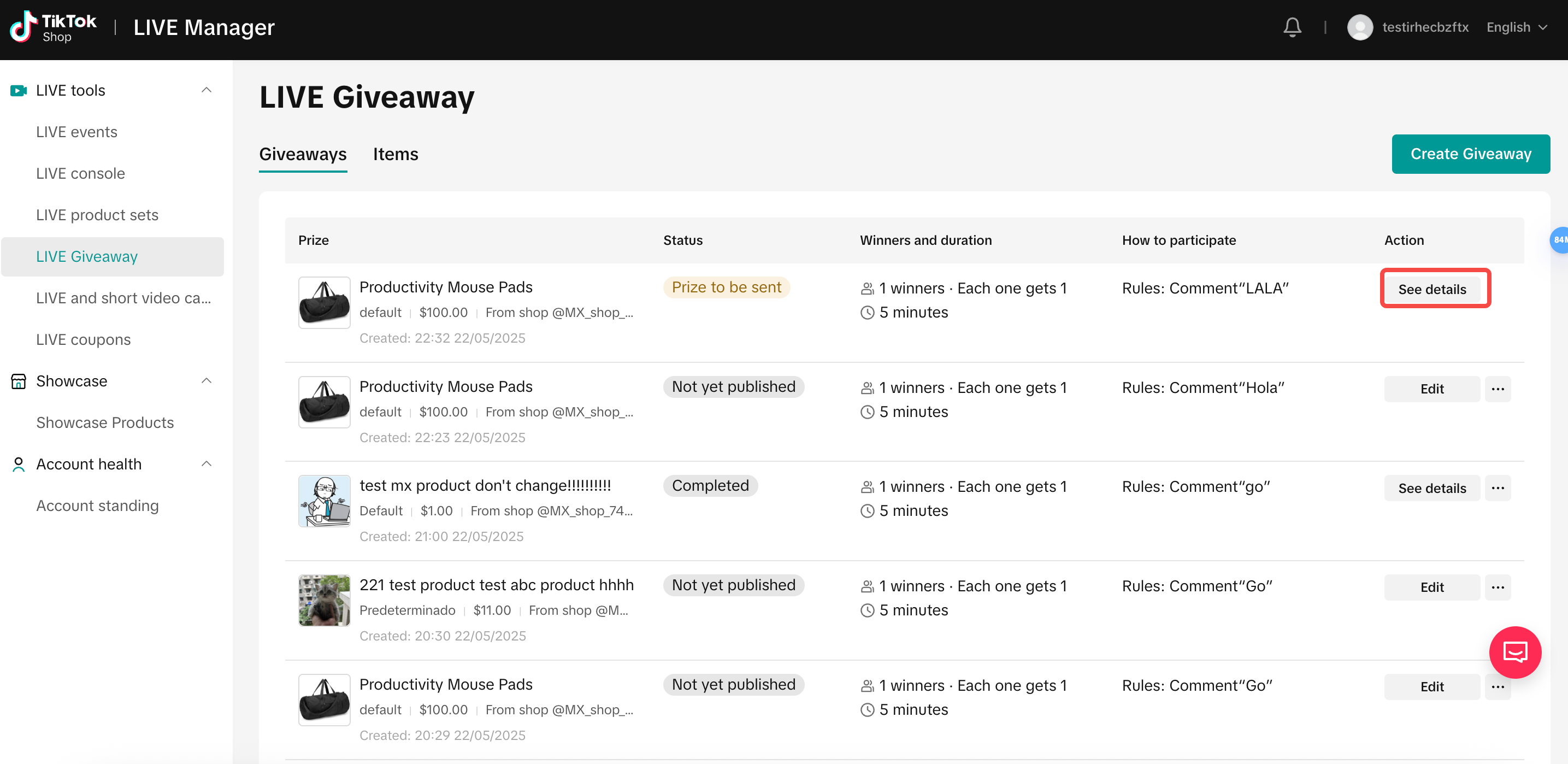 |  |
For User: What to do after winning the GiveAway?
Each winner must go to the Order Center and provide the shipping address as follows:| Step 1:Tap on ¨Your Orders¨ on your Profile page | Step 2:Tap on ¨Giveaway Items¨ from the Top Menu | Step 3:Tap on ¨Confirm Address¨ of the product won. | Step 4:You can either add a new address or select one from your address book in the Order Center. Once you've entered the correct information, tap Save to complete the process. |
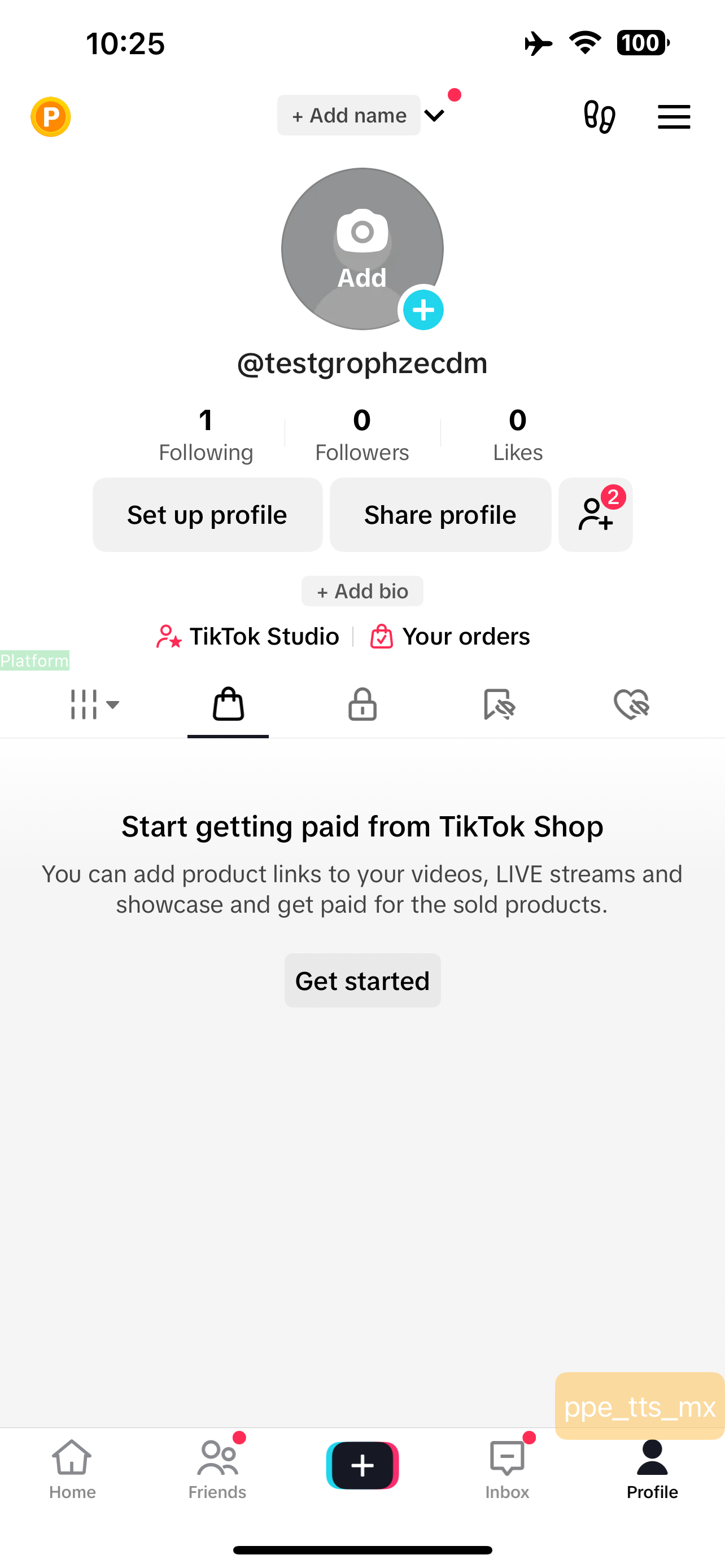 |  | 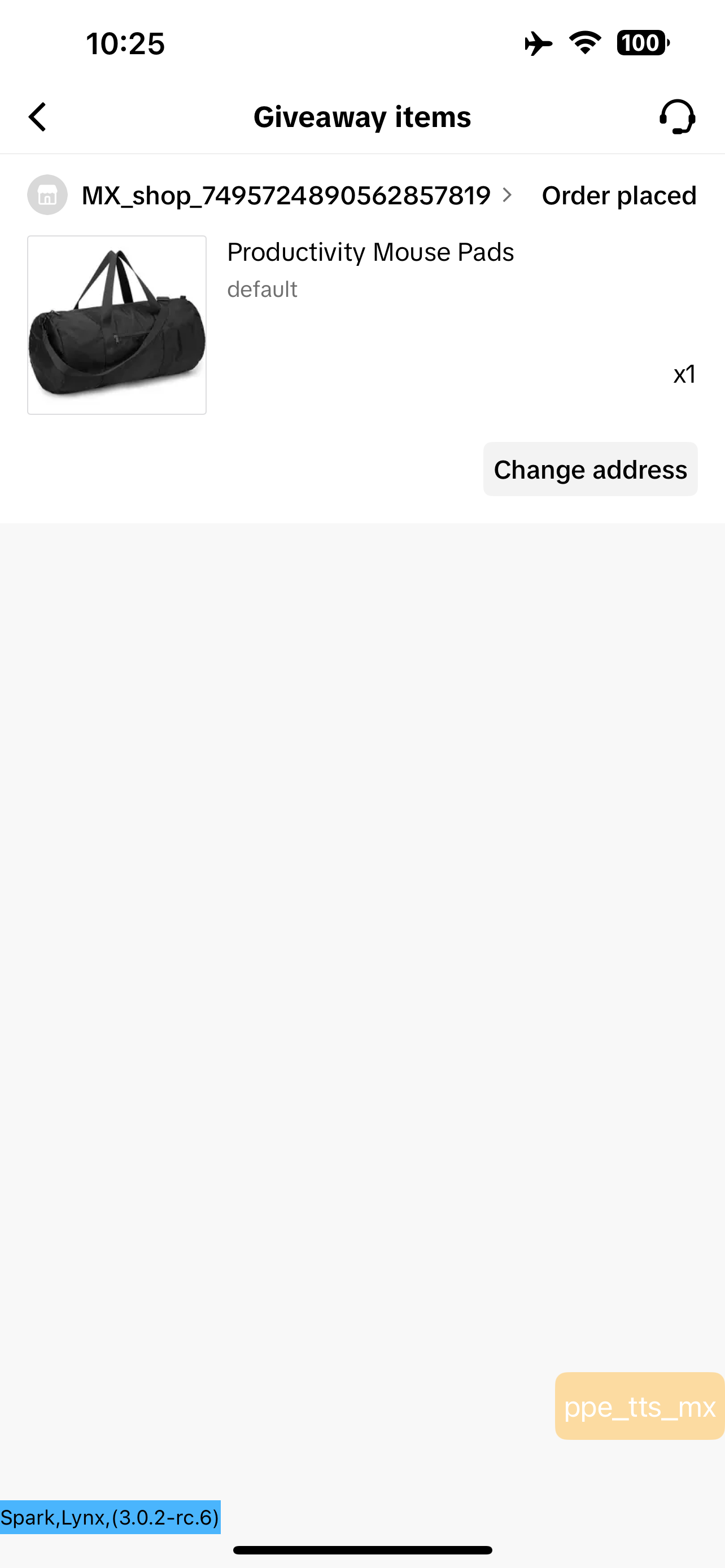 | 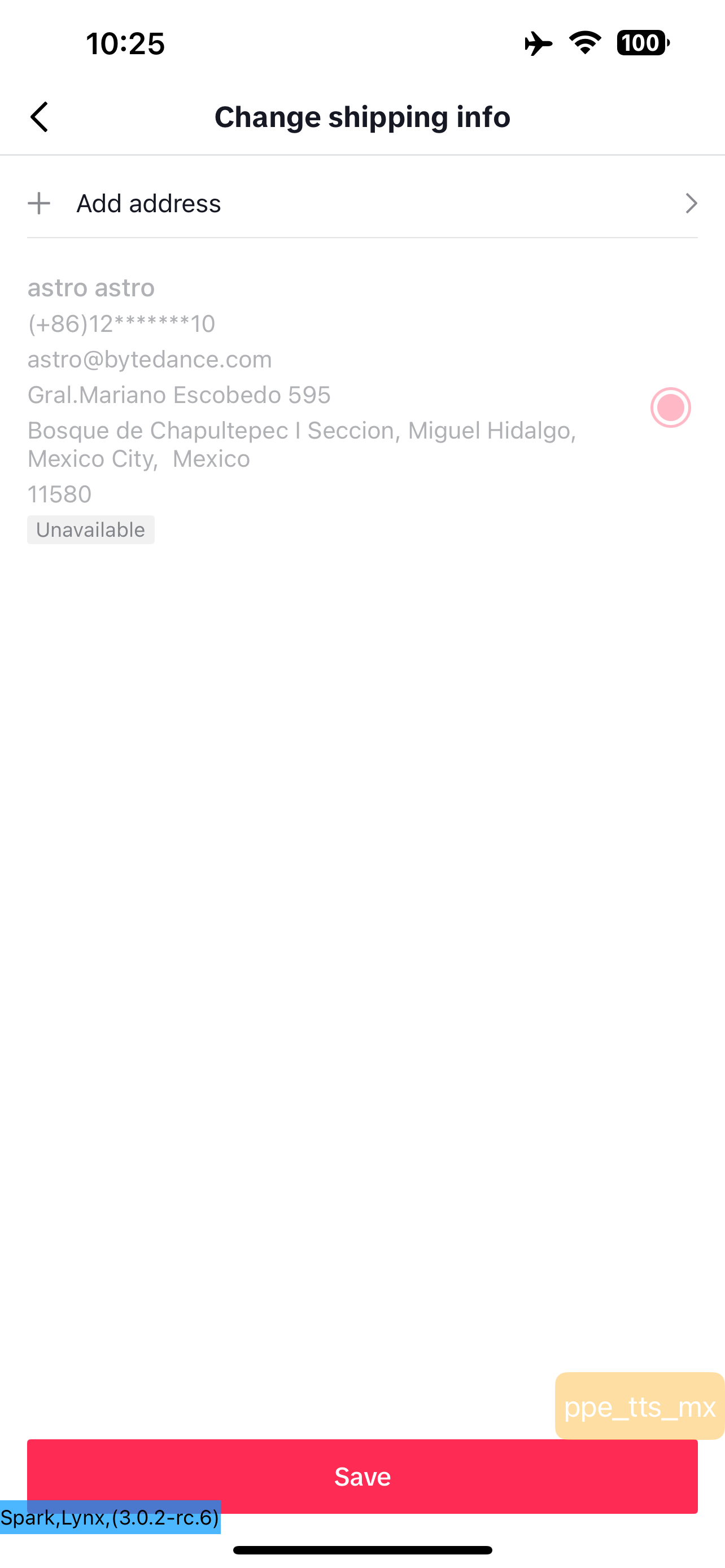 |
How to use creator Live Customized Giveaway // Virtual Product as Gift?
TikTok App Setup
| Step 1:In the LIVE Shop, tap on LIVE Giveaway, then select your own choice to set up your own reward. | 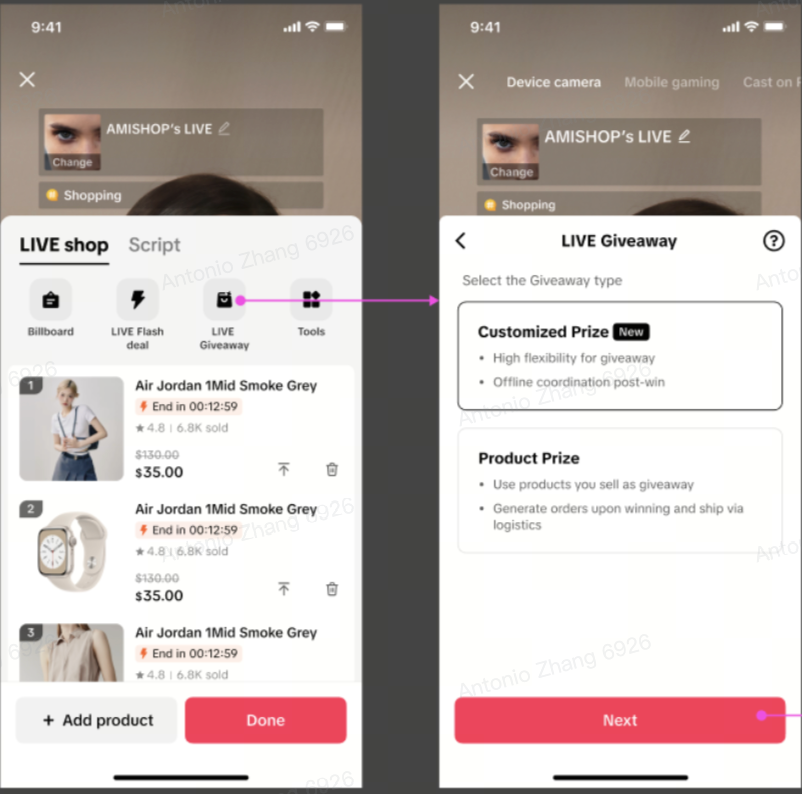 |
| Step 2: Give your giveaway a name, and set the number of winners for the giveaway event. | 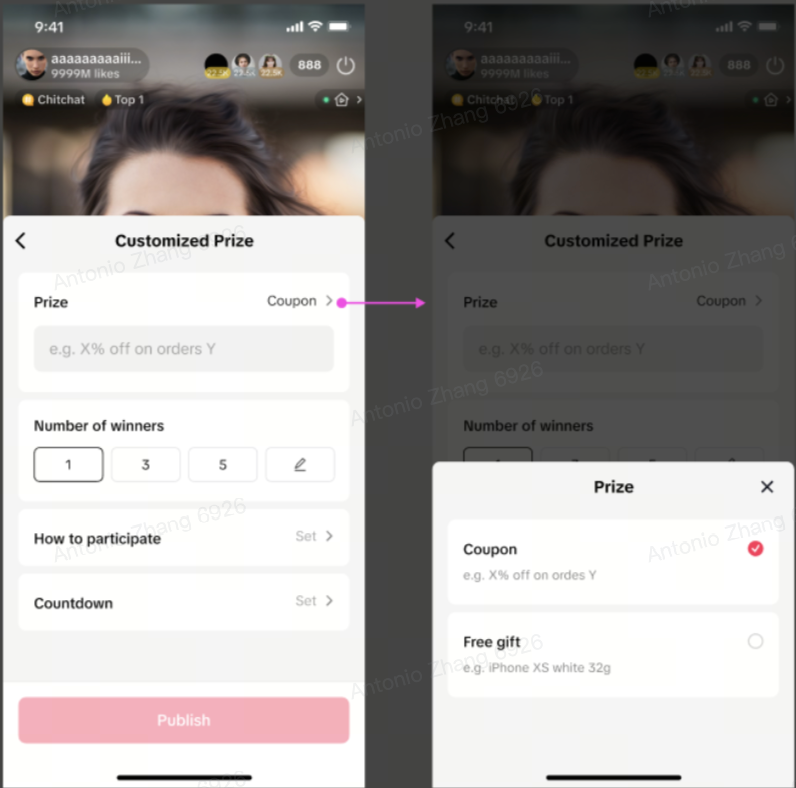 |
| Step 3:Set up the participation method for the giveaway, and define the countdown duration before the giveaway ends. The participation method can be:
| 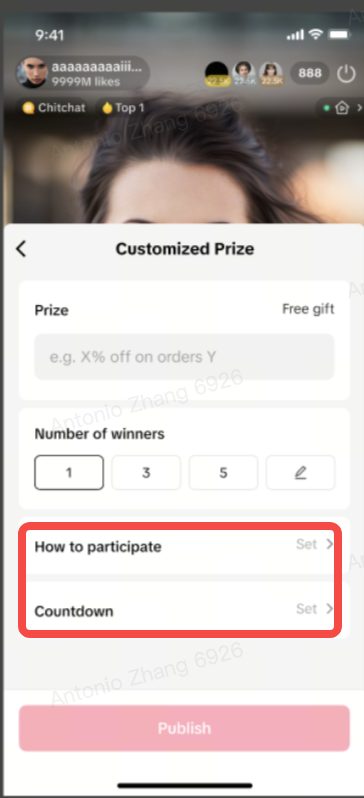 |
Live Manager Setup
| Step 1: Go to the Live Giveaway top tab and click on Create Giveaway to start setting up your event. |  |
| Step 2:Select your own choice giveaway type and give your giveaway a unique name to attract viewers. | 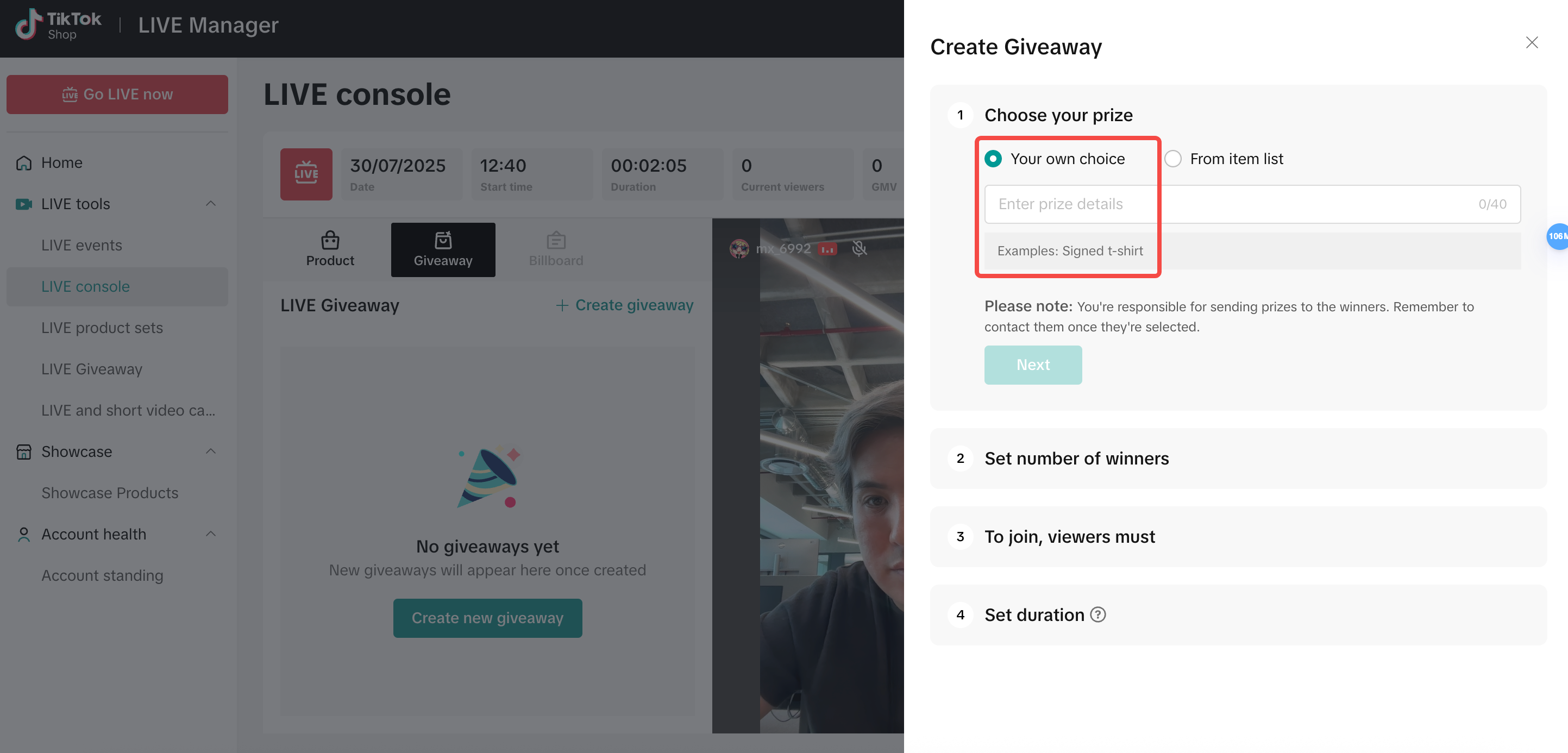 |
| Step 3:Configure the number of winners, choose the participation method (e.g., watch, comment, like), and set the giveaway duration with a countdown timer. | 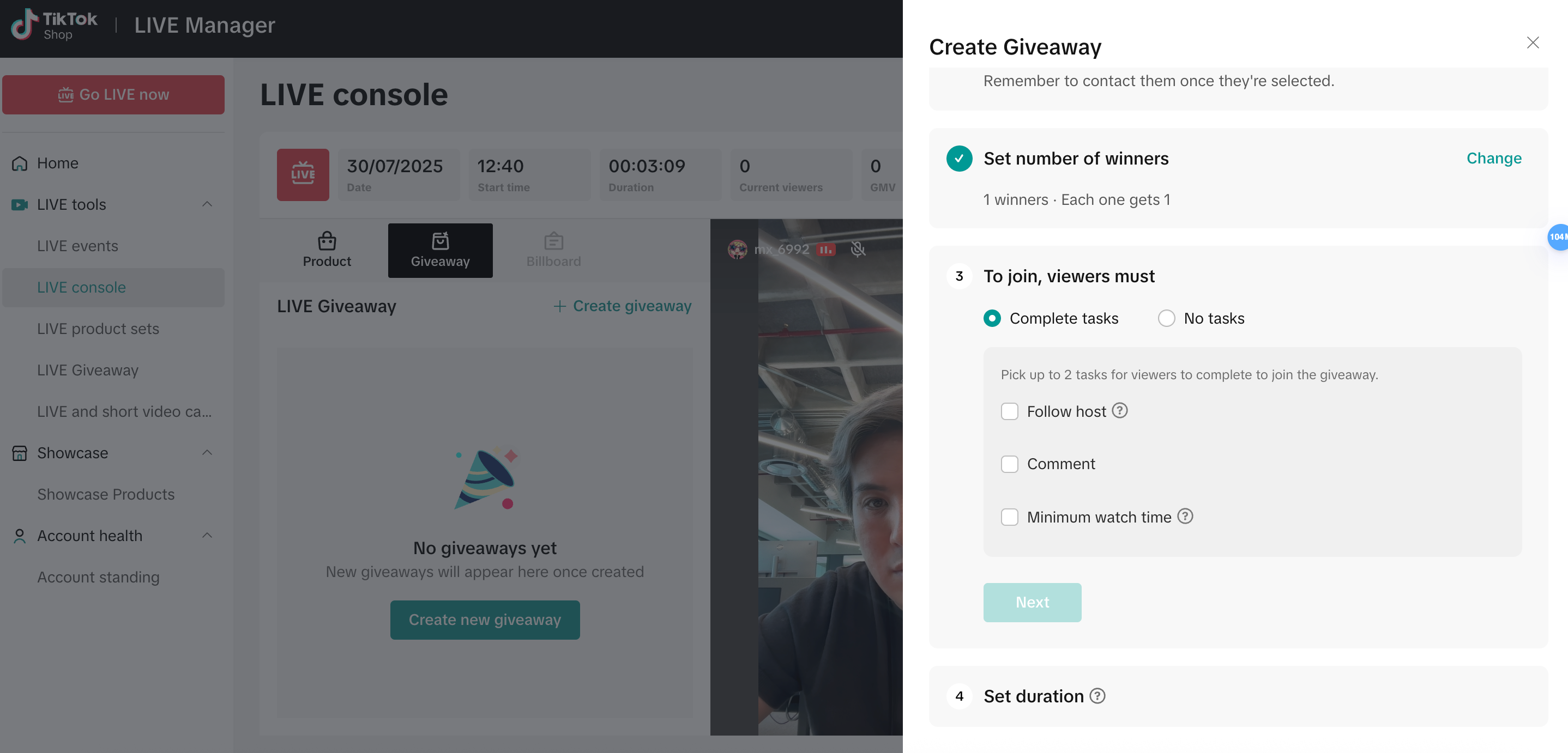 |
Viewers Perspective
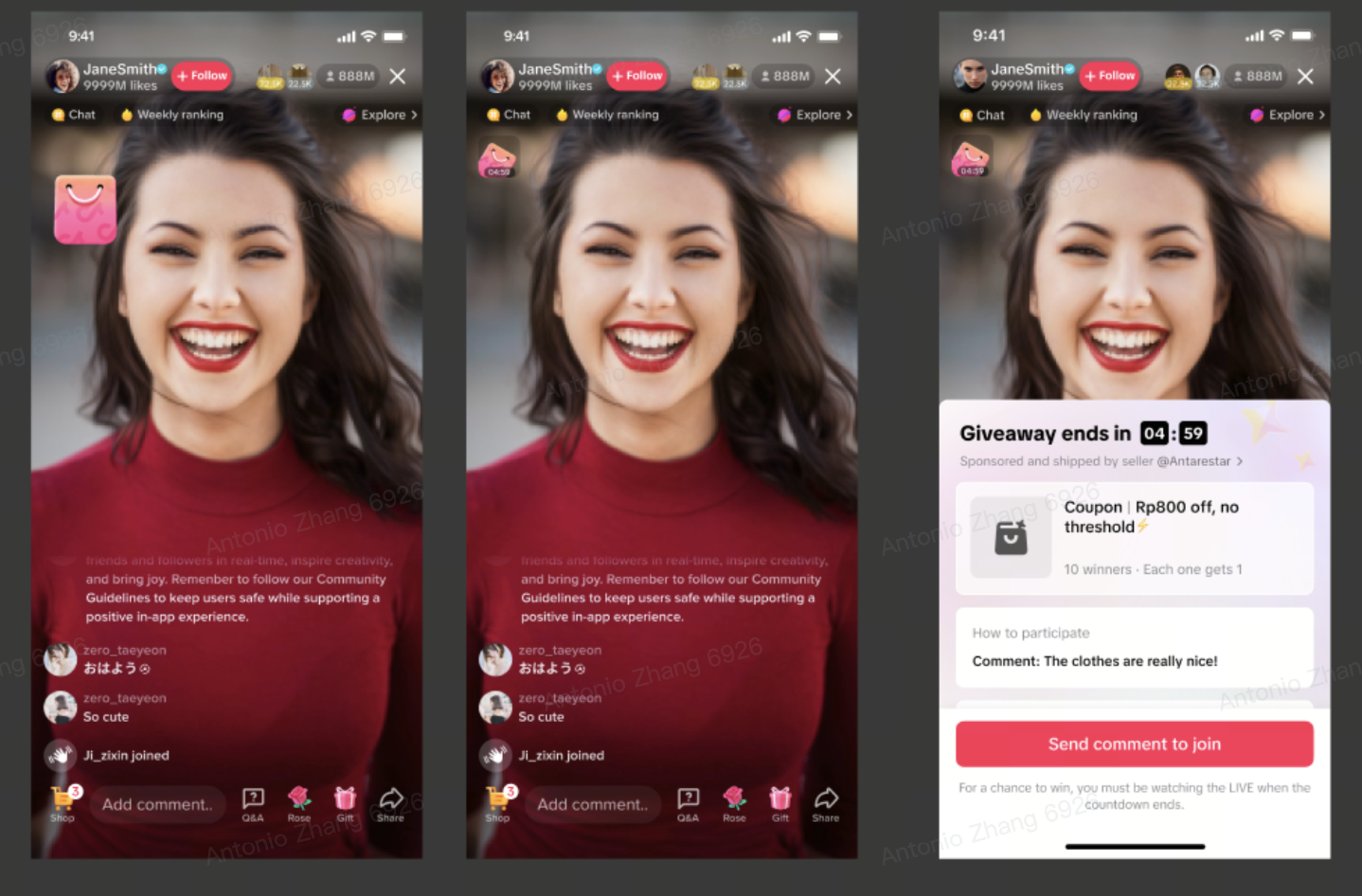
During the eventDuring the GiveawayAfter the Giveway is finishedAfter the event
FAQ
- Is there a limit to the amount of products a seller can assign to Creator LIVE Giveaway?
- No, however, the number of products assigned can not exceed the available stock in the shop
- Are Sellers only allowed a maximum number of Creators they can collaborate with?
- There is no limitation to the amount of collaborations both Sellers and Creators can have for Creator LIVE Giveaway